When you collect logs with Filebeat across multiple servers, you need a centralized destination that accepts high-throughput writes over the public Internet with built-in authentication. ApsaraMQ for Kafka provides an SSL endpoint (port 9093) that Filebeat can connect to directly, so you can stream logs into Kafka topics without managing your own brokers or VPN tunnels.
This guide walks you through retrieving your instance credentials, creating a topic, configuring Filebeat with SSL/SASL authentication, and verifying message delivery.
Prerequisites
Before you begin, make sure that you have:
An ApsaraMQ for Kafka instance (non-serverless) with Internet access enabled. See Purchase and deploy an Internet- and VPC-connected instance
Filebeat installed on the server that ships logs
JDK 8 installed
Step 1: Get the endpoint, username, and password
Filebeat connects to ApsaraMQ for Kafka through an SSL endpoint (port 9093) over the public Internet.
Log on to the ApsaraMQ for Kafka console.
In the Resource Distribution section of the Overview page, select the region of your instance.
On the Instances page, click the instance name.
On the Instance Details page, find the following values:
Endpoint Information section: Copy the SSL endpoint. The endpoint consists of multiple broker addresses in the format
alikafka-pre-cn-zv**********-{N}.alikafka.aliyuncs.com:9093.Configuration Information section: Note the Username and Password.
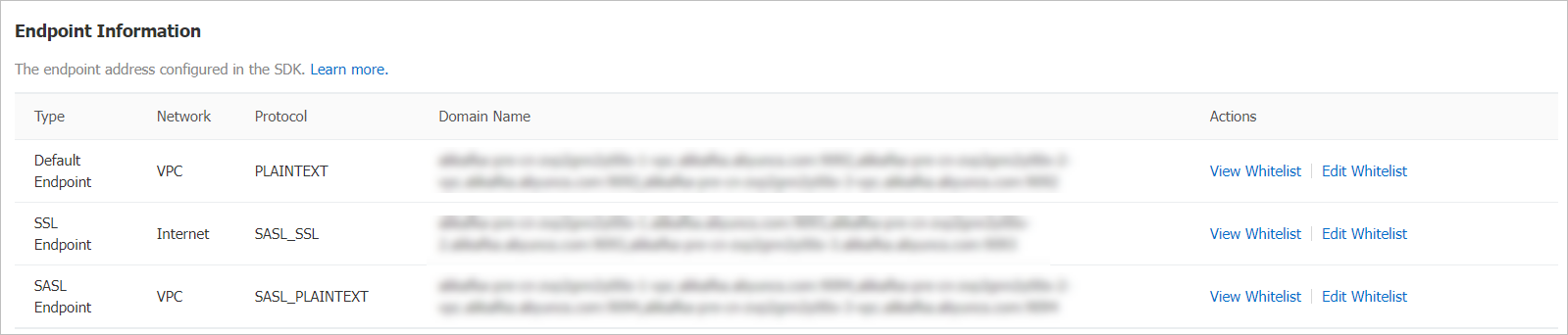
For details about the differences between endpoint types, see Comparison among endpoints.
Step 2: Create a topic
Create a topic to receive Filebeat messages.
Create the topic in the same region as the Elastic Compute Service (ECS) instance where your producers and consumers run. Topics cannot be used across regions.
Log on to the ApsaraMQ for Kafka console.
In the Resource Distribution section of the Overview page, select the region of your instance.
On the Instances page, click the instance name.
In the left-side navigation pane, click Topics.
On the Topics page, click Create Topic.
In the Create Topic panel, configure the following parameters and click OK.
| Parameter | Description | Example |
|---|---|---|
| Name | The topic name. | demo |
| Description | A brief description of the topic. | demo test |
| Partitions | The number of partitions. | 12 |
| Storage Engine | The storage engine type. Available only for non-serverless Professional Edition instances. Other instance types default to Cloud Storage. Options: Cloud Storage -- Uses Alibaba Cloud disks with three-replica distributed storage. Provides low latency, high performance, long durability, and high reliability. Required for Standard (High Write) edition instances. Local Storage -- Uses the in-sync replicas (ISR) algorithm of open-source Apache Kafka with three-replica distributed storage. | Cloud Storage |
| Message Type | The message ordering guarantee. Normal Message -- Messages with the same key are stored in the same partition in send order. Partition ordering may not be preserved during a broker failure. Auto-selected when Storage Engine is set to Cloud Storage. Partitionally Ordered Message -- Messages with the same key are stored in the same partition in send order. Ordering is preserved even during a broker failure, but affected partitions become temporarily unavailable. Auto-selected when Storage Engine is set to Local Storage. | Normal Message |
| Log Cleanup Policy | The log retention policy. Available only when Storage Engine is set to Local Storage (Professional Edition only). Delete -- Default. Retains messages up to the maximum retention period. Deletes the oldest messages when storage usage exceeds 85%. Compact -- The log compaction policy from Apache Kafka. Retains only the latest value for each message key. Suitable for scenarios such as restoring a failed system or reloading the cache after a system restarts. For example, when you use Kafka Connect or Confluent Schema Registry, you must store system status and configuration information in a log-compacted topic. Important You can use log-compacted topics only in specific cloud-native components, such as Kafka Connect and Confluent Schema Registry. For more information, see aliware-kafka-demos. | Compact |
| Tag | Optional tags for the topic. | demo |
After creation, the topic appears on the Topics page.
Step 3: Configure and run Filebeat
Configure Filebeat to send log data to the topic you created over an authenticated SSL connection.
Download the CA certificate
Download the certificate authority (CA) certificate for SSL on the server where Filebeat is installed:
cd <filebeat-install-dir>
wget https://help-static-aliyun-doc.aliyuncs.com/file-manage-files/zh-CN/20220826/ytsw/only-4096-ca-cert
Replace <filebeat-install-dir> with your Filebeat installation directory.
Create the Filebeat configuration file
Create a file named output.yml in the Filebeat installation directory with the following content:
filebeat.inputs:
  - type: log
    paths:
      - /var/log/messages    # Path to the log file to monitor

output.kafka:
  hosts:
    - "alikafka-pre-cn-zv**********-1.alikafka.aliyuncs.com:9093"
    - "alikafka-pre-cn-zv**********-2.alikafka.aliyuncs.com:9093"
    - "alikafka-pre-cn-zv**********-3.alikafka.aliyuncs.com:9093"

  username: "<your-username>"        # Instance username from Configuration Information
  password: "<your-password>"        # Instance password from Configuration Information

  topic: "filebeat_test"
  partition.round_robin:
    reachable_only: false

  ssl.certificate_authorities:
    - "<filebeat-install-dir>/only-4096-ca-cert"
  ssl.verification_mode: none

  required_acks: 1
  compression: none
  max_message_bytes: 1000000
Replace the following placeholders with your actual values:
| Placeholder | Description | Example |
|---|---|---|
<your-username> | The username from the Configuration Information section of your instance. | alikafka_pre-cn-v641e1d*** |
<your-password> | The password from the Configuration Information section of your instance. | aeN3WLRoMPRXmAP2jvJuGk84Kuuo*** |
<filebeat-install-dir> | The absolute path to the Filebeat installation directory. | /home/admin/filebeat/filebeat-7.7.0-linux-x86_64 |
Parameter reference
| Parameter | Description | Default |
|---|---|---|
hosts | The SSL endpoint addresses of your ApsaraMQ for Kafka instance. Use the public endpoint (port 9093). | -- |
username | The instance username for SASL authentication. When username and password are set, Filebeat uses PLAIN as the SASL mechanism. | -- |
password | The instance password for SASL authentication. | -- |
topic | The Kafka topic to send messages to. | -- |
partition.round_robin.reachable_only | Whether to send messages only to reachable partitions. false: Output is not blocked if a partition leader is unavailable. true: Output may be blocked if a partition leader is unavailable. | false |
ssl.certificate_authorities | The absolute path to the downloaded CA certificate file. | -- |
ssl.verification_mode | The SSL certificate verification mode. Set to none to skip hostname verification. | full |
required_acks | The ACK reliability level. 0: No acknowledgment. 1: Wait for the partition leader to confirm. -1: Wait for all in-sync replicas to confirm. | 1 |
compression | The compression codec. Valid values: none, snappy (C++ compression and decompression library), lz4 (lossless data compression algorithm for fast compression and decompression), gzip (GNU file compression program). | gzip |
max_message_bytes | The maximum message size in bytes. Must be smaller than the maximum message size configured for your ApsaraMQ for Kafka instance. | 1000000 |
For the full list of Kafka output parameters, see the Filebeat Kafka output plugin documentation.
Send a test message
Run Filebeat with the configuration file:
./filebeat -c ./output.ymlWith type: log configured, Filebeat starts shipping entries from /var/log/messages immediately. To quickly test the pipeline without waiting for new log entries, change the input type to stdin, run the command above, type test, and press Enter:
# Quick test configuration -- replace the filebeat.inputs section
filebeat.inputs:
  - type: stdin
Step 4: Verify message delivery
After Filebeat starts, check the topic in the ApsaraMQ for Kafka console to confirm messages are arriving.
Check partition status
Log on to the ApsaraMQ for Kafka console.
In the Resource Distribution section of the Overview page, select your region.
On the Instances page, click the instance name.
In the left-side navigation pane, click Topics.
On the Topics page, click the topic name, then click the Partition Status tab.
The partition status table shows the following information:
| Parameter | Description |
|---|---|
| Partition ID | The partition ID. |
| Minimum Offset | The earliest message offset in the partition. |
| Maximum Offset | The latest message offset in the partition. |
| Messages | The total number of messages in the partition. |
| Last Updated At | When the most recent message was stored. |
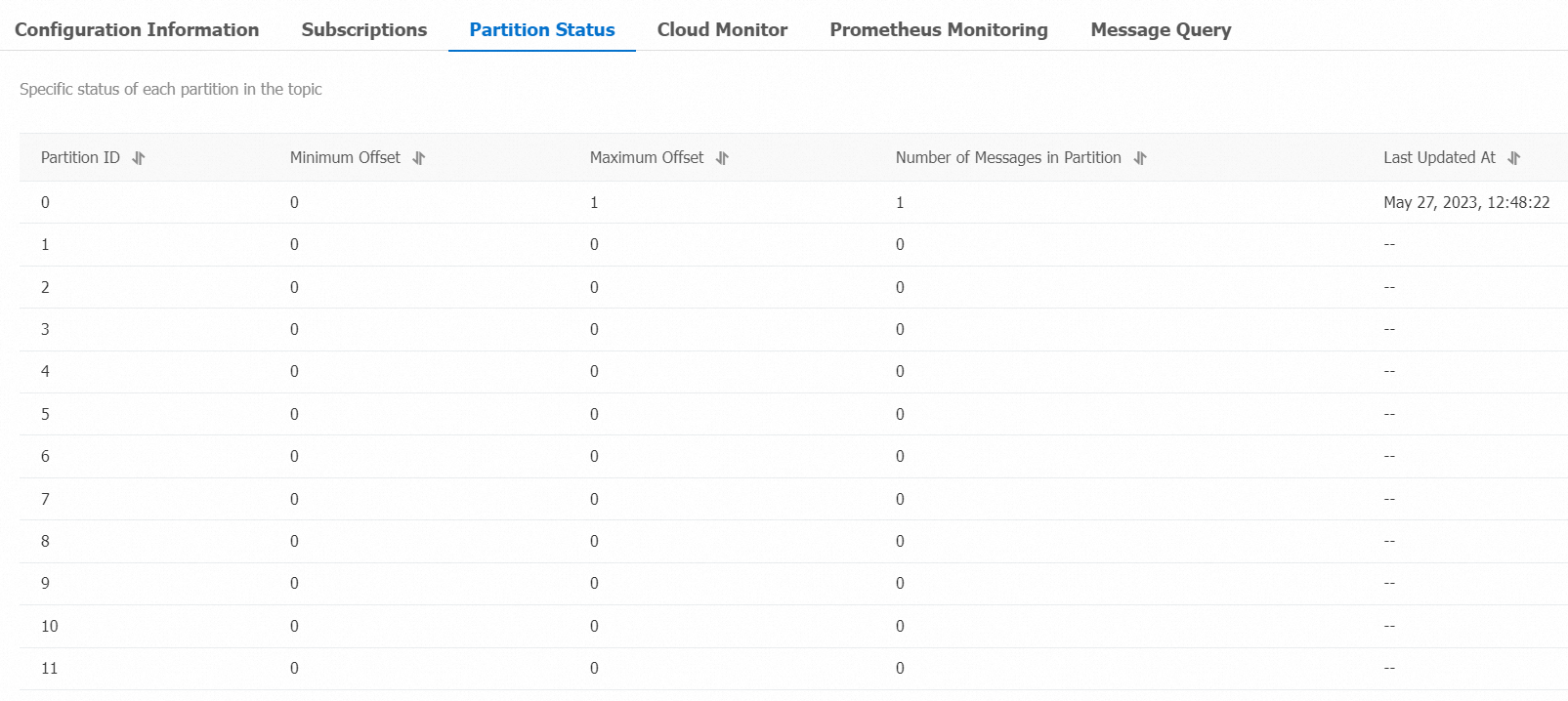
If Messages is greater than zero and Last Updated At shows a recent timestamp, Filebeat is delivering messages successfully.
Query a message by offset
In the left-side navigation pane, click Message Query.
Set Search Method to Search by offset.
Select the Topic and Partition, enter an Offset value, and click Search. The console returns messages with offsets greater than or equal to the specified value in the selected partition.
The query results include:
| Parameter | Description |
|---|---|
| Partition | The partition from which the message was retrieved. |
| Offset | The message offset. |
| Key | The message key, displayed as a string. |
| Value | The message content, displayed as a string. |
| Created At | The timestamp when the message was produced. Uses the client-recorded timestamp or the ProducerRecord timestamp field value. A 1970/x/x timestamp means the field was set to 0 or an invalid value. Clients on ApsaraMQ for Kafka 0.9 or earlier cannot set this field. |
| Actions | Download Key and Download Value let you download the full message key or content. |
The console displays up to 1 KB of content per message. Larger messages are truncated in the display. Download the message to view the full content. Each download is limited to 10 MB.
Troubleshooting
| Issue | Cause | Solution |
|---|---|---|
| Authentication errors in Filebeat logs | Incorrect username, password, or missing SSL configuration. | Verify the Username and Password in the Configuration Information section of your instance. Make sure ssl.certificate_authorities points to the downloaded CA certificate file. |
Unexpected gzip compression errors | Compression codec mismatch between Filebeat and the Kafka instance. | Set compression: none in the configuration, or verify that your ApsaraMQ for Kafka instance supports the selected codec. |
What's next
Comparison among endpoints -- Understand the differences between SSL, SASL, and VPC endpoints.
Filebeat Kafka output plugin -- Full parameter reference for the Kafka output, including dynamic topic routing, bulk settings, and metadata refresh intervals.