If you only need the player component to achieve short drama effects, refer to this topic for the Android Player SDK integration solution. If you also need to create short videos, integrate the ApsaraVideo MediaBox SDK for Android. Otherwise, class duplication may occur, leading to compilation failures.
Environment requirements
You must use the latest version of Android Studio.
System version: Android 4.3 and later.
ABI compatibility: The SDK requires armv7 or arm64 device architecture.
Limits: The Android Player SDK does not support emulators. After integration, you must run it on a physical device.
Prerequisites
You must register and obtain the player authorization license file
AliVideoCert-********.crt. For more information, see Obtain a License.Before integrating the SDK locally, you must download the Android Player SDK package. You can download the latest version.
Step 1: Integrate the SDK
Gradle Integration
You must ensure your network is working and that you can access the Alibaba Cloud Maven repository.
You can add Maven configurations.
Integrate with Gradle 7.x and later
You can configure the
setting.gradlefile in your project as follows:dependencyResolutionManagement { repositoriesMode.set(RepositoriesMode.FAIL_ON_PROJECT_REPOS) repositories { google() mavenCentral() jcenter() // Deprecated, replace with mavenCentral() gradually maven { url "https://maven.aliyun.com/repository/releases" } } }dependencyResolutionManagement { repositoriesMode.set(RepositoriesMode.FAIL_ON_PROJECT_REPOS) repositories { google() mavenCentral() jcenter() // Deprecated, replace with mavenCentral() gradually maven("https://maven.aliyun.com/repository/releases") } }Integrate with Gradle 7.x and earlier
You can configure the
build.gradlefile in your project as follows:allprojects { repositories { google() mavenCentral() jcenter() // Deprecated, replace with mavenCentral() gradually maven { url "https://maven.aliyun.com/repository/releases" } } }allprojects { repositories { google() mavenCentral() jcenter() // Deprecated, replace with mavenCentral() gradually maven("https://maven.aliyun.com/repository/releases") } }
You can import the Player SDK.
You can modify your app's `build.gradle` file. Add the Player SDK to the `dependencies` node, as shown in the following example:
NoteYou must ensure the Player SDK version number is correct. Otherwise, an error will occur, and the import will fail. For Player SDK versions, see the Android Player SDK Release History.
dependencies { // AliPlayer Player SDK implementation 'com.aliyun.sdk.android:AliyunPlayer:7.12.0-full' }dependencies { // AliPlayer Player SDK implementation("com.aliyun.sdk.android:AliyunPlayer:7.12.0-full") }
Local Integration
If network issues prevent you from downloading the Player SDK package from the Maven repository, you can integrate the SDK locally.
The following steps use Android Studio Flamingo | 2022.2.1 as an example. The operations for other development tools are similar.
You can copy the required AAR package to your project's `libs` directory. If the `libs` folder does not exist, you must create it manually.
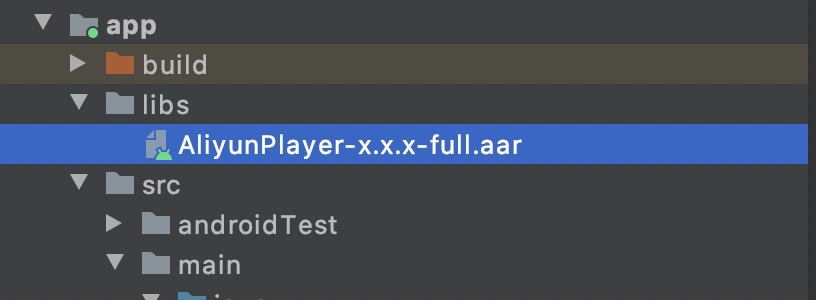
You can modify the `build.gradle` file in your project. Add the `flatDir` setting to the `repositories` node of `allprojects`, as shown in the following example:
flatDir {
   dirs 'libs'
}
Modify the app's build.gradle file to add references to the AAR file and Conan in the dependencies block. For example:
dependencies {
      implementation fileTree(dir: 'libs', include the following: ['*.aar'])
}
Real-Time Streaming (RTS) Integration (Optional)
To integrate the Real-Time Streaming (RTS) component, see Implement RTS Stream Pulling on Android.
Step 2: Configure the License
When using the global environment (excluding the Chinese mainland, Hong Kong, Macao, and Taiwan), you can choose one of the following methods to configure the Alibaba Cloud International Website environment.
Method 1: You can call the following API to update the default configurations for the Alibaba Cloud International Website environment.
// When using the global environment (excluding the Chinese mainland, Hong Kong, Macao, and Taiwan), ensure you call the following API to update the default configurations to the Alibaba Cloud International Website environment before calling any player API. This ensures all subsequent services run in the Alibaba Cloud International Website environment.
// Use the AlivcBase unified API to set the Alibaba Cloud International Website environment. This cannot be modified during runtime.
AlivcBase.getEnvironmentManager().setGlobalEnvironment(AlivcEnv.GlobalEnv.ENV_SEA);
Method 2 (Recommended): For player versions V7.6.0 and later, you can configure the Alibaba Cloud International Website environment using the
XMLmethod.You can add a
<meta-data>node to theAndroidManifest.xmlfile.<meta-data android:name="com.aliyun.alivc_env" android:value="SEA"/>Configuration example:

For more information about integrating the License on Android, see Integrate the License on Android.
Step 3: Configure Permissions
You must declare all required permissions in app/src/main/AndroidManifest.xml:
<uses-permission android:name="android.permission.INTERNET" />
<uses-permission android:name="android.permission.READ_EXTERNAL_STORAGE" />
<uses-permission android:name="android.permission.WRITE_EXTERNAL_STORAGE" />
<uses-permission android:name="android.permission.ACCESS_NETWORK_STATE" />
Step 4: Configure Obfuscation
You can configure obfuscation in the obfuscation rules file (`proguard-rules.pro`). For example:
-keep class com.alivc.**{*;}
-keep class com.aliyun.**{*;}
-keep class com.cicada.**{*;}


-dontwarn com.alivc.**
-dontwarn com.aliyun.**
-dontwarn com.cicada.**
Step 5: Enable Logging (Optional)
Enabling logs helps you quickly identify and troubleshoot issues, and it provides data support for performance optimization and user experience improvement. You can enable this feature as needed. For more information about log retrieval, see Retrieve SDK Logs.
// Enable logging
Logger.getInstance(context).enableConsoleLog(true);
// Set the log level. The default is AF_LOG_LEVEL_INFO. To troubleshoot issues, set it to AF_LOG_LEVEL_TRACE.
Logger.getInstance(context).setLogLevel(Logger.LogLevel.AF_LOG_LEVEL_INFO);
Project Structure
File Name | Description |
AliyunPlayer-x.x.x-full.aar | A complete AAR package that contains FFmpeg dynamic libraries. |
AliyunPlayer-x.x.x-part.aar | An AAR package that does not contain FFmpeg dynamic libraries. |
AlivcArtp-x.x.x.aar | Supports the ARTP protocol. This is optional. |
AlivcArtc-x.x.x.aar | Supports the ARTC protocol. This is optional. |
If you do not integrate the short video SDK, you can directly depend on the `AliyunPlayer-x.xx.x-full.aar` package.
If you integrate both the player and the short video SDK, the player SDK depends on the `AliyunPlayer-x.x.x-part` package. You must also use the common FFmpeg version, which requires an additional dependency on the `com.aliyun.video.android:AlivcFFmpeg:x.x.x` package.
Using the wrong SDK package during integration may cause an FFmpeg conflict.
Common Integration Issues
For more information about issues and solutions encountered while using the player, see Player FAQ Summary.