You can set up automatic email forwarding to send received emails to another mailbox.
Method One
Set up automatic forwarding in the automatic forwarding rule module
1. Go to Settings > Mailbox Settings > Automatic Forwarding > Add Forwarding Email Address.
a. If a secure phone is linked, you must first complete identity verification. Click Get Dynamic Password, enter the password, and then click Next.
b. Add the forwarding email address.
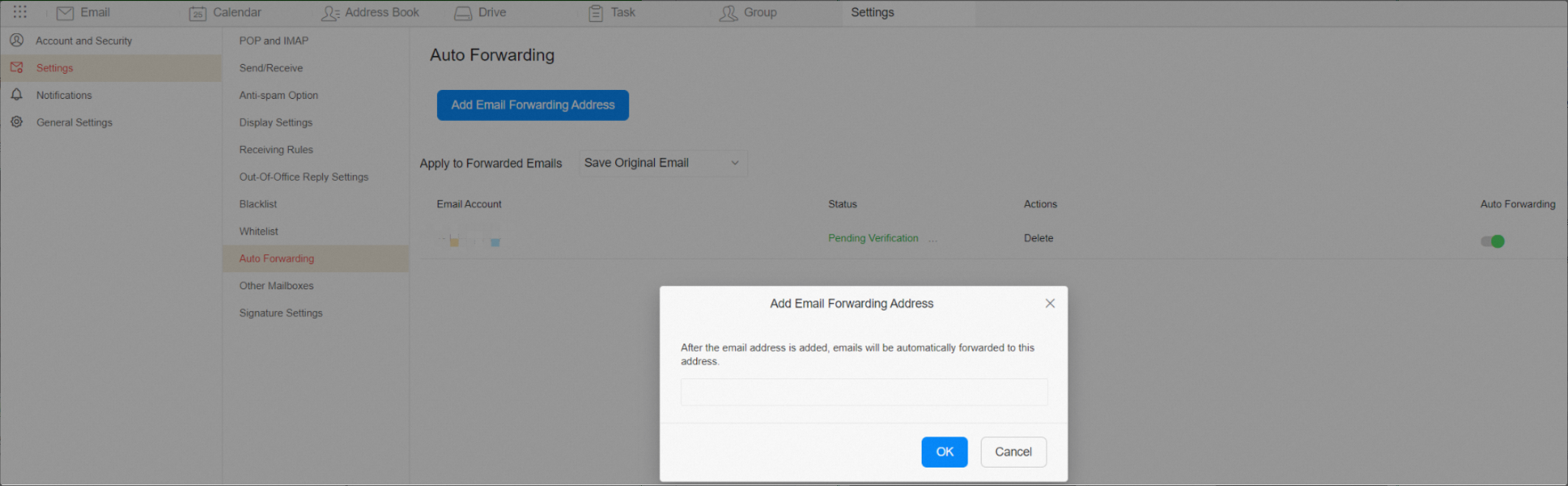
c. Select an action to apply to forwarded emails to complete the setup.
2. Log in to the forwarding mailbox and click the validation link to complete identity verification.
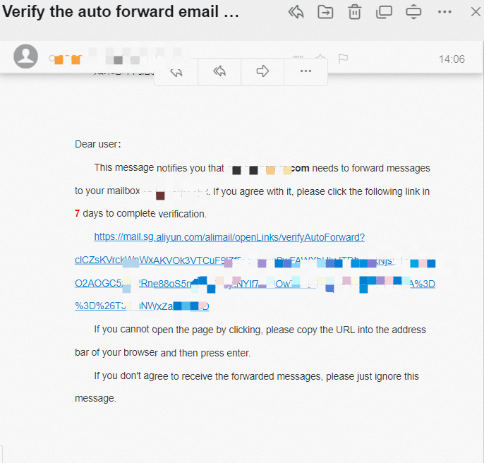
3. After identity verification is complete, refresh the Automatic Forwarding page. The forwarding status changes to Validation Successful, and the automatic forwarding button is enabled.

Method Two
Set up automatic forwarding in the incoming mail rule module
1. Go to Settings > Mailbox Settings > Incoming Mail Rules > New Incoming Mail Rule.
Set the conditions for incoming emails, such as the sender, recipient, subject, email size, or whether the email has an attachment. Select the Forward to checkbox, enter the recipient's email address, and then click OK to save. The recipient must also complete a validation step. This rule keeps a copy of the original email.
Note: If you do not set any conditions, this rule forwards all incoming emails.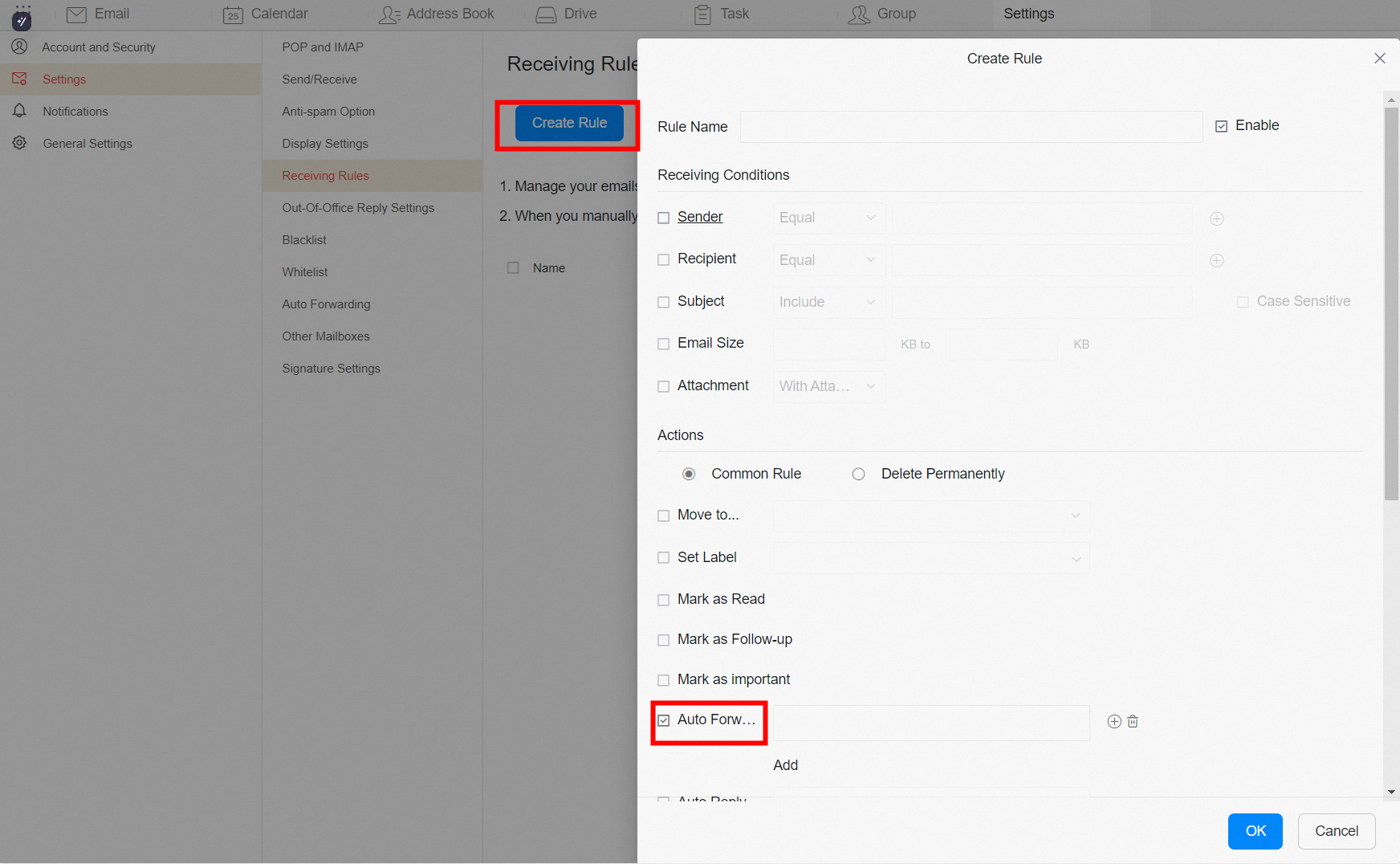
Troubleshooting
The following message is displayed: "Automatic forwarding has been disabled. Please contact your administrator to enable it."
The administrator logs in to the mail management platform, navigates to the employee account management page, and edits the permissions for the employee's account.
Email forwarding uses a logical rule to remove duplicates. For example, if User A sets up forwarding to User B, emails sent from User B to User A are not forwarded. This prevents User B from receiving duplicate copies of their own sent emails.
If the anti-spam system marks an email as spam, it is not automatically forwarded. This prevents the outbound IP address from being blacklisted, which could affect the delivery of other emails.