The Insights feature uses mathematical models to intelligently analyze management events that are generated within your Alibaba Cloud account to help you identify unusual activities. After the Insights feature is enabled, ActionTrail analyzes management events, identifies unusual activities that are associated with API call rates, API error rates, IP addresses, and AccessKey pair call rates, and generates Insights events. This topic describes how to use Simple Log Service to store and query Insights events on IP address.
Prerequisites
The Insights feature is enabled. For more information, see Query Insights events in the ActionTrail console.
After the Insights feature is enabled, ActionTrail generates the first Insights event after at least 24 hours.
Step 1: Create a trail
If an existing trail within the current account meets the following conditions, you do not need to create a trail. You need to only select Insights Event for Trail Configuration and save the modifications.
The trail is a single-account trail.
The trail delivers events in all regions.
The trail delivers events to storage services that include Simple Log Service.
If no trail is created for the current account or no existing trail meets the conditions, perform the following steps to create a trail:
Log on to the ActionTrail console.
In the left-side navigation pane, click Trails.
In the top navigation bar, select the region where you want to create a single-account trail.
NoteThe region that you select becomes the home region of the trail that you want to create.
On the Trails page, click Create Trail.
On the Create Trail page, configure the required parameters.
Basic Information
Parameter
Description
Trail Name
The name of the trail, which is also the name of the Logstore.
NoteThe name of the trail must be unique.
Trail Configuration
The type of the events that you want to deliver. Valid values:
Management Event: By default, Management Event is selected, and All is selected for Management Event.
Insights Events: Select Insights Events.
Event Delivery: Select Delivery to Simple Log Service.
If you select Delivery to Current Account, configure the parameters.
Parameter
Description
Project
The project to which you want to deliver events.
New Project
Existing Project
Logstore Region
The region where the Logstore resides.
The name of the Simple Log Service project.
The name of the project.
NoteThe project name is shared by all Alibaba Cloud users and must be unique.
If you select New Project, ActionTrail creates a project with the name that you specified.
If you select Existing Project, you must select an existing project in Simple Log Service from the Project Name drop-down list. For more information about how to create a project in Simple Log Service, see Collect and analyze ECS text logs using LoongCollector.
NoteAfter the trail is created, ActionTrail automatically creates a Logstore whose name is in the actiontrail_<trail name> foramt to store management events and a Logstore whose name is in the insights_<trail name> format to store Insights events. The Logstores are optimally configured for subsequent auditing. Indexes and dashboards are created for the Logstores to facilitate event queries. You cannot manually write data to the Logstore. This ensures data accuracy. You do not need to create a Logstore in advance.
If you select Delivery to Another Account, configure the Project ARN and RAM Role ARN of Destination Account parameters.
To deliver events to a different account, you must create a RAM role by using the destination account, grant ActionTrail the permissions to deliver events to the destination account, and then create a project before you create the trail. For more information, see Deliver the events of multiple Alibaba Cloud accounts to one account.
Click Confirm.
Step 2: Query Insights events in the Simple Log Service console
Log on to the Simple Log Service console.
Click the name of the project in the Projects section.
In the left-side navigation section of the Logstores page, click the Logstore whose name is in the insights_<Trail name> format, and then click Last 15 Minutes in the upper-right corner to specify a time range.
Enter the following SQL statement in the search box and click Search & Analyze to query the details of Insights events on IP address.
event.insightDetails.insightType:IpInsight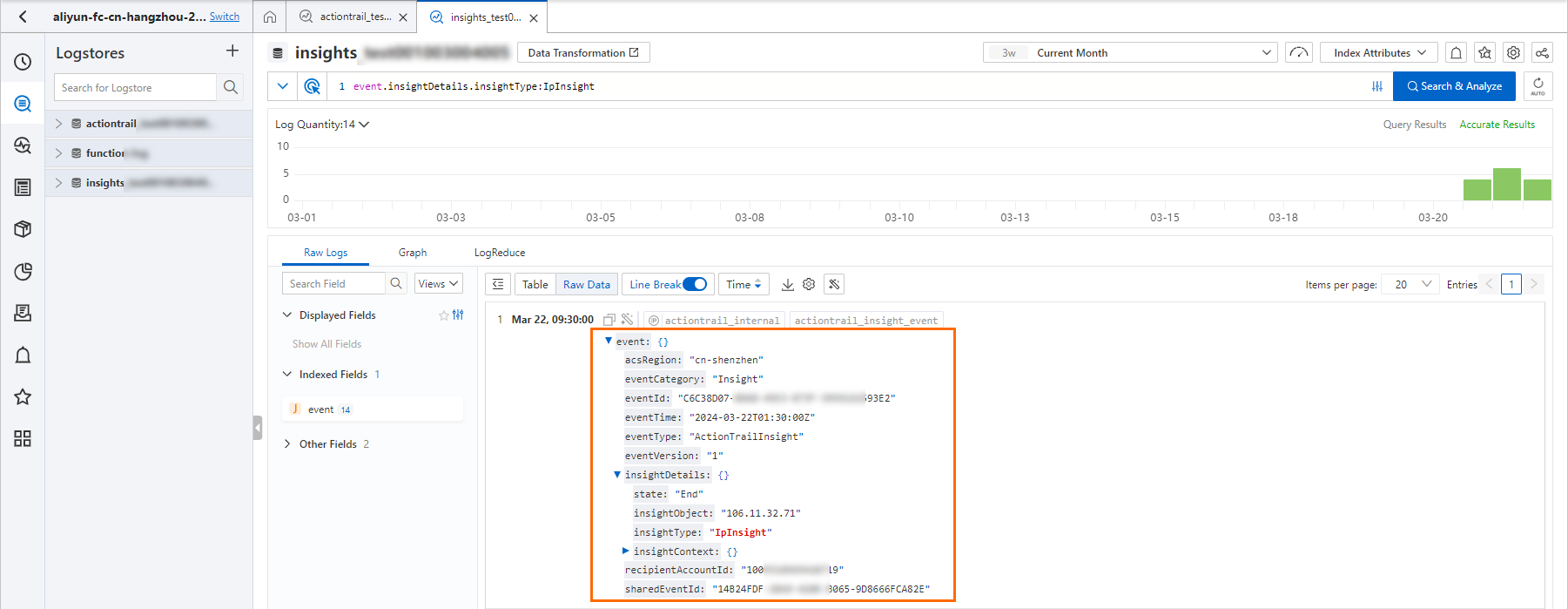 Note
NoteFor more information about Insights event types supported by ActionTrail, see Overview of Insights events.
You can also use the following SQL statement to query information about all Insights events within a time range.
* | select from_unixtime(__time__) as eventTime,"event.insightDetails.insightType", "event.acsRegion" as eventRegion, "event.insightDetails.insightObject" as insightObject order by eventtime desc