This topic describes how to use Server Migration Center (SMC) to migrate a server to Edge Node Service (ENS).
Scenarios
You can use SMC to migrate various types of servers that run Linux to Alibaba Cloud ENS. These servers include physical servers, virtual machines (VMs), and cloud hosts from other cloud platforms. The migration modes include Physical-to-Virtual (P2V), where you migrate from a physical data center to ENS, and Virtual-to-Virtual (V2V), where you migrate from a VM environment or a cloud host to ENS. This solution does not cover database or object storage migration.
The migration involves the following cloud products:
SMC: A migration platform developed by Alibaba Cloud. You can use SMC to migrate one or more source servers to Alibaba Cloud. Source servers can be servers in data centers, VMs, cloud hosts on other cloud platforms, or other types of servers. For more information, see Server Migration Center (SMC).
OSS: Alibaba Cloud Object Storage Service. For more information, see Object Storage Service (OSS).
ENS: An Alibaba Cloud edge computing product. Built on carrier edge nodes and networks, ENS provides one-stop, distributed computing resources that are integrated, open, interactive, and elastic. ENS helps you sink business to the carrier edge, which reduces computing latency and costs. For more information, see Edge Node Service.
Limits
Before you start the migration, make sure that the following preparations are complete:
You have an Alibaba Cloud account that has passed identity verification, and you have activated Resource Access Management (RAM) and Object Storage Service (OSS).
Data migration from encrypted disks is not supported.
Make sure the destination ENS node is upgraded to support cloud-init.
Supported image formats are raw, VDI, and VMDK. You can directly import compressed files in the tar.gz format. The VHD and QCOW2 formats are not supported.
The maximum size of an image that you can import to ENS is 1 TB. This is the total size of the compressed files for all system disks and data disks.
If you transfer data over the internet, make sure the source server can access the internet. You must also open ports 8080 and 8703 in the outbound direction for the source server in its security group. Data is transferred to the intermediate instance over the internet.
Limits on operating systems and data migration:
Source server operating system
Supported operating systems
Limits on data migration
Linux
CentOS 6/7/8
Red Hat 5/6/7/8
Ubuntu 10/12/14/16/17/18/19/20
Debian 7/8/9/10
Alibaba Cloud Linux
The partition structures of some disks, such as logical volume management (LVM) partitions and extended disk partitions, cannot be replicated. Unsupported disk partition structures are rebuilt as standard partitions.
SWAP partitions cannot be replicated. You must reconfigure them after the migration.
Some non-mainstream file system formats cannot be replicated. File systems in unsupported formats are rebuilt into mainstream formats such as ext2, ext3, or ext4.
If block replication is not supported, virtual memory, caches, system snapshot files, some software configurations such as cloud-init and network services, and data in the Docker directory are not migrated by default. For more information, see the
rsync_excludes_linux.txtfilter configuration file in the SMC client directory.
Migration notes
By default, you can create one migration task for each server.
The migration duration is affected by the data volume and network speed. For example, it takes about 25 minutes to migrate a 20 GB application service over the internet.
Do not interfere with the intermediate instance. For each migration, a temporary intermediate instance is created in your Alibaba Cloud account to assist with the migration. To prevent migration failures, do not stop, restart, or release the intermediate instance. After the migration is complete, the intermediate instance is automatically released.
For dynamic data directories, such as the data directories of large databases, you must suspend the business before migration.
The migration has the following impacts:
Item
Description
Data directory for migration
During the migration, SMC can obtain the disk partition structure of the migration source and automatically generate the destination disk partitions when you create a migration task. This improves the data transfer speed while maintaining the disk partition structure of the migration source as much as possible.
For Linux systems: If block replication is not enabled, all directories in the root directory of the system, including other partition directories mounted to the root directory, are migrated by default and a system disk partition is generated. If you want to migrate other partition directories, such as /disk1, to an independent data disk, you must select and configure a data disk when you create the migration task. If block replication is enabled, only the root partition directories of the system disk, such as / and /boot, are migrated by default. If you want to migrate other partitions, you must select and configure a data disk when you create the migration task.
IP address
The IP address changes after the migration. If your business involves IP address configurations, modify the IP address after the migration.
Underlying hardware devices
After the migration, the underlying hardware devices change. This may invalidate some application licenses that are bound to the hardware. Perform checks as needed.
Migration overview
An ENS instance is the smallest unit of computing service that Edge Node Service provides for your business. During an edge node migration, SMC migrates the source server to an Alibaba Cloud Edge Node Service image. You can then use the ENS image in the Edge Node Service console to create an ENS instance and quickly complete the migration.
The following figure shows the relationships between the products and services involved and the migration flow.

Install the SMC client on the source server.
Configure the migration and start the migration. The SMC service automatically creates a custom ECS image, exports it to an intermediate Object Storage Service (OSS) bucket, and then imports it as an ENS image.
In the Edge Node Service console, use the ENS image to create an ENS instance to complete the migration.
Edge Node Service (ENS) is built on carrier edge nodes and networks. It provides elastic and distributed computing resources that are close to end users and have global coverage. By computing and processing data from terminals nearby, ENS optimizes response latency, central workload, and overall costs. It helps you move your business to the carrier's edge, which effectively reduces computing latency and costs.
Object Storage Service (OSS) is a secure, cost-effective, and highly reliable cloud storage service that can store large amounts of data. The custom ECS image generated during the migration is stored and transferred through an OSS bucket.
Migration procedure
The first time you use this feature, you must grant ECS access permissions to OSS resources. The OSS bucket is used to store the intermediate image. Follow the prompts in the SMC console to complete the authorization.
Step 1: Import the migration source
A migration source is the data center server, VM, or cloud host from another platform that you plan to migrate.
Import a migration source from the command line (Recommended)
The source server must have public network access. If the source server has firewall restrictions, see What are the endpoints of SMC? to obtain the SMC domain names and ports, and add them to the firewall whitelist.
If your source server cannot access the public network or you want to improve migration efficiency by transferring data over a private network, see the private network migration solution.
On the Edge Node Migration page, click Import Migration Source.
Configure the parameters as prompted on the page and copy the activation code command. The parameters are described in the following table.
Parameter
Description
Migration Source Type
Select a type based on your source server:
Physical Server/VM/Cloud Server On Other Cloud Platform.
Alibaba Cloud ECS Instance
Import Method
Select Use CLI To Import Server.
Activation Quota
The number of migration sources that can be activated by the activation code. The value ranges from 1 to 1000. The default value is 200.
Validity Period
The validity period of the activation code. The value ranges from 1 to 90 days. The default value is 90 days.
Activation Code
After generating the activation code, copy the command. Perform the following steps:
Click Generate.
Click the Linux Shell tab.
Click Copy to copy the activation code command.
Log on to the source server, and then paste and run the copied command with administrator privileges to import the migration source.
Log on to the Linux source server.
Paste and run the copied command with administrator privileges to import the migration source.

After you run the command, a message similar to
Import Source Server [s-bp18x8751kgz2oyh****] Successfully!appears, which indicates that the migration source was imported successfully.
On the Edge Node Migration page in the SMC console, check the status of the migration source in the Real-time Migration Status column.
A status of Source Online indicates that the migration source was imported successfully.
If the migration source is in any other state, the import failed. Resolve the issue as described below and then re-import the migration source.
Resolve the issue based on the error message in the console or by checking the log file in the SMC client directory. The default installation directory for the SMC client is /smc.
For information about common issues and their solutions, see SMC FAQ and Troubleshooting.
Automatically import a migration source from the console
The source server, which is the source ECS instance, must have public network access.
The source server must be in the Running state, and Cloud Assistant must be active. For more information, see View the status of Cloud Assistant and handle exceptions.
If you use a RAM user to import the migration source, you must grant permissions to the RAM user:
Grant the AliyunECSReadOnlyAccess permission for read-only access to ECS.
Grant the AliyunECSAssistantFullAccess permission for managing Cloud Assistant.
On the Edge Node Migration page, click Import Migration Source.
Configure the parameters based on the migration source type.
Parameter
Description
Migration Source Type
Select Alibaba Cloud ECS Instance.
Import Method
Select Console Import.
Region
From the drop-down list, select the region where the server to be migrated is located.
Instance
You can search for and select the Alibaba Cloud ECS instances to be migrated in the specified region by instance ID, name, or IP address. You can select multiple instances for batch import.
Tag (Optional)
Bind a tag key-value pair to the migration task to facilitate querying and managing migration tasks. For more information, see Use tags to manage migration sources and tasks and Implement fine-grained permission management using tags.
You can bind a maximum of 20 tags to a migration task.
Resource Group (Optional)
To group and manage migration resources by business department, project, or other dimensions, you can create resource groups.
After you configure the parameters, click Import.
SMC automatically starts Cloud Assistant to perform the import. Importing the migration source takes about 3 to 10 minutes. Please wait.
On the Edge Node Migration page in the SMC console, check the status of the migration source in the Real-time Migration Status column.
A status of Source Online indicates that the migration source was imported successfully.
If the migration source is in any other state, the import failed. Resolve the issue as described below and then re-import the migration source.
Resolve the issue based on the error message in the console or by checking the log file in the SMC client directory. The default installation directory for the SMC client is /smc.
For information about common issues and their solutions, see SMC FAQ and Troubleshooting.
Import a migration source using the SMC client
For more information about the SMC client, see SMC client user guide.
The client must be run on the source server. By default, public network access is required. If the source server has firewall restrictions, see What are the endpoints of SMC? to obtain the SMC domain names and ports, and add them to the firewall whitelist.
If your source server cannot access the public network or you want to improve migration efficiency by transferring data over a private network, see the private network migration solution.
On the Edge Node Migration page, click Import Migration Source.
On the Import Migration source page, configure the parameters as specified in the following table.
Parameter
Description
Migration Source Type
Physical servsers/VMs/Cloud Servers of other platforms.
Import Method
Select Use Client to Import Server.
You need to manually download and install the SMC client on the source server.
Description
In the Description section, follow the prompts to download, install, and activate the corresponding SMC client based on the source server's operating system (Linux or Windows) and architecture (32-bit or 64-bit).
Click Generate and copy the activation code information.
You need to enter the activation code when installing the client.
Import the migration source.
ImportantDo not close the SMC client during the migration. Otherwise, the migration source will lose its connection to the SMC console and the migration will fail.
Use a remote connection tool that supports file transfer, such as WinSCP, to upload the SMC client to the Linux source server.
Remotely connect to the Linux source server and unzip the SMC client package.
This example uses the
Linux 64-bit General-purpose Edition. If you use a different version of the SMC client, replace the package name in the command with the actual downloaded file name.tar -zxvf go2aliyun_client.tar.gzNoteThe Linux 64-bit ARM Edition supports the g6r general-purpose and c6r compute-optimized instance families. For more information about instance families, see Enterprise-level Arm-based compute instance families.
(Optional) As needed, filter and exclude files or directories that do not need to be migrated.
ImportantIf you enable block replication for migration, you cannot exclude files or directories from migration.
Obtain an activation code or an AccessKey pair.
(Recommended) In the Description section of the SMC console, click Generateand copy the activation code.
Obtain an AccessKey pair: An AccessKey pair for an Alibaba Cloud account includes an AccessKey ID and an AccessKey secret. If you have not created an AccessKey pair, you must create one. For more information, see Create an AccessKey pair.
In the SMC client folder, run the following commands to start the SMC client.
cd go2aliyun_client_linux_x86_64
sudo chmod +x go2aliyun_client
sudo ./go2aliyun_client
Enter the activation code or AccessKey pair as prompted. This example uses an activation code:

After you enter the activation code or AccessKey pair, the following prompts may appear:
If the source system does not have a snapshot driver installed, the SMC client prompts you, as shown in the following figure. You can choose whether to install the snapshot driver based on your needs.
If you enable block replication when you create the migration task, enter
yesto automatically install the snapshot driver.If you do not enable block replication when you create the migration task, enter
no.
ImportantIf the snapshot driver fails to install, do not enable block replication when you create the migration task. Otherwise, the migration will fail.

Most mainstream source systems have rsync installed by default. If it is not installed, the SMC client prompts you. Enter
yesto automatically install rsync, as shown in the following figure.
If SELinux is enabled on the source system, the SMC client prompts you to disable it. Enter
yesto automatically disable SELinux, as shown in the following figure.
When a message similar to
Import Source Server [s-bp11npxndknsycqj****] Successfully!appears, it indicates that the migration source was imported successfully.NoteIf importing the migration source fails, you can troubleshoot the issue based on the displayed message, and then run the following commands in sequence to exit the background program and re-import the migration source. For more information about common issues and solutions, see SMC FAQ and Troubleshooting.
sudo ./go2aliyun_client --abort
sudo ./go2aliyun_client
On the Edge Node Migration page in the SMC console, check the status of the migration source in the Real-time Migration Status column.
A status of Source Online indicates that the migration source was imported successfully.
If the migration source is in any other state, the import failed. Resolve the issue as described below and then re-import the migration source.
Resolve the issue based on the error message in the console or by checking the log file in the SMC client directory. The default installation directory for the SMC client is /smc.
For information about common issues and their solutions, see SMC FAQ and Troubleshooting.
Step 2: Configure the migration
Find the migration source that you want to manage and click Start Migration in the Actions column.
Configure the parameters and click Start Migration.
Configure basic parameters.
Parameter
Description
Image Storage Region
The region where the final ENS image will be stored after the migration is complete.
Image Name Prefix
The prefix for the ENS image name. This helps with identification.
Intermediate Region
A temporary ECS image is generated in this region during the migration. Do not perform any operations on the intermediate image. The intermediate image is automatically deleted when the task is completed or deleted.
Intermediate Bucket (OSS Bucket)
Select an OSS bucket in the same region as the custom image.
The temporary ECS image generated during the migration is uploaded to the specified OSS bucket. The OSS storage space occupied by the exported image is automatically released when the task is completed or deleted.
Network Mode
Select the network used to transfer migration data to the intermediate instance. By default, public network transfer is used. The intermediate instance will be created in the selected virtual private cloud (VPC) and vSwitch, so the intermediate instance will be assigned a public IP address.
Public Network (Default)
Migration data is transferred to the intermediate instance over the public network. To use this mode, the source server must be able to access the public network. Choose whether to specify a VPC and vSwitch as needed.
Specify VPC and vSwitch: The migration task creates an intermediate instance in the VPC and vSwitch you specify.
Do not specify VPC and vSwitch: The migration task creates an intermediate instance in a new VPC and vSwitch that the system automatically creates.
VPC
Migration data is transferred to the intermediate instance over the VPC intranet. To use this mode, you need to connect the source server to the Alibaba Cloud VPC and must specify a VPC and vSwitch.
NoteIf you can directly access a VPC in an Alibaba Cloud region from your on-premises data center (IDC), VM environment, or cloud host, we recommend that you use this method for migration. Using intranet transfer provides faster and more stable data transfer than the public network, improving migration efficiency. You can connect the source server and the cloud VPC through a VPN Gateway, Express Connect circuit, or Smart Access Gateway. For more information, see Connect VPC to data center, office terminal, and other cloud.
Parameter
Description
Task Name
The name of the migration task.
Task Description
Enter a description for the migration task.
Modify Disk Partition
Choose whether to enable adjusting the disk partition structure based on your needs. This feature is supported only in SMC client V2.8.0 and later. For more information about the SMC client, see SMC client user guide.
Disabled: The disk information of the source instance is not displayed. The system automatically reads the source instance disk information and generates a disk structure. After migration, the destination disk partition structure is consistent with the automatically generated disk structure by default.
Enabled: The disk information of the source instance is displayed. The system automatically reads the source instance disk information and generates a disk structure. You can adjust the destination disk partition structure, including partition size and order, transfer method, and whether to enable LVM.
Configure disks
System Disk: The size of the destination Alibaba Cloud server's system disk, in GiB. The system disk size ranges from 20 to 2048.
The destination system disk size must be larger than the actual used size of the source system disk. For example, if the source system disk is 400 GiB and the actual used space is 100 GiB, the destination system disk size must be greater than 100 GiB.
NoteThe default value is the size of the source system disk. If you do not need to reduce the system disk capacity, we recommend not setting it to a value smaller than the default.
Data Disk<N>: The size of the data disk of the Alibaba Cloud server after migration, in GiB. The data disk size ranges from 1 to 32768.
The variable
<N>represents the data disk number. If migrating to a destination instance, N is the data disk ID.The data disk size must be larger than the actual used size of the source data disk. For example, if the source data disk is 500 GiB and the actual used space is 100 GiB, the destination data disk size must be greater than 100 GiB.
If there is no mount target under the Data Disk or all mount targets are set not to be migrated, the data disk will not be migrated.
LVM: Logical Volume Manager (LVM) is a mechanism for managing disk partitions in Linux systems. LVM is more flexible than standard disk partitions and allows for dynamic adjustment of disk space.
You can choose whether to enable LVM based on your needs. If LVM is enabled, the destination end will automatically rebuild the disk with an LVM structure.
For each destination disk with LVM enabled, the system creates 1 physical volume (PV) and its corresponding volume group (VG). On this volume group, it creates a number of logical volumes (LVMs) corresponding to the number of mount targets. The volume group name defaults to vgX (where X is the disk's sequence number), and the logical volume name defaults to lvX (where X is the logical volume's sequence number), as shown in the following example:
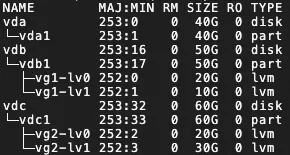 Important
LVM is not supported in the following cases:
If the migration source is a Windows system, LVM is not supported.
If the system disk has no boot partition, LVM is not supported.
After enabling LVM, the feature will not take effect in the following scenarios:
The migration source does not support lvm2 or the lvm2 package is not installed.
The migration source is a Debian system with a kernel version of 3.x or earlier, and a disk with an XFS file system is mounted.
Configure mount targets
Migrate: You can choose whether to migrate the mount target based on your business needs.
Enable Block Replication: Using block replication can effectively improve the stability of migration transfer speed and ensure consistency with the source partition structure, but the partition size cannot be modified. SMC determines whether to support enabling block replication based on the state of the migration source disk partitions.
If the migration source does not support enabling Block Replication for a partition, the switch cannot be turned on. The default file replication is used, and the partition size can be modified.
If the migration source supports enabling Block Replication for a partition, block replication is enabled by default to achieve partition-level disk migration.
NoteWhen the migration source is a Windows operating system, the block replication feature is enabled by default and cannot be disabled.
If LVM is enabled on the disk and the partition size is not a multiple of 4 MiB, block replication will not take effect, and file replication will be used for data transfer.
Set Partition Size: When block replication is not enabled, you can set the partition size as needed, but the sum of the partition sizes cannot exceed the size of the belonging disk.
NoteIf the disk sizes of the destination instance do not match the migration source disks, the task cannot be created. In this case, the system will automatically adjust the mount target positions to meet the disk size requirements. If the requirements are still not met after adjusting the mount targets, handle the issue according to the prompts on the page.
You can also manually drag the mount target positions to meet the disk size requirements. However, dragging is not supported for boot or system partitions. Perform the following steps:
Hover your mouse over the
 icon in front of the mount target.
Use the mouse to drag the mount target to another disk.
Transmission Speed Limit
Transfer throttling limits the actual network transfer speed, in Mbps. If the Compression Ratio is set to a value greater than 0, the actual network transfer speed (the transfer speed of compressed data) will be less than the speed displayed in the Real-time Migration Status.
Compression Ratio
The level of data compression during migration. Set the compression ratio based on your actual needs.
In environments with limited bandwidth, using a high compression ratio can increase data transfer speed.
In environments with very high bandwidth, we recommend not compressing data to reduce the consumption of CPU resources on the migration source.
The value ranges from 0 to 10. The default value is 7. A value of 0 means no data compression.
Checksum Verification
Disabled by default. Enabling it enhances data consistency checks but may reduce transfer speed.
SSL-Encrypted Transmission
By default, Auto is selected. Using Secure Sockets Layer (SSL) encryption to transfer migration data can improve data security and ensure data integrity.
License Type
Select the license type.
Alibaba Cloud (Default): Currently only supports providing Microsoft Windows Server licenses. After migration, when creating an ECS instance from an image in Hong Kong (China) and overseas regions, a license fee for the image will be charged, and it will be automatically activated. The specific fee is subject to the information displayed when creating the instance.
BYOL: Bring Your Own License (BYOL) migration to the cloud currently mainly includes Microsoft, Red Hat Enterprise Linux, and SUSE Linux Enterprise Server. After migration, no image license fee will be charged when creating an ECS instance from the image. Please use your own license for activation.
NoteIf you have already created an ECS instance, Alibaba Cloud supports quickly purchasing software licenses such as Red Hat Enterprise Linux and SUSE Linux Enterprise Server for a specified ECS instance. For more information, see Purchase a software license for an ECS instance.
Tag
Bind tag key-value pairs to the migration task for easy querying and management. For more information, see Use tags to manage migration sources and tasks and Implement fine-grained permission management using tags.
NoteA maximum of 20 tags can be bound to a single migration task.
Intermediate Instance Type
You can select an intermediate instance type as needed.
If you specify this parameter, the system will use this instance type to create the intermediate instance. If this instance type is out of stock, the migration task creation will fail.
If you do not select an intermediate instance type, the system will select an instance type to create the intermediate instance by default.
ImportantTo avoid migration errors, do not stop, start, restart, or release the intermediate instance during the migration. After the migration is complete, the instance is automatically released.
Report diagnostic logs
Automatically upload SMC client logs to the SMC server for error diagnosis and analysis, which helps in locating problems when migration errors occur. This feature is enabled by default.
SMC client logs are generally saved in the
/smc/go2aliyun_client*/Logsdirectory under the installation path.In the dialog box, carefully read the migration notice and click I Confirm That I Am Aware Of The Information.
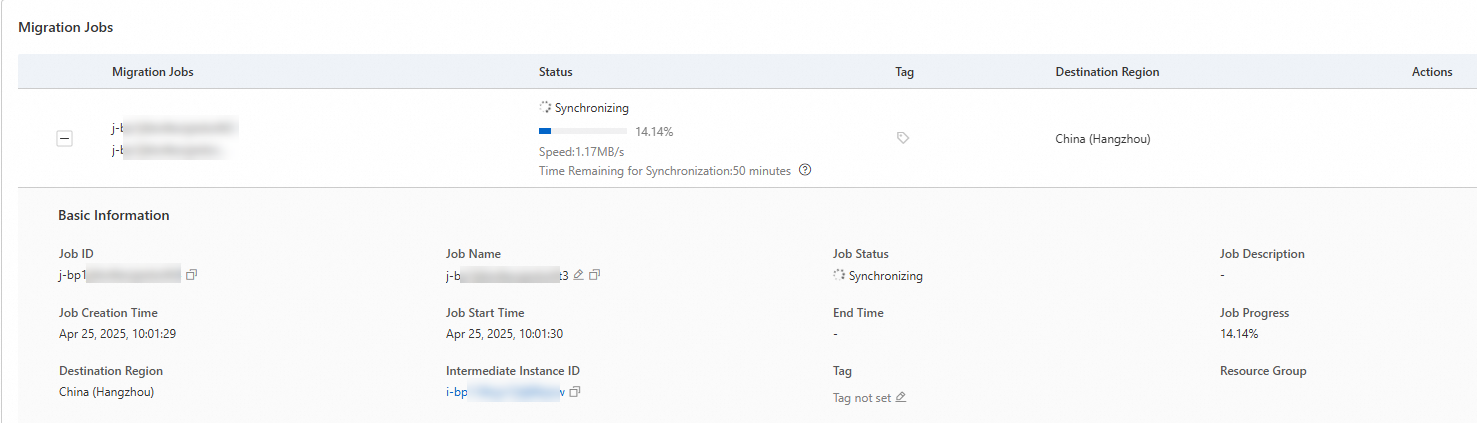
On the Edge Node Migration page, you can view the real-time migration status.
The time required for data transmission is affected by factors such as the size of the source data and network bandwidth. Please wait for the migration task to complete.
 Note
NoteSpeed: The amount of uncompressed migration data transferred per second. For a migration task with a Compression Ratio greater than 0, the displayed speed is higher than the actual network transfer speed of the compressed data.
Time Remaining for Synchronization: Calculated as (Total Data Volume - Transferred Data Volume) / Speed.
If the transfer speed is too slow to meet your schedule, you can consider temporarily increasing the fixed bandwidth of the source and destination servers. For more information, see Estimate migration time and test transfer speed.
Use the ENS image to create an ENS instance
If the Real-time Migration Status is Completed, the migration was successful and an Alibaba Cloud ENS image has been generated.

You can then go to the Edge Node Service console and use the ENS image to create an ENS instance. Select the ENS image from this migration.
Clean up resources
Migrate to a cloud server image
During migration, SMC creates a temporary pay-as-you-go intermediate instance named No_Delete_SMC_Transition_Instance in your destination Alibaba Cloud account to facilitate the migration. You must decide whether to manually release the instance based on the migration outcome:
Successful migration: The intermediate instance is automatically released. You do not need to manually release it.
Migration error: The intermediate instance is retained for the migration task and incurs charges. You can release it in the following ways to avoid unnecessary charges:
To delete a migration task and automatically clean up the intermediate instance, click the migration source ID, and then click Cancel Migration Job in the Actions column for the task.
Manually release the intermediate instance.
Migrate to a destination instance
During migration, SMC creates a temporary pay-as-you-go intermediate disk named SMC_Temp_Disk and attaches it to the destination instance to facilitate the migration. You must decide whether to manually release this intermediate disk based on the migration outcome:
Successful migration: The intermediate disk is automatically released. You do not need to manually release it.
Migration error: The intermediate disk is retained for the migration task and incurs charges. You can choose one of the following ways to release it to avoid unnecessary charges:
If you no longer need a migration task, click the migration source ID. In the Actions column for the task, click Cancel Migration. This action deletes the task and automatically cleans up the intermediate disk.
Manually release the intermediate disk.