Use exclusive resource groups for Data Integration in DataWorks to allocate independent computing resources for synchronization tasks, ensuring efficiency and stability. After purchasing a resource group, you must configure network bindings and whitelists. This topic describes the complete process of purchasing and using an exclusive resource group.
If you did not activate DataWorks in any region before June 10, 2024, you can only purchase and use serverless resource groups after activation. Legacy resource groups are not supported. If you are an existing DataWorks user and want to switch to serverless resource groups, see Switch from legacy resource groups.
Exclusive resource groups for Data Integration are not recommended
DataWorks no longer recommends exclusive resource groups for Data Integration. Use serverless resource groups instead. Serverless resource groups cover the core features of legacy resource groups, such as exclusive resource groups for scheduling, exclusive resource groups for Data Integration, exclusive resource groups for DataService Studio, and shared resource groups. A single serverless resource group lets you perform operations such as data synchronization, task scheduling and execution, and API operation calls and management.
Prerequisites
Understand the specifications, concurrency limits, and billing methods of exclusive resource groups. Plan the specifications and subscription duration based on your business needs. For more information, see Billing of exclusive resource groups for Data Integration.
Precautions
Exclusive resource groups for Data Integration support data synchronization in complex network environments, such as cross-cloud environments (Finance Cloud, Gov Cloud, etc.), cross-Alibaba Cloud accounts, and local IDC data synchronization. Ensure the resource group can access the source and destination data source networks and is allowed by whitelists. If the network is not connected, synchronization tasks will fail. For details on network connectivity schemes and whitelist precautions between exclusive resource groups for Data Integration and data sources, see Billing for exclusive resource groups for Data Integration.
If you only want to alleviate task delays caused by resource contention in the public resource group and do not need to connect to database instances, you can skip the network configuration steps. You can purchase an exclusive integration resource group in any zone without network configuration.
Exclusive resource groups access the Internet by default using shared bandwidth, which does not guarantee connection quality. If you require stable Internet access, use Serverless resource groups.
Limitations
You must have the AliyunBSSOrderAccess and AliyunDataWorksFullAccess permissions to purchase resource groups.
Only workspace administrators can bind or modify the workspace to which a resource group belongs.
For details on resource group interface permission points, see Resource group permission control policies.
For details on creating custom policies and authorization, see (Optional) Create a custom policy.
A
4c8gexclusive resource group for Data Integration supports binding a maximum of 2 VPCs. Exclusive resource groups of other specifications support binding a maximum of 3 VPCs.
Step 1: Purchase a resource group
Exclusive resource groups are subscription-based and must be purchased separately.
Only users with the AliyunBSSOrderAccess and AliyunDataWorksFullAccess permissions can purchase resource groups.
Log on to the DataWorks console.
Click Resource Group in the left-side navigation pane. On the Resource Group page, click the Exclusive Resource Groups tab. Click . On the buy page, configure the parameters based on your business requirements. Key configurations are as follows:
Parameter
Description
Region
Select the region for the resource group.
NoteExclusive resource groups cannot be used across regions. For example, resources in Singapore are only available to workspaces in that region.
Exclusive Resource Type
Select Exclusive Data Integration Resource.
Resource Name
Enter a unique name for the resource group within the tenant.
NoteA tenant corresponds to an Alibaba Cloud account (primary account) and can contain multiple RAM users.
Resource Description
Enter a brief description of the resource group.
Billing Cycle
We recommend selecting Auto-renewal to ensure uninterrupted service. After the resource group is created, you can also go to the Alibaba Cloud Renewal Management page to enable or disable the auto-renewal service. For details, see Stop billing.
Configure other items based on your business plan.
Click Buy Now and follow the on-screen instructions to complete the payment.
DataWorks initializes the resource group after purchase. The group is ready for use when the status changes to Running.
NoteInitialization takes about 20 minutes. Wait for the status to change to Running.
After the exclusive resource group is added to the console, you must bind it to a workspace before you can select it in task configurations.
Step 2: Associate a workspace
You must associate an exclusive resource group with a workspace before use. A single resource group can be associated with multiple workspaces, but they must reside in the same region. For example, an exclusive resource group in Singapore can only be associated with workspaces in Singapore. To associate a workspace:
Only workspace administrators can associate or modify the workspace to which a resource group belongs.
Log on to the DataWorks console.
On the Exclusive Resource Groups tab of the Resource Group page, click Associate Workspace in the Actions column of the target resource group.
In the dialog box, find the target workspace and click Associate.
Step 3: Configure network settings
Bind a VPC
Exclusive resources are deployed in a DataWorks-managed VPC and are isolated from other networks. To use them, you must bind a VPC that has connectivity to your data source. Perform the following steps to bind a VPC:
A 4c8g exclusive resource group for Data Integration supports binding a maximum of 2 VPCs. Exclusive resource groups of other specifications support binding a maximum of 3 VPCs.
Log on to the DataWorks console.
On the Exclusive Resource Groups tab of the Resource Group page, click Network Settings in the Actions column of the target resource group to go to the VPC binding page.
Before binding, perform RAM authorization using your Alibaba Cloud account (primary account). This grants DataWorks permission to access your cloud resources. You can authorize on the Cloud Resource Access Authorization page. You can also authorize in the pop-up window when the primary account accesses the console for the first time.
Bind a VPC.
Click Add VPC Association in the upper-left corner of the VPC Binding page. In the dialog box, configure the parameters. The configuration instructions for different network environments are as follows.
NoteFor scenarios such as Alibaba Cloud instances or self-managed ECS instances, choose the network connectivity scheme and configuration based on whether the DataWorks workspace and the data source belong to the same Alibaba Cloud account.
Parameter
Same account/region
Different account/region
VPC
If the data source and resource group belong to the same account, select the VPC where the data source resides.
If they are not under the same account, follow the scenario for different regions.
If the data source and resource group are in different regions or accounts, select a VPC in the current account that is connected to the data source network. For example, if the data source is not in an Alibaba Cloud VPC, click Create VPC to create a VPC for the exclusive resource group. After creation, select the new VPC or a VPC that is already connected to the target database network.
NoteIf the DataWorks workspace and data source are in different regions or under different Alibaba Cloud accounts, you must also use VPN Gateway or Express Connect to establish a connection between the VPC bound to the exclusive resource group and the VPC where the data source is located. You must manually add a route to the target database IP to ensure connectivity. For details, see Network connectivity solutions.
Zone
Select the zone where the database is located.
Select a zone that is already connected to the target database network.
vSwitch
If you selected the VPC where the data source resides, we recommend selecting the vSwitch associated with the data source.
NoteBinding any vSwitch in the data source VPC automatically adds a route to the entire VPC CIDR block, ensuring connectivity.
Select a vSwitch that is already connected to the target database network. If no vSwitch is available, click Create vSwitch to create one for the exclusive resource group. After creation, select the created vSwitch here.
Click OK to complete the VPC binding.
NoteIf the data source and exclusive resource group are in different regions or under different Alibaba Cloud accounts, you must bind a VPC and then add route rules pointing to the target database IP address.
Optional:Configure Host.
If your data source is accessed via a domain name rather than an IP address, you must configure the Host. Otherwise, connectivity tests will fail.
Click Hostname-to-IP Mapping. Click Add in the upper-left corner of the page. In the Create Hostname-to-IP Mapping dialog box, configure the parameters. Parameter descriptions are as follows.
Parameter
Description
IP Address
Enter the actual IP address of the data source.
Hostname
Enter the domain name used to access the data source. Add multiple domain names on separate lines.
If you need to add multiple IP addresses, click Add again.
NoteThe IP and domain name must be unique.
In a Host configuration, the relationship between IP and domain name is 1-to-many. An IP can correspond to multiple Host domain names, but a Host domain name can only point to one IP.
Add to whitelist
If the resource group and data source are in the same zone but connectivity fails after VPC configuration, check for whitelist restrictions on the data source. Add the following to the data source whitelist:
To connect the data source and exclusive resource group via the internal network: Add the CIDR block of the vSwitch bound to the exclusive resource group to the data source whitelist.
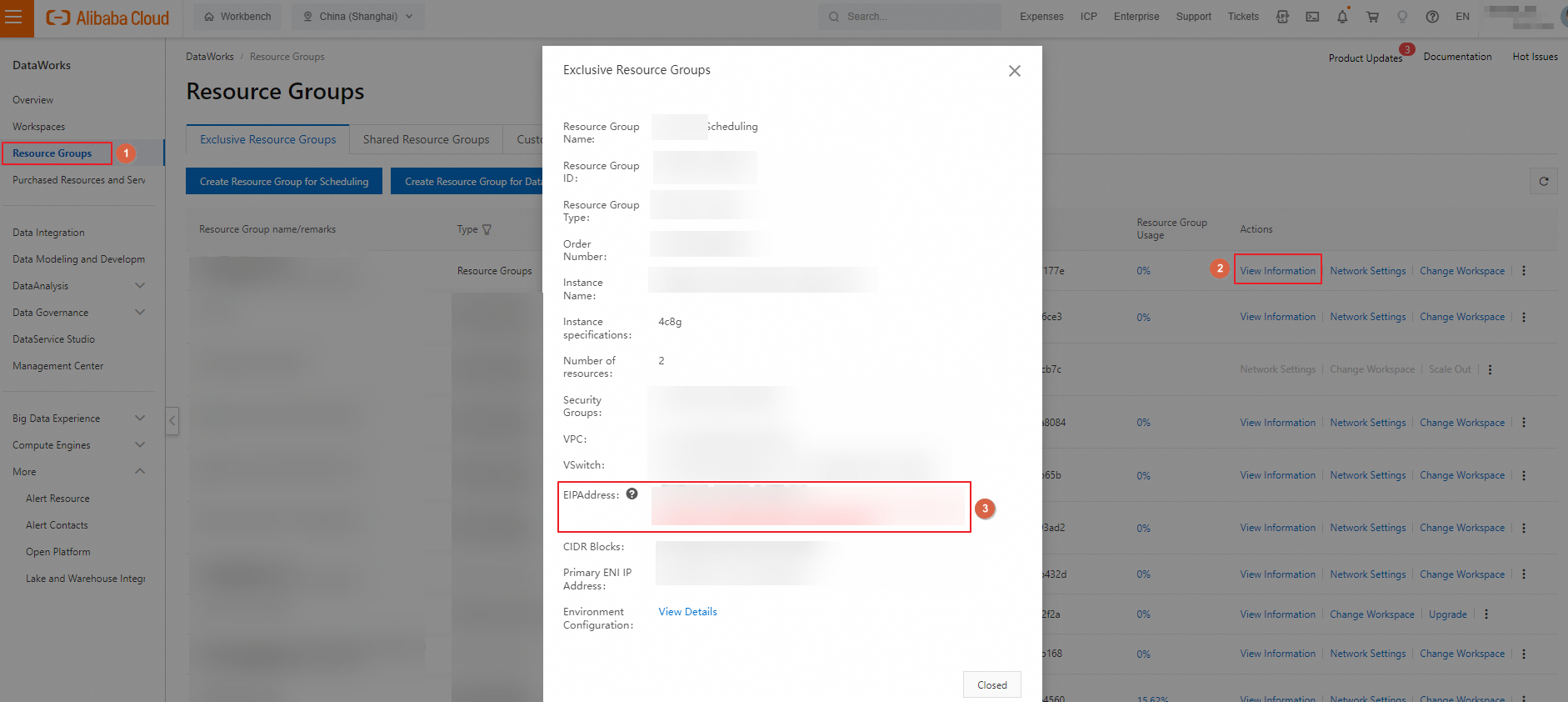
After binding the VPC, on the Exclusive Resource Groups tab of the Resource Group page, click Network Settings in the Actions column to go to the VPC Binding tab and view the vSwitch CIDR block.
To connect the data source and exclusive resource group via the Internet: Add the EIP Address of the exclusive resource group to the data source whitelist.
Step 4: Test network connectivity
After configuration, test connectivity between the resource group and the data source.
Go to the Data Sources page.
Log on to the DataWorks console. In the top navigation bar, select the desired region. In the left-side navigation pane, choose . On the page that appears, select the desired workspace from the drop-down list and click Go to Management Center.
In the left-side navigation pane of the SettingCenter page, click Data Sources.
Click Edit in the Actions column of the corresponding data source.
On the Data Integration tab, click Test Network Connectivity next to the resource group name. A status of Connected indicates success.
 Note
NoteIf the connection fails, click Troubleshoot to diagnose the issue. For more information on network connectivity between data sources and exclusive resource groups in different network environments, see Network connectivity solutions.
Click Complete.
More operations
View resource group usage and monitoring
View usage and queuing status in the DataWorks console. Use intelligent monitoring in the Operation Center to track usage and pending instances. For details on viewing resource group usage, see View the resource usage of an exclusive resource group. For details on resource group monitoring, see Create a custom alert rule.
Change the zone of a resource group
To change the zone of a resource group, follow these steps:
Log on to the DataWorks console.
In the left-side navigation pane, click Resource Groups. On the Exclusive Resource Groups tab of the Resource Group, find the resource group with Purpose set to Data Scheduling.
Click the
 icon in the Actions column of the resource group and select Change Zone.
In the dialog box, select the Current Zone and Machines of the resource group to be replaced, and then select the New Zone and Number of Machines to Use.
Click OK to complete the zone migration.
Changing zones may affect network configurations:
CIDR block: Each zone has a specific CIDR block. If the zone changes, the CIDR block is updated accordingly.
Resource group primary ENI IP: The primary ENI IP of the replaced ECS instance will change. A new IP will be allocated from the CIDR block of the target zone.
Elastic network interface (ENI) bound to the resource group: If the whitelist contains the vSwitch CIDR block, it will not be affected. However, if the whitelist contains the IP of the ENI bound to the resource group, you must update the whitelist configuration accordingly to ensure continuous access permissions and normal operations.
Switch resource groups
You can switch the resource group used by tasks using the following methods.
Environment | Supported operation | Entry point |
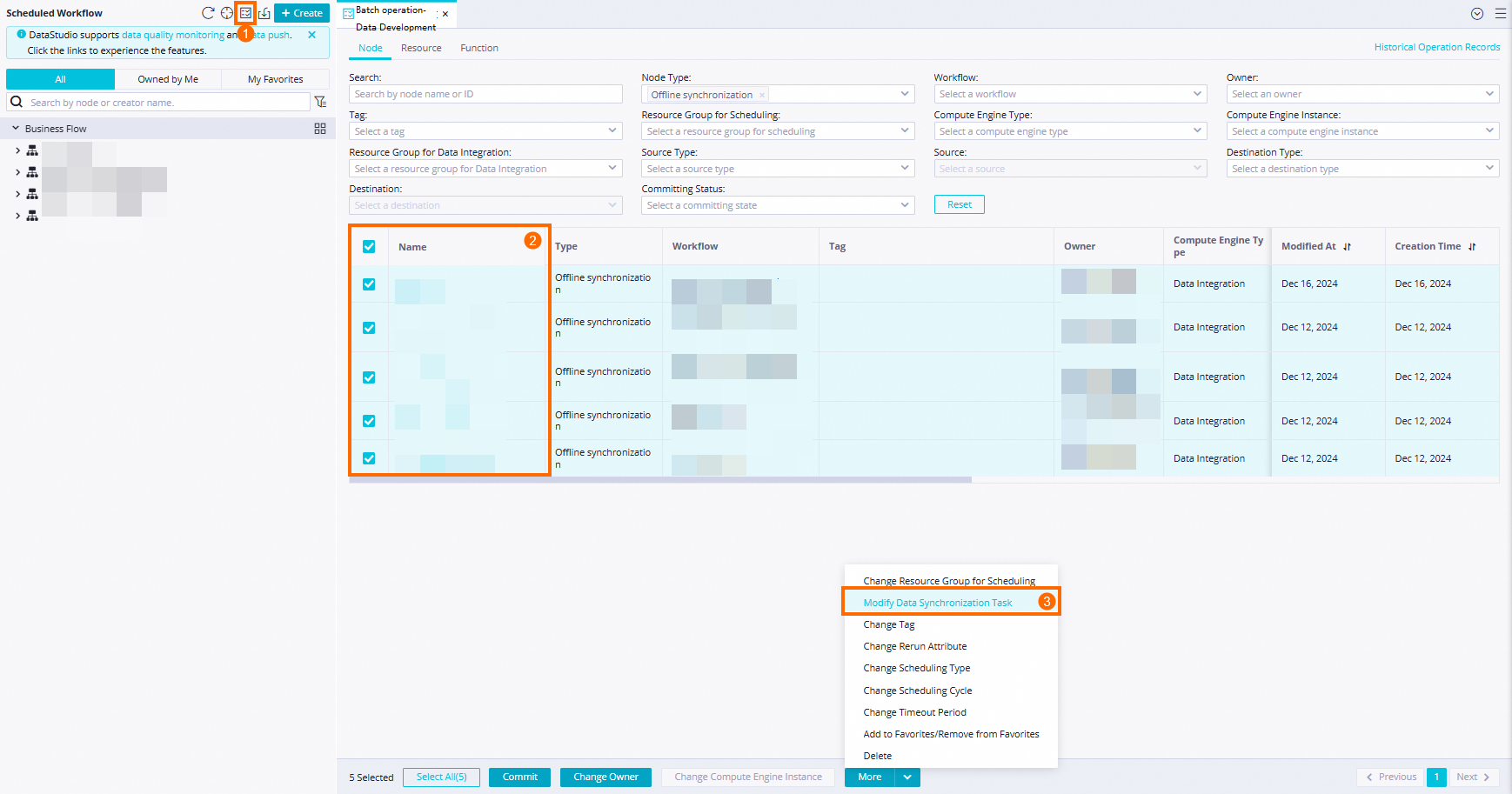
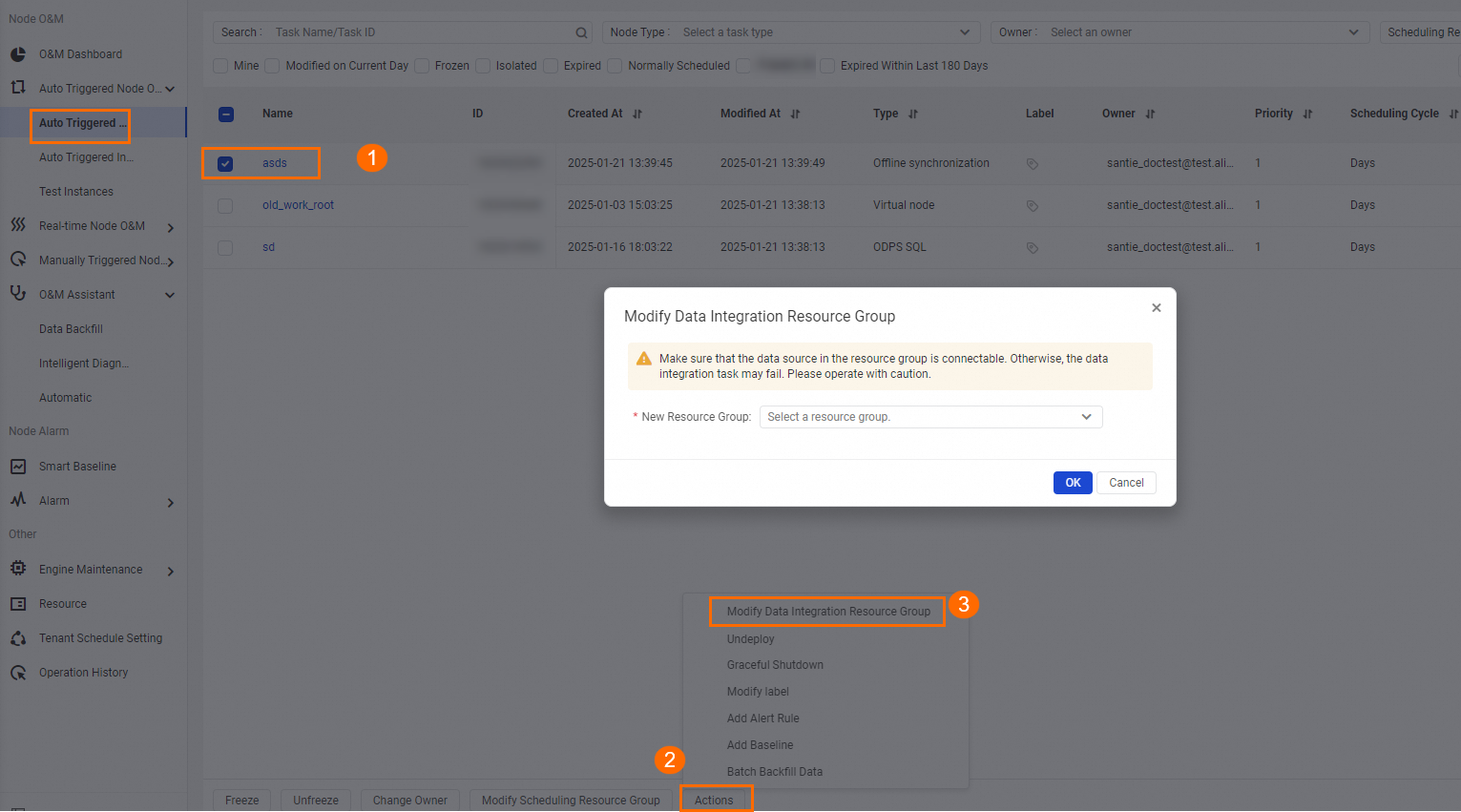
Switch production resource group | Batch switch | Go to the page. Select the target tasks. In the bottom menu bar, click . |
Switch development resource group |
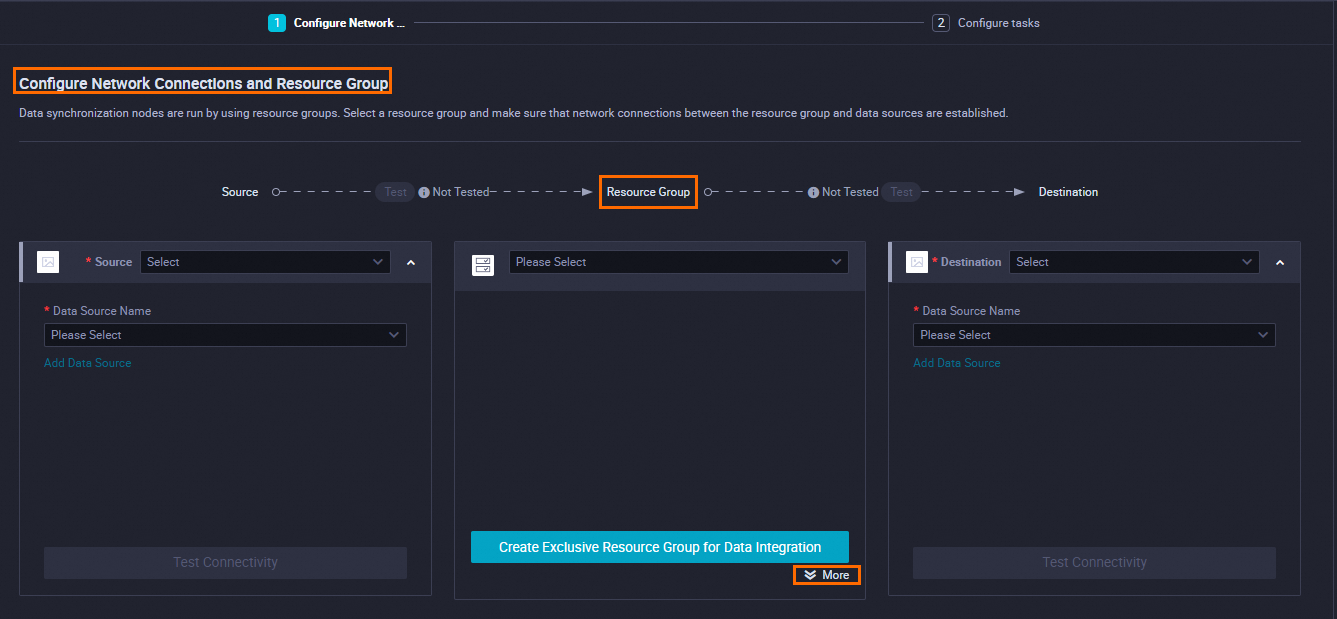
| Go to the DataStudio page.
Note If you cannot find the entry to modify the Data Integration resource group, filter the node type to "Offline Synchronization" first. |
 icon. Select the tasks for which you want to modify the resource group. In the bottom menu bar, click Modify Data Synchronization Task to perform a batch modification.