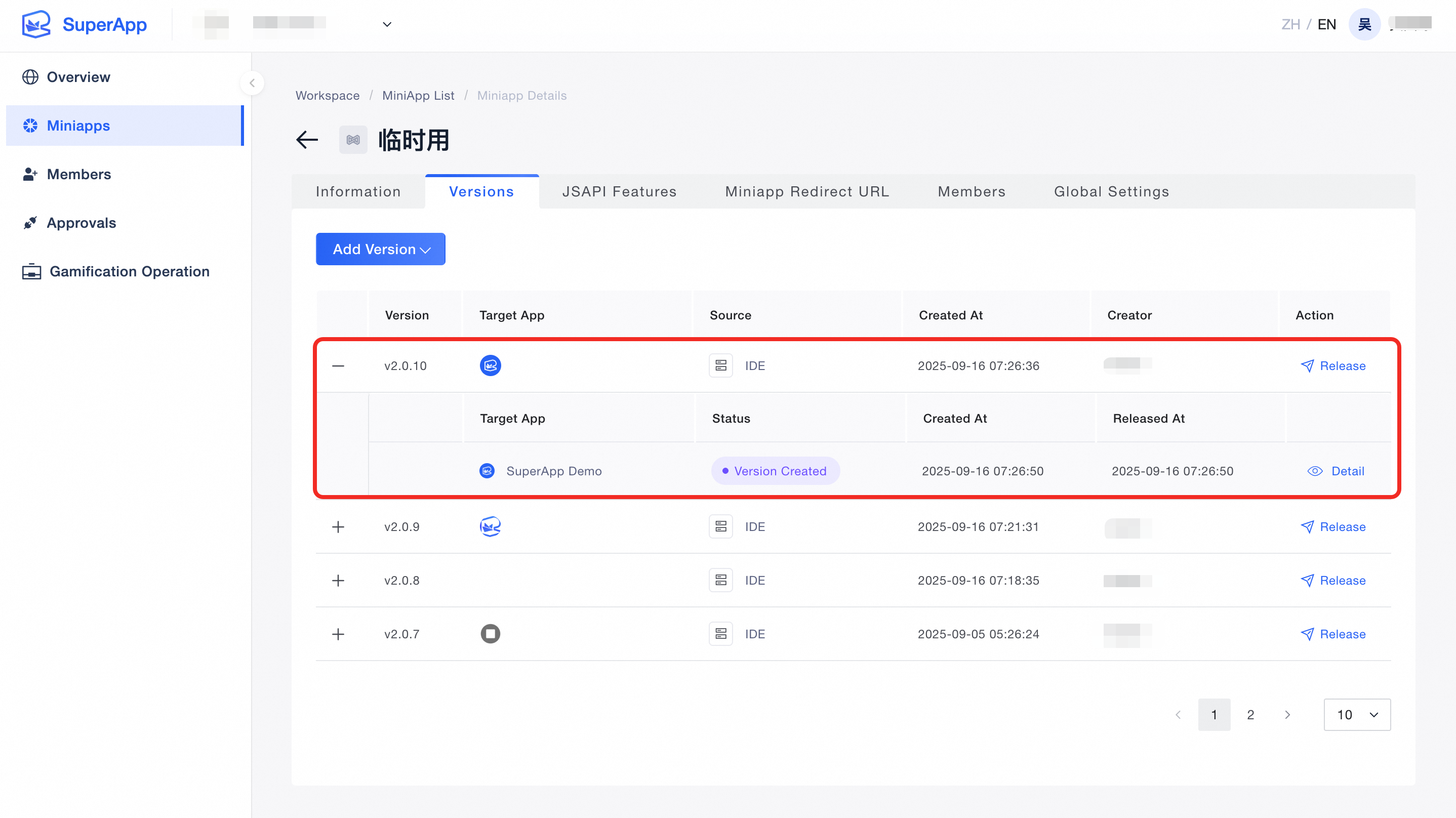
After the preview meets your expectations, you can package and build the miniapp in VS Code. Once the build is complete, you can publish the miniapp on the Application Open Platform. This guide details the full process of packaging, building, and publishing.
1. Package and Build
Package and BuildClick the 「Publish MiniApp」 button in VS Code. The plugin automatically calls the server API to retrieve the current version information of the miniapp and calculates a recommended version number.
A selection dialog appears, allowing you to choose between:
The recommended version (automatically calculated), or A custom version number.
Click Recommended Version to use the auto-generated version.
Click the 「Use custom version」 button to manually enter your desired version.
Once the version is confirmed, the system automatically runs
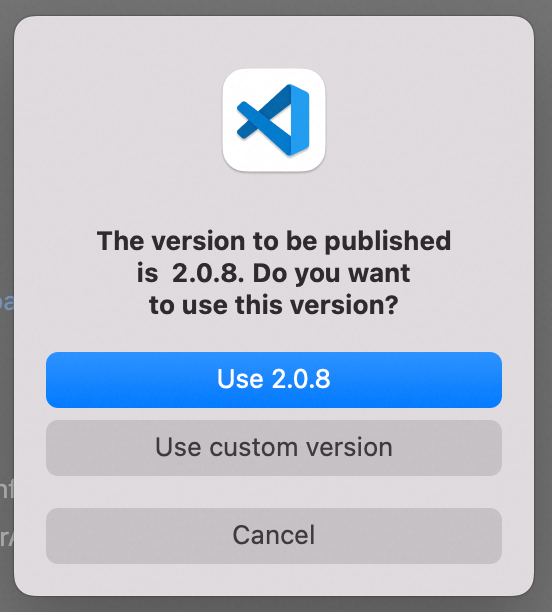
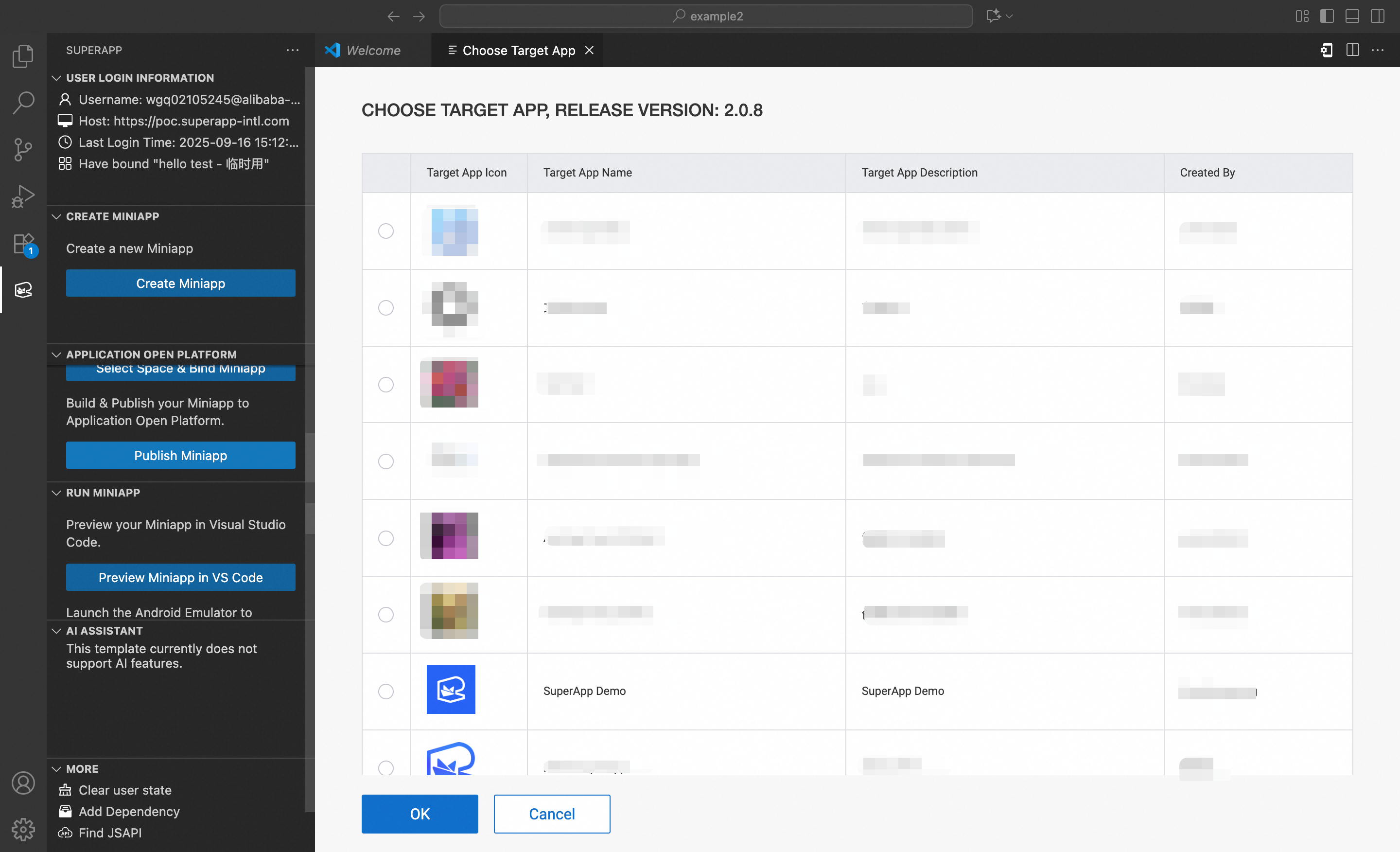
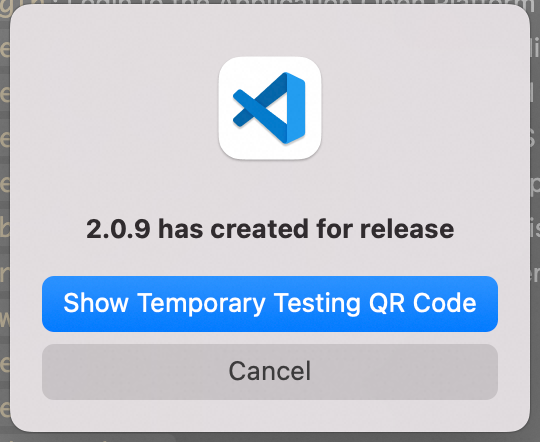
npm run buildto package the miniapp. After packaging succeeds, the build output is automatically compressed and uploaded for publication.Upon successful publication, a confirmation message displays the new version number.After confirmation, you will be prompted to select the target app for publishing. Click Confirm to proceed.
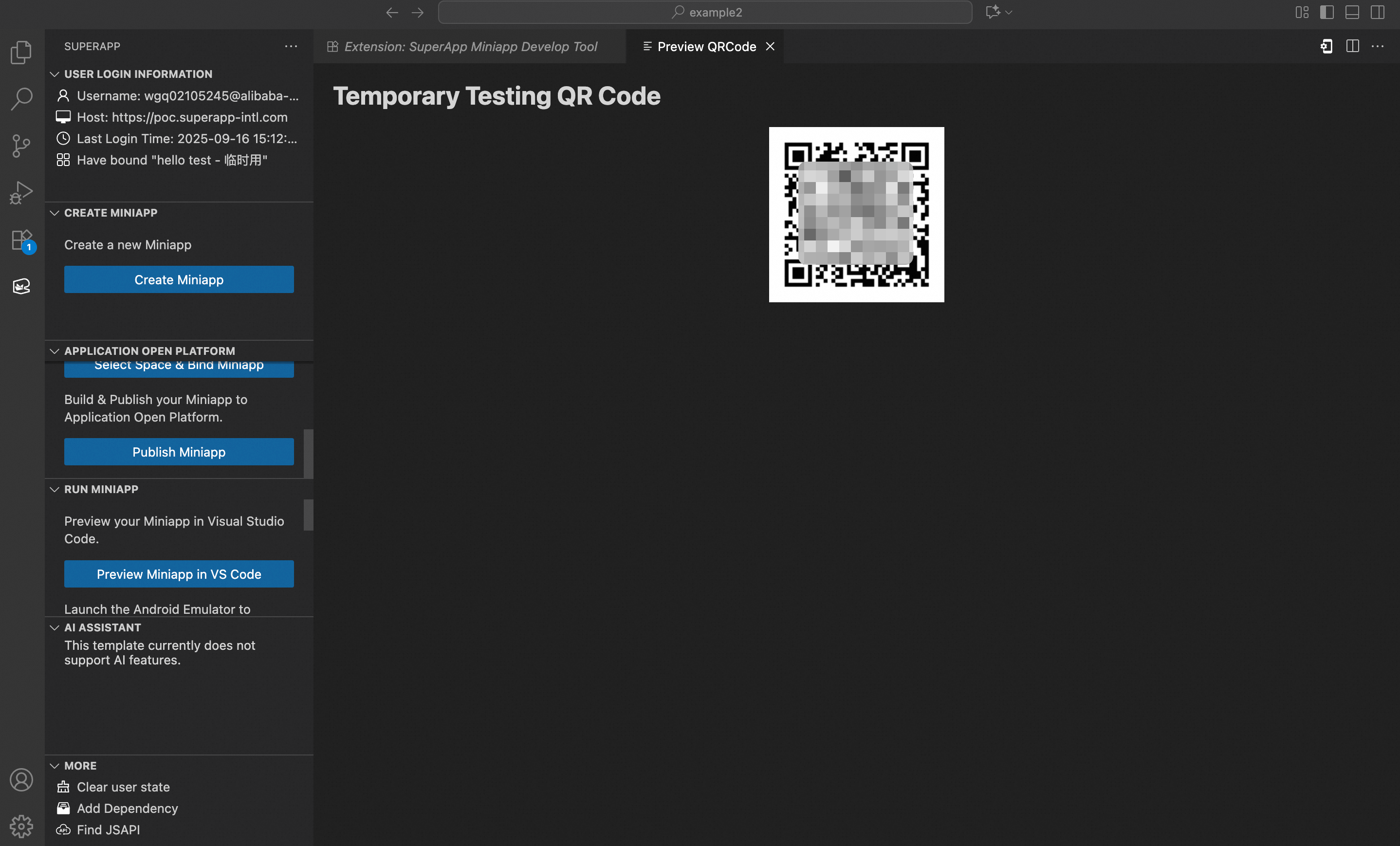
After selection, you can: Scan a QR code with the target app to preview the miniapp, or Go to the Application Open Platform to manage the release.
The default build output directory is dist. You can customize this path in the plugin settings.
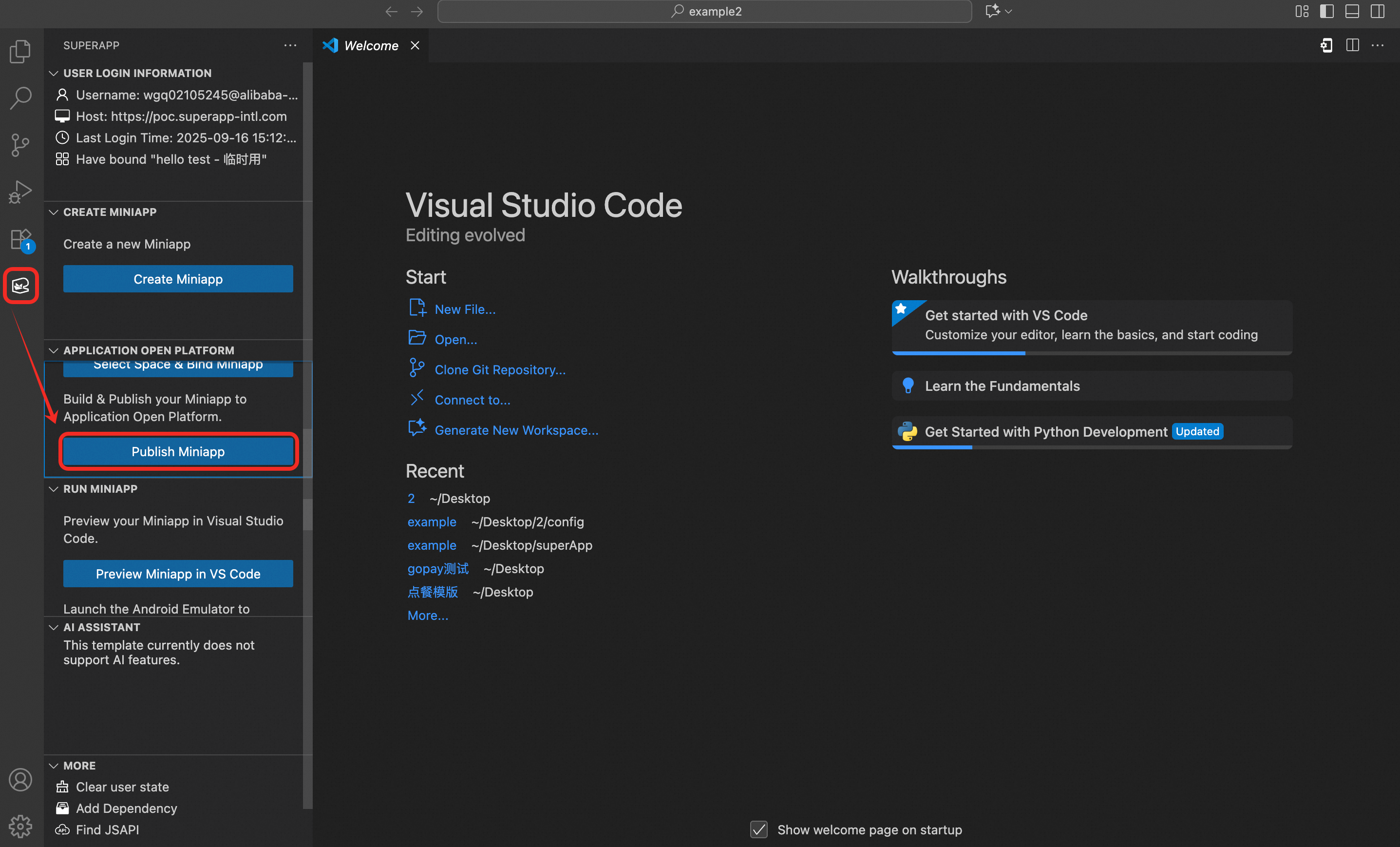
Confirm version:
Enter version number:

Created successfully:
Select target App:
Preview miniapp:
2. Publish MiniApp
The publishing process must be completed on the Application Open Platform. For detailed publishing steps, see Versions.