You can grant permissions to a RAM user group by attaching policies. All RAM users in the group then inherit the attached permissions. We recommend that you follow the principle of least privilege and grant only the required permissions.
Method 1: Attach a policy on the Groups page
Log on to the RAM console as a RAM administrator.
In the navigation pane on the left, choose .
On the Groups page, find the RAM user group that you want to manage and click Attach Policy in the Actions column.

You can also select multiple RAM user groups and click Attach Policy in the lower part of the page to grant permissions to the RAM user groups at a time.
In the Grant Permission panel, grant permissions to the RAM user group.
Set the Resource Scope parameter.
Account: The authorization takes effect on the current Alibaba Cloud account.
Resource Group: The authorization takes effect on a specific resource group.
NoteIf you select Resource Group for the Resource Scope parameter, make sure that the required cloud service supports resource groups. For more information, see Services that work with Resource Group.
Set the Principal parameter.
The principal is the RAM user group to which you want to grant permissions. The current RAM user group is selected by default.
Select a policy to attach.
A policy defines a set of permissions. You can select multiple policies at a time.
System policies: Predefined policies provided by Alibaba Cloud. You can use but cannot modify these policies. Alibaba Cloud maintains version updates. For more information, see Services that work with RAM.
NoteHigh-risk system policies, such as AdministratorAccess and AliyunRAMFullAccess, are automatically flagged. Avoid attaching high-risk policies unless necessary.
Custom policies: Policies that you create and manage. You can create, modify, and delete custom policies as needed. For more information, see Create custom policies.
Click Grant permissions.
Click Close.
Method 2: Grant permissions on the Grants page
Log on to the RAM console as a RAM administrator.
In the navigation pane on the left, choose .
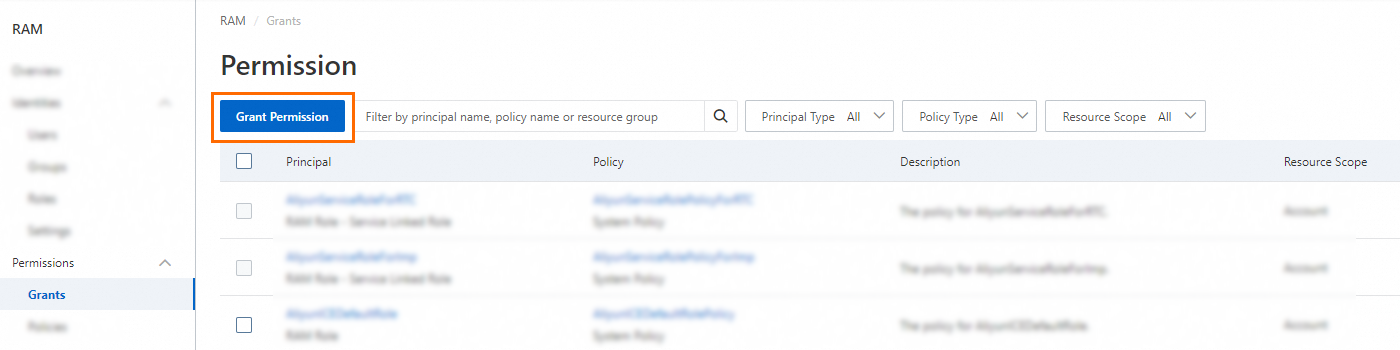
On the Permission page, click Grant Permission.
In the Grant Permission panel, grant permissions to the RAM user group.
Set the Resource Scope parameter.
Account: The authorization takes effect on the current Alibaba Cloud account.
Resource Group: The authorization takes effect on a specific resource group.
NoteIf you select Resource Group for the Resource Scope parameter, make sure that the required cloud service supports resource groups. For more information, see Services that work with Resource Group.
Set the Principal parameter.
The principal is the RAM user group to which you want to grant permissions. You can select multiple RAM user groups at a time.
Select a policy to attach.
A policy defines a set of permissions. You can select multiple policies at a time.
System policies: Predefined policies provided by Alibaba Cloud. You can use but cannot modify these policies. Alibaba Cloud maintains version updates. For more information, see Services that work with RAM.
NoteHigh-risk system policies, such as AdministratorAccess and AliyunRAMFullAccess, are automatically flagged. Avoid attaching high-risk policies unless necessary.
Custom policies: Policies that you create and manage. You can create, modify, and delete custom policies as needed. For more information, see Create custom policies.
Click Grant permissions.
Click Close.