Veeam Backup & Replication provides data protection and disaster recovery for cloud workloads, virtual machines, and physical servers. This topic describes how to add an OSS bucket as an object storage repository in Veeam, so that backup jobs write directly to OSS.
Prerequisites
Before you begin, make sure you have:
Veeam Backup & Replication installed (v11 is used as an example in this topic). For download links, see Veeam
An OSS bucket. For instructions, see Create buckets
(If required) A whitelist configured for the bucket. To configure a whitelist, submit a ticket
An AccessKey pair for a RAM user with the
AliyunOSSFullAccesspolicy attached. For instructions, see Obtain an AccessKey pair
Add an OSS bucket as a backup repository
Log on to the Veeam Backup & Replication console.
On the Home page, choose Backup Infrastructure > Backup Repositories > Add Repository.
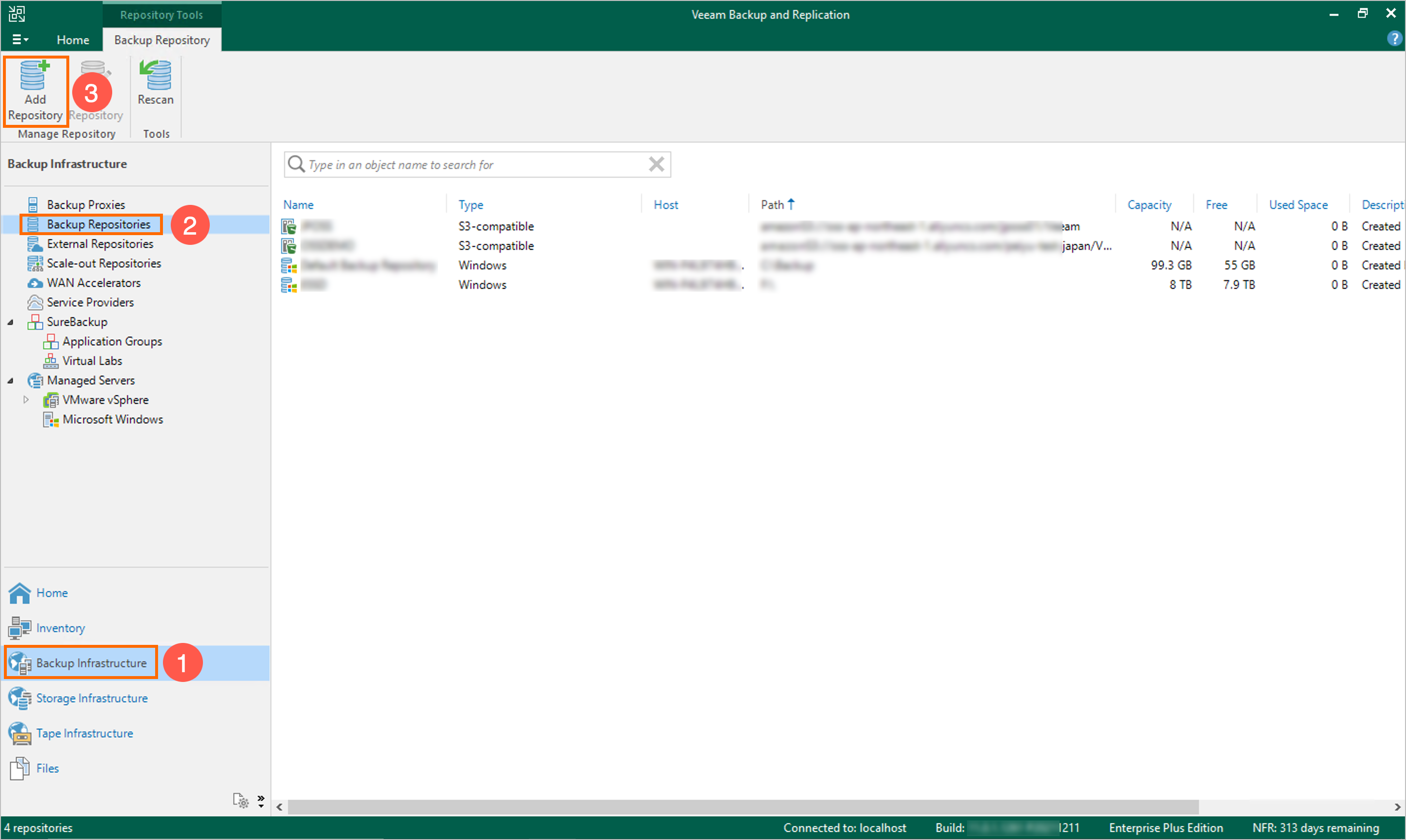
In the Add Backup Repository dialog box, click Object storage.

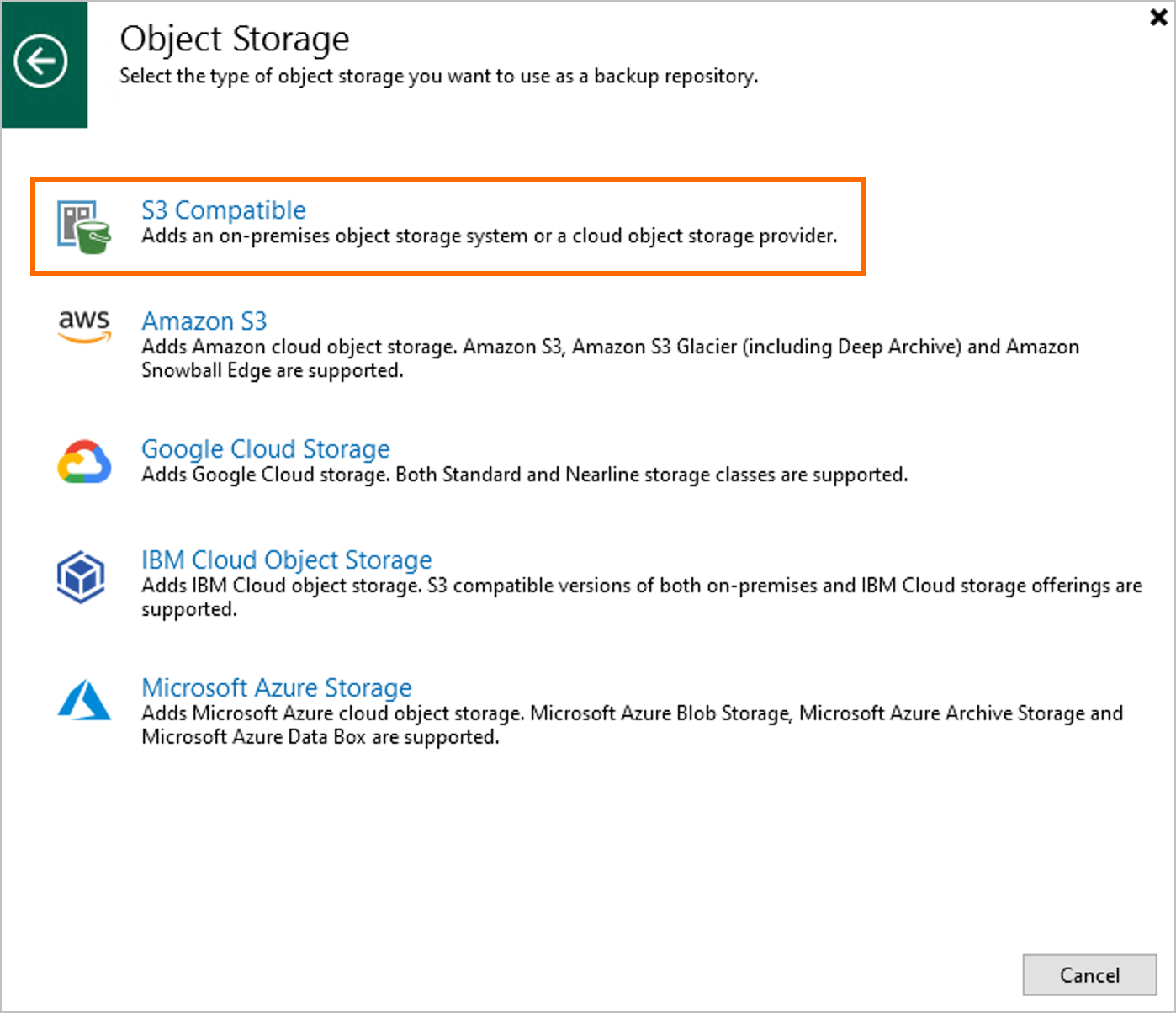
In the Object storage dialog box, click S3 Compatible.
On the Name tab of the New Object Storage Repository dialog box, name the repository.
In the Name field, enter a name for the repository.
(Optional) In the Description field, enter a description.
Click Next.

On the Account tab, configure the OSS endpoint and credentials.
In the Service point field, enter the OSS endpoint. For more information, see Regions and endpoints.
(Optional) In the Region field, enter the region name.
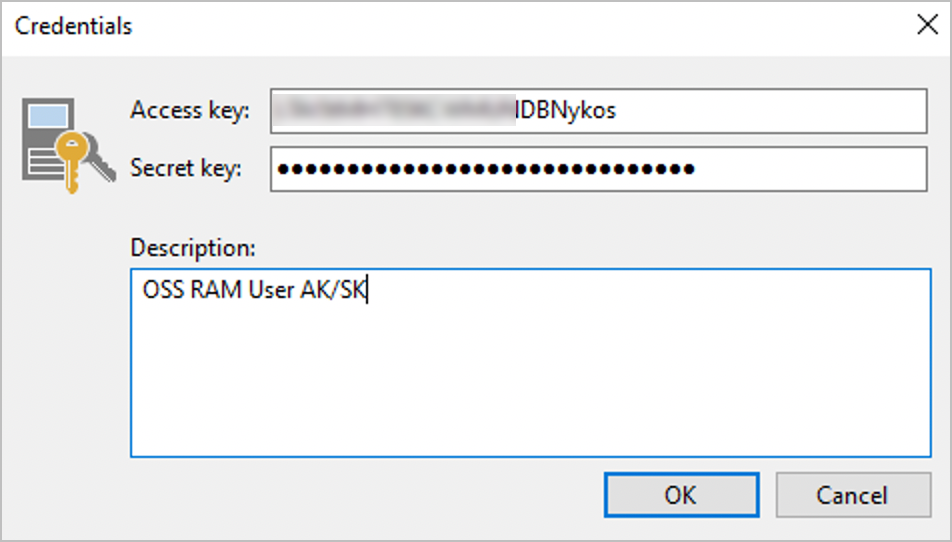
To the right of the Credentials field, click Add.
In the Credentials dialog box, enter your RAM user's AccessKey ID in the Access key field and AccessKey secret in the Secret key field, then click OK.
Click Next.

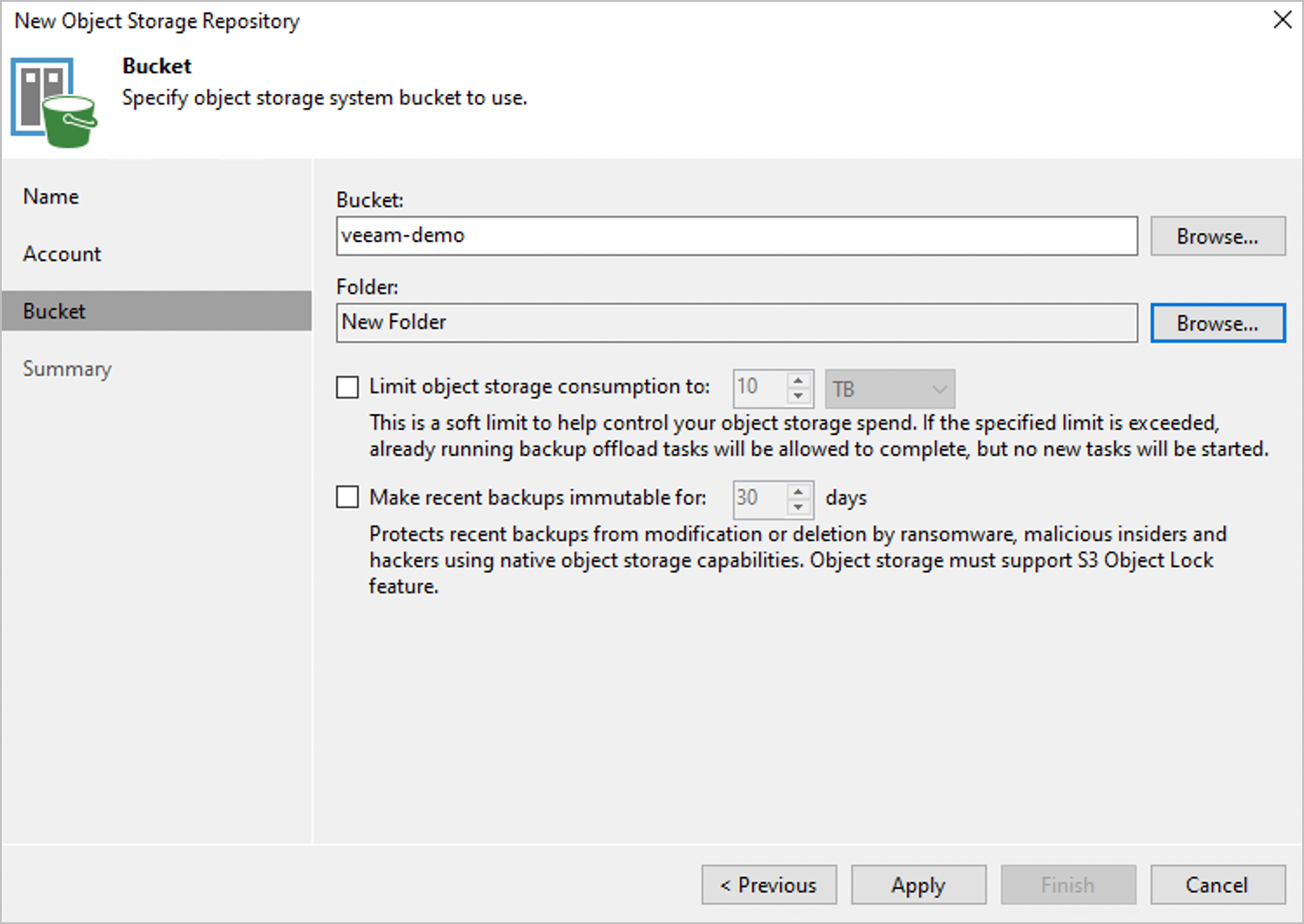
On the Bucket tab, select the bucket and folder.
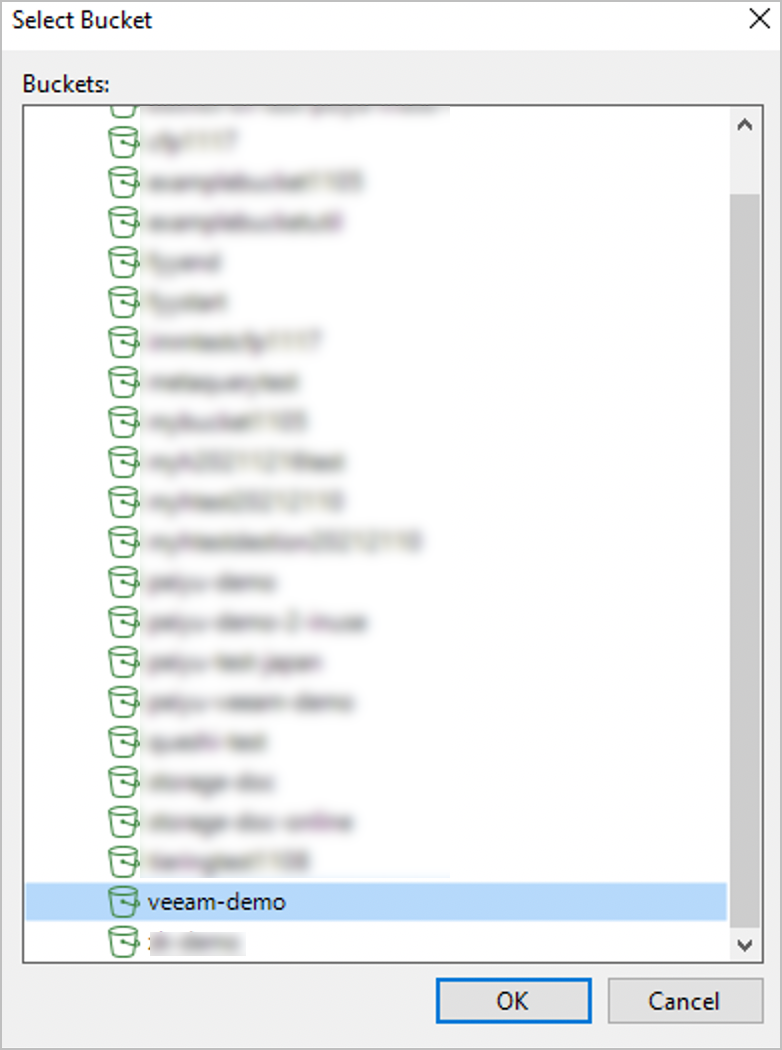
To the right of the Bucket field, click Browse.
In the Select Bucket dialog box, select your bucket and click OK.
To the right of the Folder field, click Browse.
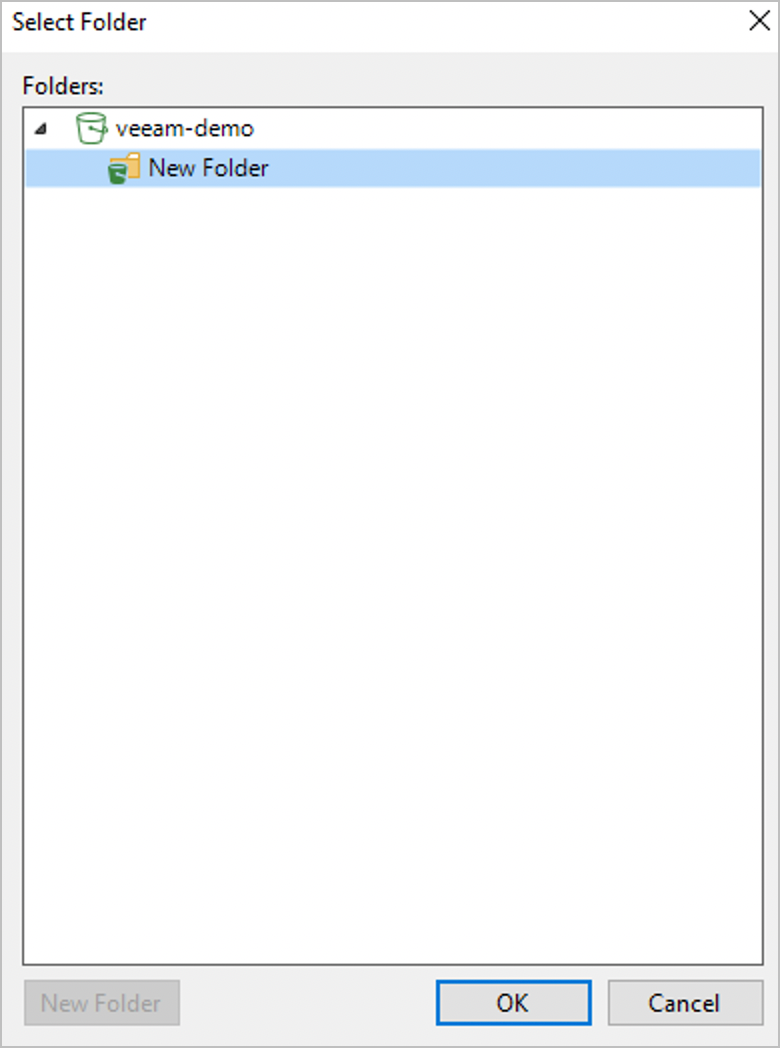
In the Select Folder dialog box, click New Folder. Select the new folder and click OK.
In the upper-right corner, click Apply.
On the Summary tab, review the configuration and click Finish.
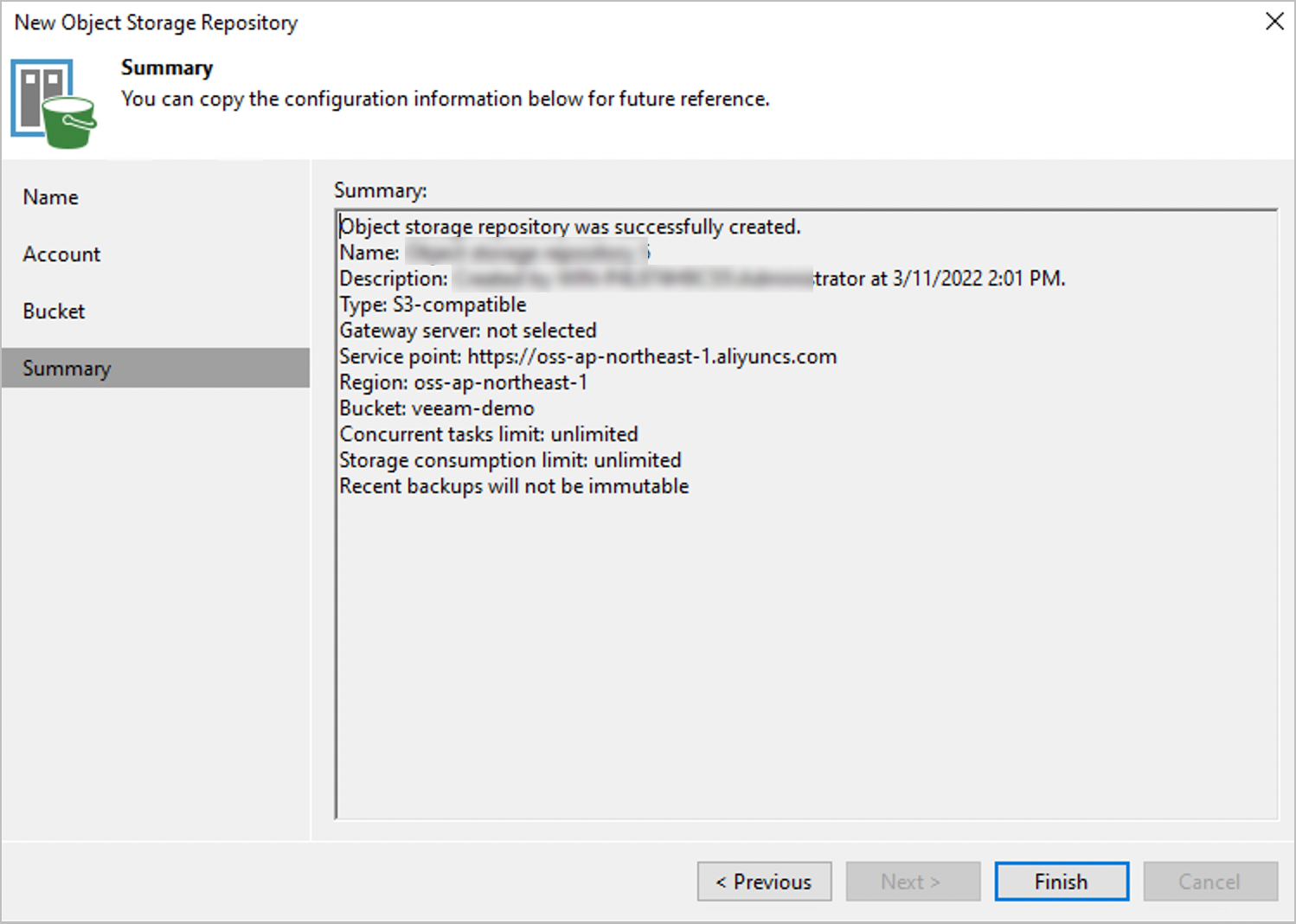
The OSS bucket is now configured as an object storage repository in Veeam. You can select this repository when creating or editing backup jobs.