This topic describes how to configure and use enterprise-level identity providers (IdPs) such as Okta, Azure AD, and self-developed systems to interact with Identity as a Service (IDaaS) Employee Identity and Access Management (EIAM) over the OpenID Connect (OIDC) protocol.
Terms
After you bind IDaaS to an OIDC IdP such as Okta, Azure AD, or a self-developed system, users can use accounts configured in the IdP to log on to IDaaS EIAM.
Term | Description |
OIDC | An upgraded version of the OAuth protocol. The OIDC protocol builds an identity layer based on OAuth 2.0. For more information about common configurations of OIDC, see OIDC SSO Configuration. |
IdP | An identity provider. In this topic, Okta, Azure AD, or a self-developed system works as an IdP. As defined in Security Assertion Markup Language (SAML), an IdP verifies and authenticates a user and returns the authentication result in a SAML response to a service provider (SP). In general, an IdP refers to a centralized identity management platform. |
SP | A service provider. In this topic, IDaaS EIAM works as an SP. As defined in SAML, an SP receives a response from an IdP and parses the response to obtain the authentication result. In general, an SP is an application that interacts with an IdP. |
Federated authentication | An authentication mode in which an SP trusts and uses the authentication result from an IdP. In this topic, IDaaS EIAM trusts the authentication result from Okta, Azure AD, or a self-developed system. Users who pass federated authentication can log on to IDaaS EIAM by using their accounts configured in an IdP. Federated authentication is often used for single sign-on (SSO). |
Bind IDaaS to an OIDC IdP
IDaaS EIAM uses the standard authorization code flow of OIDC to implement federated authentication. Therefore, a user can use an account configured in your IdP such as Okta, Azure AD, or a self-managed system to log on to IDaaS EIAM, provided that your IdP supports SSO based on the standard authorization code flow of OIDC.
You can initiate an SSO request only on the logon page of IDaaS EIAM, which works as an SP. In this case, an IdP is displayed as a logon method on the logon page of IDaaS EIAM. You cannot initiate an SSO request from an IdP.
In the process of binding IDaaS to an OIDC IdP, mutual trust is established between IDaaS and the IdP. You must obtain and configure information in both IDaaS and the IdP.
Step 1: Configure basic information
Obtain the configuration information in IDaaS
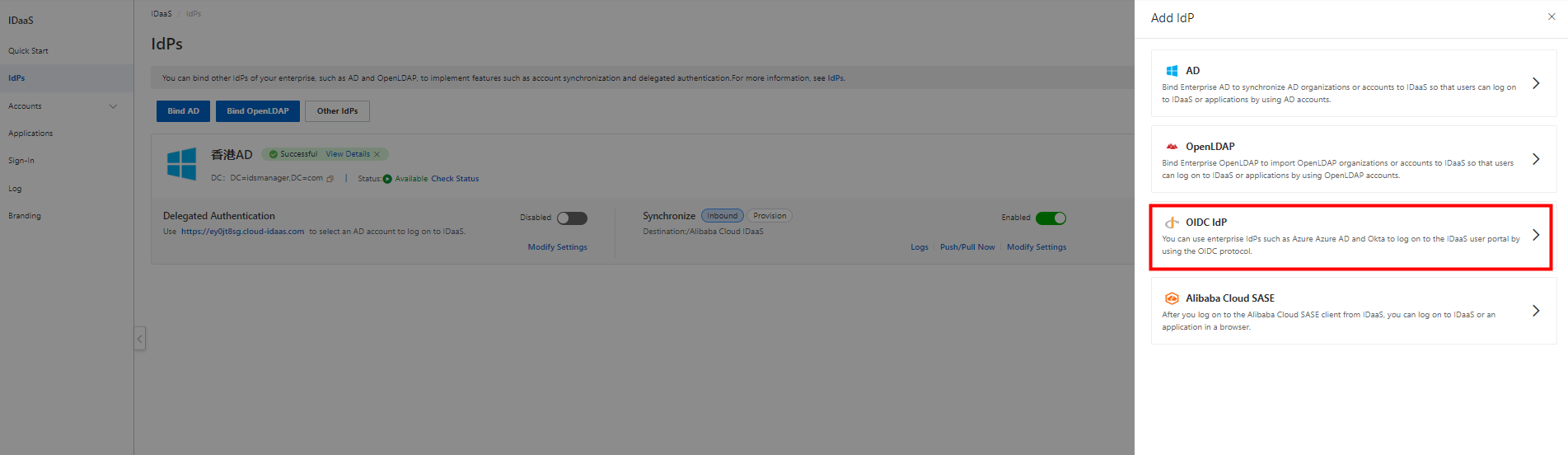
1. Go to the details page of your IDaaS EIAM instance. In the left-side navigation pane, click IdPs. On the IdPs page, click Other IdPs. In the Add IdP panel, click OIDC IdP.
2. In the Bind OIDC Identity Provider panel, copy the value of the IDaaS Redirect URI parameter. This uniform resource identifier (URI) is used to receive authentication results and ID tokens. You need to specify this URI when you create an application in your IdP.

Obtain the configuration information in your IdP
1. Create an application that supports the OIDC protocol in your IdP and specify the value of the IDaaS Redirect URI parameter that you copied in the previous step as the redirect URI of the application.
2. Obtain the following information and configure the parameters in the Bind OIDC Identity Provider panel in the IDaaS console:
Client ID: the client ID that is used to send requests to IDaaS EIAM. Enter the ID of your IdP application.
Client Secret: the client secret that is used to send requests to IDaaS EIAM. Enter the secret of your IdP application.
Issuer: the discovery endpoint of the OIDC issuer.
3. In the Bind OIDC Identity Provider panel, click Parse in the Endpoint Configurations section. Then, the endpoints are automatically entered.
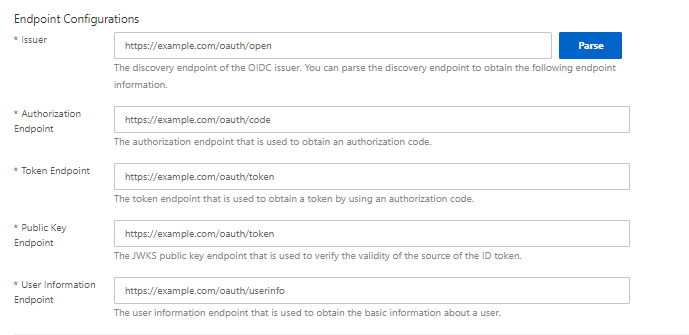
4. Confirm the configurations and click Next to go to the Select Scenario step.
Step 2: Select a scenario
In the Select Scenario step, you can enable one or more features based on your business requirements.
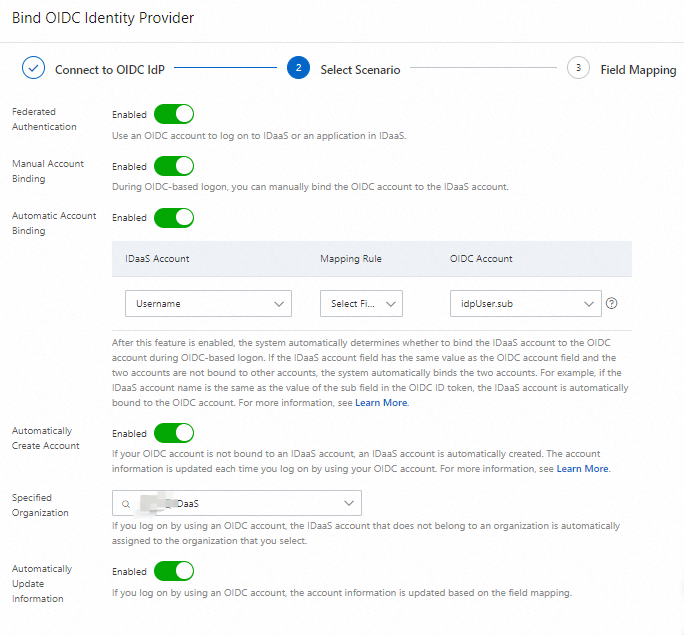
Federated Authentication: If you enable this feature, you can implement OIDC-based logon.
Manual Account Binding: After you enable this feature, if the OIDC account of a user is not bound to an IDaaS account, the user can manually complete account binding during OIDC-based logon. After account binding is complete, the user can use the OIDC account to log on to IDaaS EIAM.
Automatic Account Binding: After you enable this feature, if the OIDC account of a user is not bound to an IDaaS account and the field of the IDaaS account has the same value as the field of the OIDC account, the system automatically completes account binding. You can set the Mapping Rule parameter to Select Field and select a field in the ID token. You can also use an advanced expression to add a custom field. For more information, see Advanced: Use Expression in SSO Attributes. After account binding is complete, the user can use the OIDC account to log on to IDaaS EIAM.
Automatically Create Account: After you enable this feature, if the OIDC account of a user is not bound to an IDaaS account, an IDaaS account is automatically created during OIDC-based logon. The account information is updated each time the user logs on to IDaaS EIAM by using the OIDC account.
Specified Organization: If you log on to IDaaS EIAM by using an OIDC account, the IDaaS account that does not belong to an organization is automatically assigned to the organization that you select. By default, the root organization is selected when you configure this field. You can search for an organization or select an organization from the drop-down list.
Automatically Update Information: After you enable this feature, if you log on to IDaaS EIAM by using an OIDC account, the IDaaS account information is automatically updated based on field mappings.
If you enable both Manual Account Binding and Automatic Account Binding, the system preferentially performs an automatic account binding during OIDC-based logon. The Automatic Account Binding feature is available only for IDaaS instances of Trial Edition and Enterprise Edition. If you want to use this feature, make sure that your IDaaS instance meets this requirement in advance.
Confirm the configurations and click Confirm.
Step 3: (Optional) Configure field mappings
After you turn on Automatically Create Account or Automatically Update Information, the Field Mapping step appears.
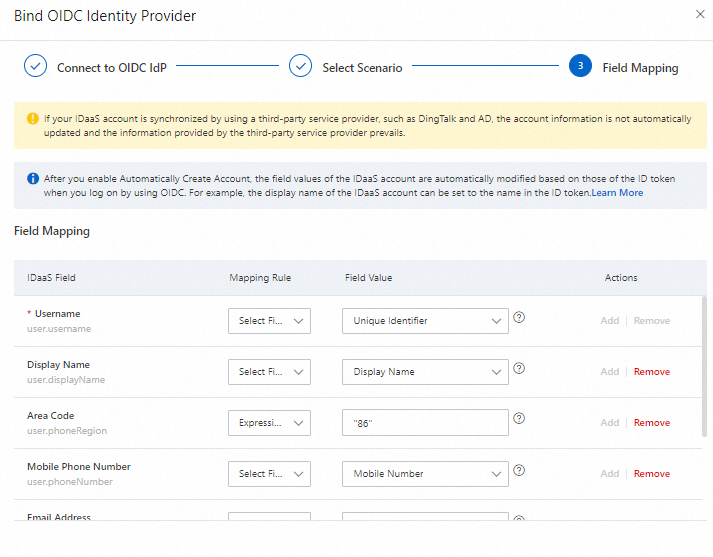
If an IDaaS account is created by an IdP such as DingTalk or Azure AD, the account data is updated based on the IdP instead of field mappings.
After you turn on Automatically Create Account, the field values of the IDaaS account are automatically changed based on the values of the fields in the ID token when you log on to IDaaS EIAM by using an OIDC account. For example, the display name of the IDaaS account is set to the name in the ID token.
Users can log on to IDaaS EIAM by using an account in the following priority order: an OIDC account that is bound to an IDaaS account, an OIDC account that can be automatically bound to an IDaaS account, and an OIDC account that can be manually bound to an IDaaS account or an IDaaS account that is automatically created.
If an OIDC account is not bound to an IDaaS account or cannot be automatically bound to an IDaaS account, the following dialog box appears. Users can manually bind the OIDC account to an existing IDaaS account or manually create an IDaaS account.
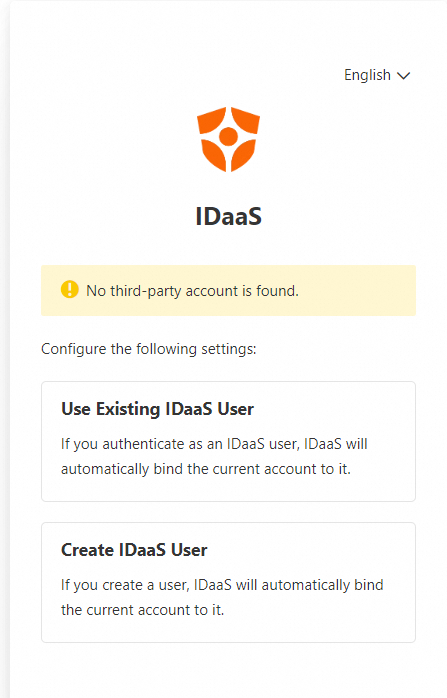
You can delete an OIDC IdP on the IdPs page. After an OIDC IdP is deleted, the related configurations are immediately deleted and cannot be recovered, and the related features become unavailable.