After you develop and deploy a job, you can start it on the Job O&M page. Starting a job is also required to recover a job that has stopped or to apply updated parameter settings that are not applied dynamically. This topic describes how to start a job.
Prerequisites
A job has been deployed. For more information, see Deploy a job.
Limits
Only stream jobs support start options.
Notes
If you use a Resource Access Management (RAM) user, RAM role, or another Alibaba Cloud account to start a job, ensure that the account has access permissions to the target project. For more information, see Grant permissions in the development console and Permission management.
If you start a job from the latest state or a specified state, the system performs a state compatibility check. A job with state incompatibilities may fail to start or produce unexpected results. For more information, see Flink State compatibility reference.
Procedure
Go to the job start interface.
Log on to the Flink development console as a member with the owner role.
At the top of the page, select the name of the target project.
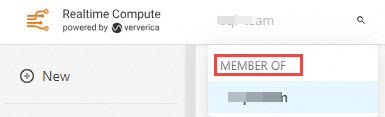
On the page, select Stream Job or Batch Job from the drop-down list.

In the Actions column for the target job, click Start.
(Optional) For a stream job, configure the start options.
Stateless Start
Select this option for a new job or when you cannot reuse a state. You can also enable automatic tuning as needed.
Policy
Description
Specify Source Table Start Time
Select Specify Source Table Start Time and specify a time.
Currently, you can set the source table start time on the interface for seven types of connectors: Kafka, Simple Log Service (SLS), DataHub, ApsaraMQ for RocketMQ, Hologres, Paimon data lakehouse for streaming, and MySQL.
The read time specified on the job start interface has a higher priority than the startTime set in the job's Data Definition Language (DDL) code.
NoteKafka versions earlier than 0.11 might not be supported due to potential compatibility issues with the connector's Kafka client. Upgrade your Kafka version.
Not all connectors support the startTime parameter. To check if a connector supports it, see if its WITH parameters include startTime. For an example, see Simple Log Service (SLS) WITH parameters.
startTime takes effect only when you start a job from scratch and specify startTime. If you start a job from a system checkpoint or a job snapshot, startTime will not take effect.
Configure Automatic Tuning
Turn on this switch and select a tuning mode:
Intelligent tuning: The system automatically reduces resource configuration when resource usage is low and increases it when usage reaches a certain threshold. For more information, see Enable and configure intelligent tuning.
Scheduled tuning: Select a schedule from the drop-down list. A schedule can contain multiple mappings between resources and time points. You can configure resources based on usage during different time periods. For more information, see Configure and apply a scheduled tuning plan.
Stateful Start
Select a specific start policy and decide whether to enable automatic tuning as needed.
Policy
Description
Recover from the Latest State
Recovers the job from the latest state of a snapshot or system checkpoint. If you choose to start a job from the latest state, the Flink system detects changes in the SQL job, such as SQL code, Flink runtime parameter settings, and the database engine version.
If changes are detected, click Check next to State Compatibility Check to check for compatibility. Decide your next steps based on the compatibility results. For more information about the meanings of compatibility results and recommended actions, see Compatibility.
Recover from a Specified State
Select a specific snapshot. For more information about how to create a snapshot, see Manage job state sets.
Recover from Another Job
After you select this option, specify the target job and its corresponding snapshot to recover the job. Snapshots can be shared between jobs, but the states of the jobs must be compatible. For more information, see Manage job state sets.
Allow Non-Restored State
NoteSupported only for JAR jobs.
By default, the Flink system tries to match the entire snapshot with the job being submitted. If modifications to the job cause changes in the operator state, the task may not be recoverable. In this case, you can turn on this switch. The Flink system will then skip the states that cannot be matched, allowing the job to start. For more information, see Allow Non-Restored State.
Configure Automatic Tuning
Turn on this switch and select a tuning mode:
Intelligent tuning: The system automatically reduces resource configuration when resource usage is low and increases it when usage reaches a certain threshold. For more information, see Enable and configure intelligent tuning.
Scheduled tuning: Select a schedule from the drop-down list. A schedule can contain multiple mappings between resources and time points. You can configure resources based on usage during different time periods. For more information, see Configure and apply a scheduled tuning plan.
Click Start.
You can view the running status of the job on the page. For more information, see View the running status of a job.
References
After a job starts, you can modify its runtime parameters. For more information, see Configure runtime parameters. Some parameters also support dynamic updates to reduce business interruptions caused by stopping and restarting the job. For more information, see Dynamic scaling and dynamic parameter updates.
After a job starts, you can trace its data lineage to locate issues or assess the impact. For more information, see View data lineage.
To learn about the enterprise-grade state backend GeminiStateBackend and its performance comparison with RocksDBStateBackend, see Introduction to the enterprise-grade state backend.