Connect your on-premises data center to an Alibaba Cloud virtual private cloud (VPC) over an Express Connect circuit. After the connection is established, on-premises servers can access Elastic Compute Service (ECS) instances in the VPC.
Example
Assume you have a VPC in the China (Shanghai) region and an on-premises data center. You want to request a dedicated Express Connect circuit to connect an on-premises server to an Elastic Compute Service (ECS) instance in the VPC. The resource configurations are as follows:
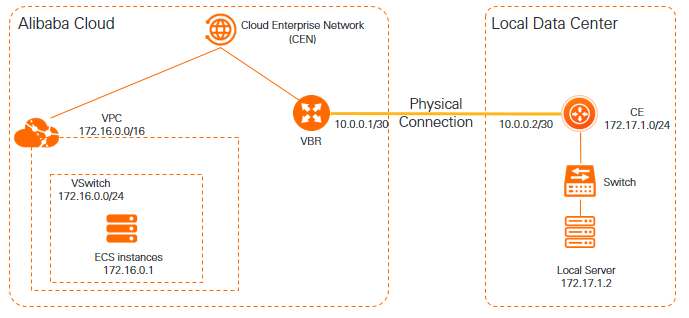
Parameter | CIDR block or IP |
VPC CIDR | 172.16.0.0/16 |
vSwitch CIDR | 172.16.0.0/24 |
ECS instance | 172.16.0.1 |
On-premises data center | 172.17.1.0/24 |
Connected IPs |
|
Local server IP | 172.17.1.2 |
Health check |
|
Before you begin
You have created a VPC in China (Shanghai) with workloads deployed on an ECS instance.
Ensure the VPC has at least one vSwitch with an idle IP address in a zone supported by the Enterprise Edition transit router. In this example, supported zones in China (Shanghai) are Zone F and Zone G.
The security group rules allow the ECS instances to communicate with the data center. See View security group rules and Add a security group rule.
You have created a CEN instance and an Enterprise Edition transit router in the same region as the VPC.
Step 1: Create an Express Connect circuit
Create a dedicated or a a shared Express Connect circuit in the console.
Configure the VBR parameters of the VBR that is connected to the Express Connect circuit.
Parameter | Configuration |
VLAN ID | 1 |
Alibaba Cloud Side IPv4 Address | 10.0.0.1 |
Data Center Side IPv4 Address | 10.0.0.2 |
IPv4 Subnet Mask | 255.255.255.252 |
Step 2: Create a VBR
Log on to the Express Connect console.
In the top navigation bar, select the destination region.
On the Physical Connection page, click the circuit ID and make sure it is enabled.
On the details page, click Create VBR.
In the Create VBR panel, set the following parameters and click OK.
Parameter
Description
Account
The type of account that is used to create the VBR.
In this example, Current Account is selected.
Name
Enter a name for the VBR.
Express Connect Circuit
Select Dedicated Physical Connection and select the Express Connect circuit that is installed and in the Normal state.
VLAN ID
Enter the VLAN ID of the VBR.
In this example, enter 1.
Set VBR Bandwidth Value
Set the bandwidth of the VBR.
In this topic, the value is set to 200 MB.
Alibaba Cloud Side IPv4 Address
Enter the IPv4 address of the gateway that is used to route traffic from the VPC to the on-premises data center.
In this example, enter 10.0.0.1.
Data Center Side IPv4 Address
Enter the IPv4 address of the gateway that is used to route traffic from the on-premises data center to the VPC.
In this example, enter 10.0.0.2.
IPv4 Subnet Mask
The subnet mask of the Alibaba Cloud-side and on-premises peer IPv4 addresses.
In this example, enter 255.255.255.252.
Step 3: Connect the VPC and VBR instances
Create a VBR connection and a VPC connection in the transit router to enable private communication.
Log on to the CEN console.
On the Instances page, click the ID of the CEN instance that you want to manage.
On the tab, find the transit router that you want to manage and click Create Connection in the Actions column.
On the Connection with Peer Network Instance page, configure the following parameters and click OK.
NoteWhen you perform this operation for the first time, the system automatically creates a service-linked role named AliyunServiceRoleForCEN. This role allows the transit router to create an ENI in a vSwitch of the VPC. For more information, see AliyunServiceRoleForCEN.
Parameter
Description
Instance Type
The type of network instance.
In this example, VPC is selected.
Region
The region in which the VPC is deployed.
In this example, China (Shanghai) is selected.
Transit Router
The system automatically displays the transit router in the selected region.
Resource Owner ID
The Alibaba Cloud account to which the VPC belongs.
In this example, Current Account is selected.
Billing Method
By default, transit routers use the pay-as-you-go billing method.
For more information, see Billing.
Network Instance
The ID of the VPC.
In this example, the VPC that you created is selected.
VSwitch
Select at least two vSwitches in a zone supported by the transit router.
Advanced Settings
By default, the following features are selected: Automatically associate with the default route table of the transit router, Automatically advertise system routes to the default route table of the transit router, and Automatically add a route that points to the transit router to all the route tables of the VPC.
In this example, the default settings are used.
On the Connection with Peer Network Instance page, click Create More Connections.
On the Connection with Peer Network Instance page, configure the following parameters and click OK to create a connection for VBR1.
Parameter
Description
Instance Type
The type of the network instance. In this example, Virtual Border Router (VBR) is selected.
Region
The region in which the VBR is deployed.
In this example, China (Shanghai) is selected.
Transit Router
The system automatically displays the transit router in the selected region.
Resource Owner ID
The Alibaba Cloud account to which the VBR belongs.
In this example, Current Account is selected.
Network Instance
The ID of the VBR.
In this example, VBR1 is selected.
Advanced Settings
By default, the following advanced features are enabled: Associate with Default Route Table of Transit Router, Propagate System Routes to Default Route Table of Transit Router, and Propagate Routes to VBR.
In this example, the default settings are used.
After the connections are created, you can view the details about the connections on the Intra-region Connections tab of the VBR details page. For more information, see View network instance connections.
Step 4: Configure VBR routes
Add a route on the VBR to forward traffic to the on-premises data center.
Log on to the Express Connect console.
In the top navigation bar, select the destination region. In the navigation pane on the left, click Virtual Border Routers (VBRs).
On the Virtual Border Routers (VBRs) page, click the ID of the destination VBR.
On the VBR details page, click the Routes tab and then click Add Route.
In the Add Route panel, configure the route entry based on the following information and click OK.
Parameter
Description
Next Hop Type
Select Express Connect Router Interface in this example.
Destination CIDR Block
Enter the CIDR block of the on-premises data center.
In this example, enter 172.17.1.0/24.
Next Hop
Select the Express Connect circuit interface.
In this example, select the requested Express Connect circuit.
Description
Enter a description for the route.
NoteBy default, ECS instances on Alibaba Cloud cannot ping the IP address of the VBR. To ping the VBR, add a route with destination CIDR
10.0.0.0/30pointing to the Express Connect interface.
Step 5: Configure health checks
Monitor the circuit connectivity using CEN health checks.
Log on to the CEN console.
In the navigation pane on the left, click Health Check.
On the Health Check page, select the region where the VBR is deployed, and click Set Health Check. China (Shanghai) is entered in this example.
In the Set Health Check dialog box, set the parameters and click OK.
Parameter
Description
Instances
The CEN instance to which the VBR is attached.
Virtual Border Router (VBR)
The VBR that you want to monitor.
In this example, VBR1 is selected.
Source IP
The source IP address. You can select one of the following methods to specify the source IP address:
Automatic IP Address: The system automatically assigns an IP address from the 100.96.0.0/16 CIDR block. We recommend that you select this option.
NoteIf you select this option and an ACL policy is configured on the peer , you must modify the ACL policy to allow this CIDR block. Otherwise, the health check fails.
Custom IP Address: You need to specify an idle IP address within the 10.0.0.0/8, 192.168.0.0/16, or 172.16.0.0/12 CIDR block. The specified IP address cannot be the IP address with which you want to communicate, the IP address of the VBR on the Alibaba Cloud side, or the IP address of the VBR on the user side.
Destination IP
The IP address of the VBR on the user side.
Probe Interval (Seconds)
The interval at which probe packets are sent for the health check. Unit: seconds.
Default value: 2. Valid values: 2 to 3.
Probe Packets
The number of probe packets that are sent for health checks. Unit: packet.
Default value: 8. Valid values: 3 to 8.
Change Route
Specifies whether to allow the health check feature to switch to the redundant route.
By default, Change Route is turned on. This indicates that the health check feature can switch to the redundant route. If a redundant route is configured on the CEN instance, the health check feature immediately switches to the redundant route if an error is detected on the Express Connect circuit.
If you turn off Change Route, the health check feature does not switch to the redundant route. Only probing is performed. The health check feature does not switch to the redundant route even if an error is detected on the Express Connect circuit.
WarningBefore you turn off Change Route, make sure that the system can switch to a redundant route by using other mechanisms. Otherwise, network connections are interrupted if the Express Connect circuit is down.
NoteHealth Check sends probe packets at the specified probe interval. If all probe packets are lost, the health check fails.
Step 6: Configure on-premises routes
Add a route on your on-premises gateway to forward traffic to the VPC.
Configure a route that points to the VPC on your on-premises gateway device.
Option 1: Static route
NoteThe example below is for reference only. The commands may vary by the vendors and models of your devices.
ip route 172.16.0.0 255.255.0.0 10.0.0.1Option 2: Configure BGP.
Advertise the VPC CIDR (172.16.0.0/16) to the on-premises data center. See Configure and manage BGP.
Ping the VBR from the on-premises gateway device to test the connectivity.
Run the ping command
ping 10.0.0.1. If you receive a response, the connection from the on-premises gateway to the Express Connect circuit is established.Run the following command to add a default route that points to the on-premises gateway on the server in the on-premises data center.
route add default gw 172.17.1.1
Step 7: Test the connectivity of the Express Connect circuit
You can ping the IP address of the VBR to test the connectivity between your on-premises data center and the Express Connect circuit.
Open the command-line window on the server in your on-premises data center.
Run the ping command to ping the VBR at 10.0.0.1.
If you receive a response, the connection from the on-premises server to the Express Connect circuit is established.
ECS instances cannot ping the peer IP address of the VBR.
Step 8: Test ECS connectivity
You can ping the IP address of the ECS instance to test the connectivity between Alibaba Cloud and your on-premises data center. The IP address of an ECS instance is dynamically allocated. Use the actual private IP address of your ECS instance. In this example, the private IP address of the ECS instance is 172.16.0.1.
Before you perform the steps, make sure the security group rules allow the on-premises data center to access the ECS instance in the VPC. See Query security group rules.
Open the command-line window on the server in your on-premises data center. Run the ping command to ping the private IP address of the Alibaba Cloud ECS instance.
ping 172.16.0.1Log on to the Alibaba Cloud ECS instance and open the command-line window.
Run the ping command to ping the IP address of the server in the on-premises data center. If you receive a response, the on-premises server is connected to the ECS instance over the Express Connect circuit.
ping 172.17.1.2