Edge Security Acceleration (ESA) provides a command-line interface (CLI) tool. You can use the CLI tool to manage the full lifecycle of Functions and Pages, debug functions, and deploy multi-file projects.
Introduction
You can use the ESA CLI to complete the following tasks.
You can manage the full lifecycle of Functions and Pages locally, including creating Functions and Pages, publishing and deploying versions, and managing custom domain names or routing.
You can debug functions in a local or private network environment. The CLI starts a local debugging service to simulate the production environment for functional testing.
You can deploy projects with multiple files. The CLI automatically packages and builds project dependencies, such as npm files. This lets you deploy local Node.js projects to the cloud.
Common commands
The ESA CLI provides many commands to manage Functions and Pages. For more information about all commands, see https://github.com/aliyun/alibabacloud-esa-cli.
Command | Description |
init | Initialize a project from an ESA template. |
dev | Automatically start the local debugging service. |
commit | Commit the project code to the cloud and save it as a version. |
deploy | Deploy a version to all online points of presence (POPs). |
deployments | View the current version deployments or delete a version. |
project | View all Functions and Pages, or delete a function. |
site | View information about all sites under your account. |
domain | Manage domain names attached to Functions and Pages. |
route | Manage routes attached to Functions and Pages. |
login | Log on to your account using an AccessKey ID and AccessKey secret. |
logout | Log off. |
config | Manage the configuration file for the ESA CLI. |
lang | Select the language for the ESA CLI. |
Prerequisites
Before installing the ESA CLI, you must install Node.js and npm. We recommend using a Node version manager, such as Volta or nvm, for the installation.
Use the ESA CLI
You can install the ESA CLI using npm. Then, you can view the CLI version and supported commands.
npm install esa-cli -g    # Install the CLI globally
esa-cli -v                    # View the CLI version
esa-cli --help                # View the CLI commands
Log on to your account: You can obtain your
AccessKey IDandAccessKey secretfrom the Alibaba Cloud Resource Access Management (RAM) console. Then, you can run theesa logincommand to log on to your account. If you only use the CLI to debug code locally, you do not need to log on.esa-cli login # Log on esa-cli logout # Log offInitialize a project: To initialize a project, you can enter a project name, select a template, and follow the prompts from the initialization command to complete the process.
esa-cli initDebug locally: After you finish coding, you can debug the code locally using the CLI. When you run the
esa-cli devcommand, the entry file is automatically packaged and the local debugging service starts.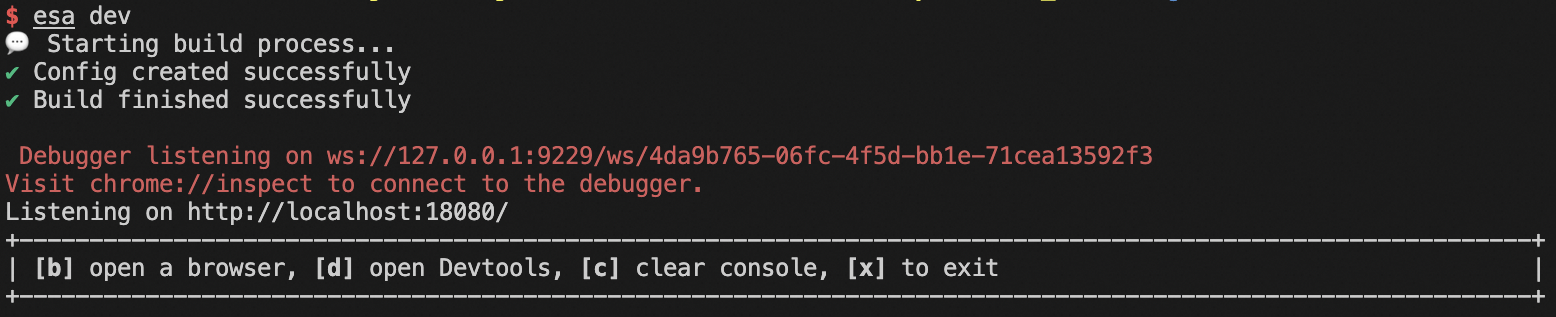
Basic instructions:
You can press
bin the interface to open the debug page in your browser.You can press
dto view the debug guide. Note: Chrome does not allow the command line to open the debug page. In the Chrome browser, open theChrome://inspect#devicespage. A runningRemote Targetappears. Clickinspectbelow it to view console information. Note that EdgeRoutine code is server-side code. Because of this, the console on the preview page does not show output from the entry file'sconsole. You must useinspectto debug.You can press
cto clear the panel.You can press
xto exit debugging.You can use
esa-cli dev --port <port>to temporarily specify a port.
When you debug locally, you can also run the Edge Storage API and Cache API in your code.
NoteFor the security of your online data, the edge storage service does not retrieve or set online data during local debugging. To simulate data locally, create a
kv.jsonfile in the root directory of the function project, at the same level as theesa.jsoncconfiguration file. Write data to the file in the following format:{ "namespace": { "k1": "v1", "k2": "v2" } }The following code can then retrieve the simulated data:
const edgeKv = new EdgeKV({ namespace: 'namespace' });
async function run() {
 const data = await edgeKv.get('k1', { type: 'text' });
 console.log(data); // 'v1'
}
Generate a version: After local debugging is complete, you can generate a code version for deployment.
esa-cli commit # Generate a versionDeploy online: After a version is generated, you can use deployment commands to deploy the version to public cloud points of presence (POPs).
esa-cli deploy                          # Follow the prompts to select a version and target environment to deploy
esa-cli deployments list                # View deployment status
esa-cli deployments delete <versionId>  # Delete a specified version
Manage custom domains or routes:
After deployment to the points of presence (POPs), you can configure custom domains or routes to access your Functions and Pages:
Domain name: You can attach a domain name to your Functions and Pages. The domain name must be a subdomain of your ESA site. This lets you directly access the function through the domain name. In this case, Functions and Pages acts as the origin server for the domain name.
Route: You can attach a route to your ESA site. Accessing the route triggers the execution of Functions and Pages. In this case, Functions and Pages can communicate with the site's origin server.
# Domain name
esa-cli domain list
esa-cli domain add <domainName>     # Must be a domain name with ICP filling
esa-cli domain delete <domainName>

# Route
esa-cli route list
esa-cli route add [route] [site]
esa-cli route delete <route>
Manage functions: You can view and delete functions using the CLI.
esa-cli project list                  # View the function
esa-cli project delete <PROJECT_NAME>   # Delete the function