Scanning tools with low technical barriers make it easy for attackers to probe websites for vulnerabilities and map their architecture. To defend against this, enable the scan protection module in DCDN to automatically detect and block scanning activity.
Configuration
For the full procedure to create a scan protection policy, see Configure scan protection.
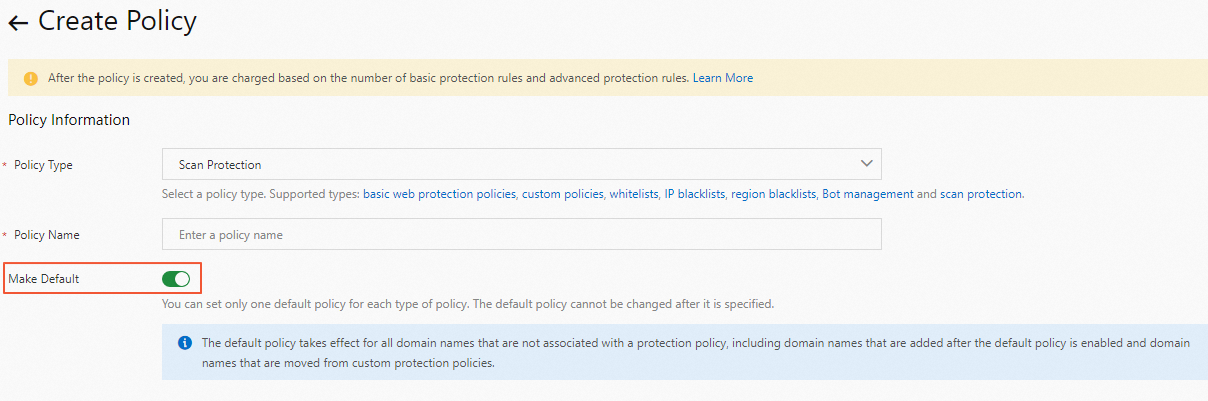
When you create a policy, turn on Make Default to set the policy as the default scan protection policy. A default policy automatically applies to all domain names that have not been associated with a custom policy, including domain names added later and domain names disassociated from an existing custom policy.
Scenarios
The scan protection module may occasionally block legitimate traffic. The following scenarios describe common situations where you may need to add entries to the whitelist of the scan protection module.
Scenario 1: Internal security scanning triggers IP blocking
An employee uses a scanning tool to perform a security assessment against your domain name. The high-frequency scanning module detects the rapid, repeated requests and blocks the egress IP address.
Because the scanner's egress IP address is often shared with other employees (for example, through a corporate proxy or NAT gateway), blocking this IP address affects everyone using the same network exit point.
Resolution: Add the egress IP address to the whitelist of the scan protection module. If your organization uses multiple egress IP addresses, add all of them. Consider scheduling internal scans during maintenance windows and notifying your DCDN administrator in advance.
Scenario 2: Image format conversion generates excessive 404 responses
Your business requires converting image formats. The server traverses image files to check whether all formats have been converted, which accesses many file paths. A large number of HTTP 404 status codes are returned for files that have not yet been converted or that no longer exist. The scan protection module interprets this pattern as directory brute-forcing and blocks the source.
Resolution: To keep your business uninterrupted, add the related operations to the whitelist of the scan protection module.
Best practices
Start with Monitor mode. When you first enable scan protection, set the action to Monitor rather than Block. View the protection performance to check whether the rules block normal requests. Switch to Block mode after you confirm the rules work as expected.
Use targeted whitelist entries. When adding entries to the whitelist, be as specific as possible. This minimizes the security surface area that bypasses scan protection checks.
Coordinate with your security team. Before whitelisting IP addresses for internal scanning tools, verify that those IP addresses are under your organization's control. Periodically review your whitelist entries to remove outdated or unnecessary exceptions.
Review scan protection performance regularly. View the protection performance of your scan protection rules to identify false positives and fine-tune your detection thresholds.
Related features
Configure scan protection - Create and manage scan protection policies, configure detection thresholds, and set up whitelist rules.
Getting started with WAF - Enable WAF, which is required before you can use scan protection.