This topic uses an ApsaraDB RDS for MySQL instance as an example to show how to connect a data source in a Virtual Private Cloud (VPC) to an exclusive resource group for Data Integration.
Prerequisites
You have created an ApsaraDB RDS for MySQL instance.
You have created a database and an account for the instance.
You have created a Virtual Private Cloud (VPC).
You have created a vSwitch.
You have created a Security Group.
Background information
Connectivity tests for both the public resource group and the exclusive resource group for Data Integration will fail if your data source instance lacks a public IP address and is not connected to a resource group through a VPC. This topic shows you how to connect your data source in a VPC to an exclusive resource group for Data Integration.
Procedure
Obtain the ApsaraDB RDS instance information.
When creating the MySQL data source, you need the instance ID, database name, username, and password of the ApsaraDB RDS instance:
Log on to the ApsaraDB RDS console.
In the left-side navigation pane, click Instances.
On the Instances page, find the target instance and note its instance ID.
Click Manage in the Actions column of the target instance.
In the left-side navigation pane, click Databases. Find the database you want to connect to and note its database name.
In the left-side navigation pane, click Accounts. Note the account associated with the database. This is the username that is required when you create the data source.
Create an exclusive resource group for Data Integration.
Log on to the DataWorks console.
Select a region. In the left-side navigation pane, click Resource Group.
On the Exclusive Resource Groups tab, click Create Scheduling Resource Group or Create Resource Group for Data Integration of Old Version.
On the purchase page, configure the Region, Type, Exclusive Resources for Data Integration, Units, and Duration parameters, and then click Buy Now.
For this example, select China (Shanghai) for the Region parameter. Select a specification for Exclusive Resources for Data Integration that meets your needs. For more information, see Subscription billing for exclusive resource groups for Data Integration.
Confirm the order details, select DataWorks Exclusive Resources Agreement of Service, and then click Pay.
Return to the Create a dedicated resource group panel and configure the parameters.
Parameter
Description
Resource Group Type
The type of the resource group. Select Exclusive Resources for Data Integration.
Resource Group Name
The name of the resource group. The name must be unique within your Alibaba Cloud account.
NoteAn Alibaba Cloud account can have multiple Resource Access Management (RAM) users.
Resource Group Description
A brief description of the resource group.
Order Number
Select the order for the exclusive resources you purchased.
Click OK.
Bind the exclusive resource group for Data Integration to a VPC.
On the tab, find the exclusive resource group for Data Integration and click Network Settings in the Actions column.
ImportantBefore you bind the resource group to a VPC, ensure your RAM user has the required permissions to access the ApsaraDB RDS instance.
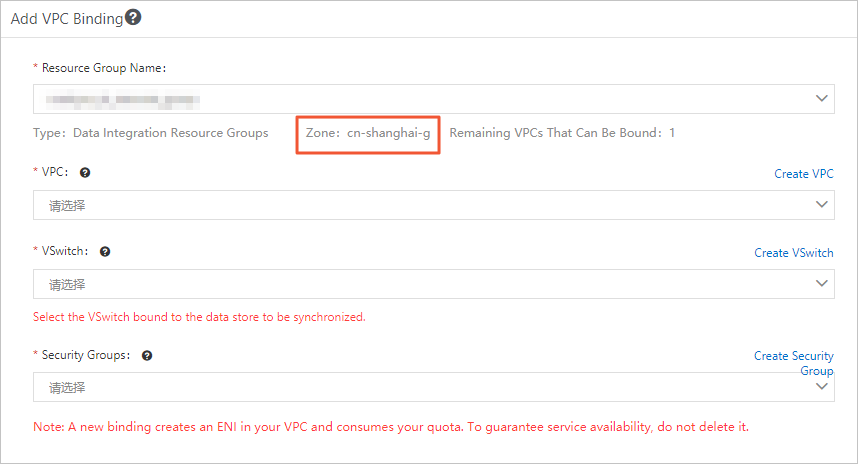
On the VPC Binding tab, click Add VPC Binding. In the Add VPC Association panel, configure the parameters.
Parameter
Description
Resource Group Name
From the Resource Group Name drop-down list, select the resource group you want to associate.
VPC
From the VPC drop-down list, select the VPC where the data source is located.
Availability Zone
From the drop-down list, select the desired Availability Zone.
vSwitch
From the vSwitch drop-down list, select the vSwitch where the data source is located.
Security Groups
From the Security Groups drop-down list, select the appropriate Security Group.
Click OK.
Optional: Add a custom route in the VPC.
If the exclusive resource group and the data source are in different Availability Zones, you must add a custom route. Otherwise, skip this step.
On the Exclusive Resource Groups tab, find the exclusive resource group and click Network Settings.
Find the associated VPC and click Custom Route.
In the Custom Route panel, click Add Route.
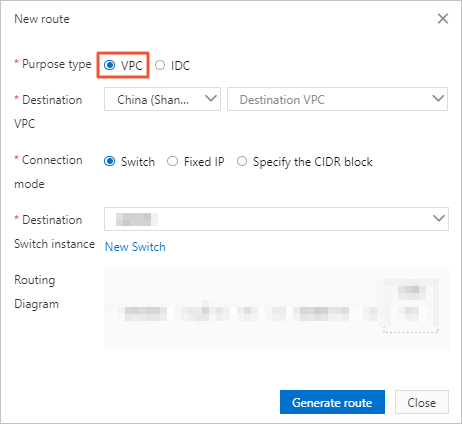
In the Add Route dialog box, configure the parameters.
Parameter
Description
Destination Type
Because the data source is in a VPC, select VPC.
Destination VPC
The region and name of the VPC where the data source is located.
NoteThis parameter is displayed only when Destination Type is set to VPC.
Connection Method
Options include Switch, Fixed IP Address, and CIDR Block. For this example, select Switch.
Destination VSwitch
Select a vSwitch in the destination VPC as the route target.
Routing
This parameter cannot be modified.
Click Generate Route.
Add the Elastic IP Address (EIP) and Elastic Network Interface (ENI) IP address of the resource group to the ApsaraDB RDS whitelist.
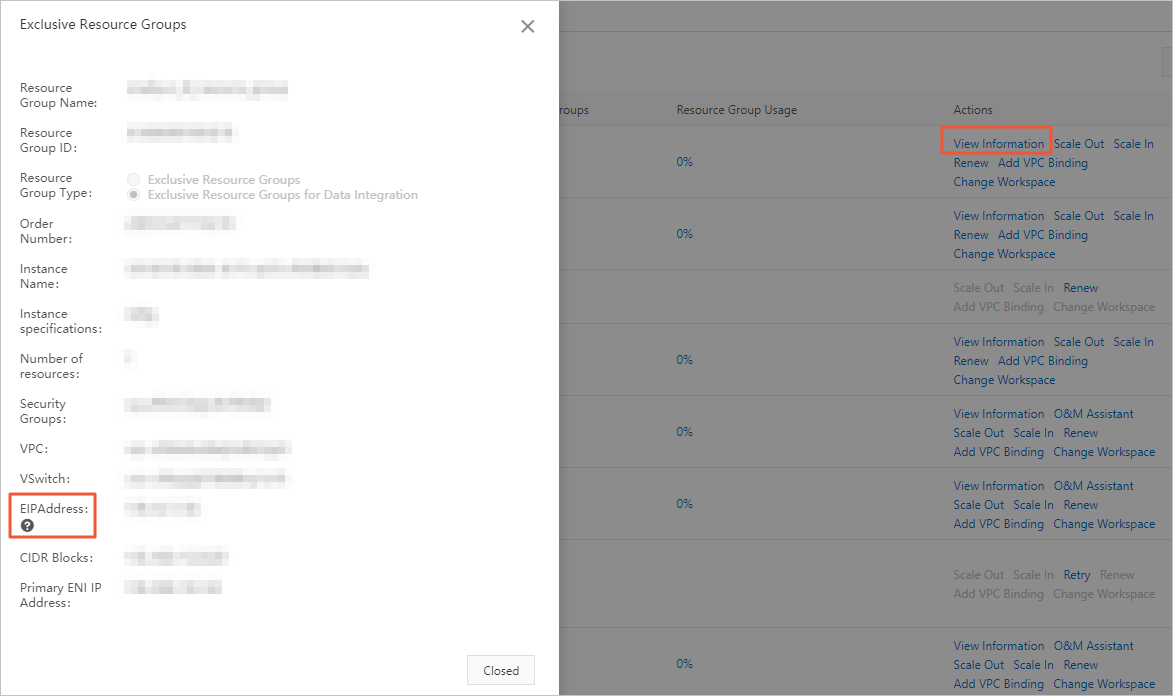
On the Exclusive Resource Groups tab, find the resource group and click Details in the Actions column.
In the Exclusive Resource Groups dialog box, view and copy the Elastic IP Address (EIP).
On the tab, find the resource group and click Network Settings.
On the details page of the resource group, view and copy the Elastic Network Interface (ENI) IP address.
Log on to the ApsaraDB RDS console.
In the upper-left corner of the Instances page, ensure the correct region is selected. Then, find the target instance and click Manage.
In the left-side navigation pane, click Whitelist and SecGroup.
On the Whitelist Settings tab, click Create Whitelist.
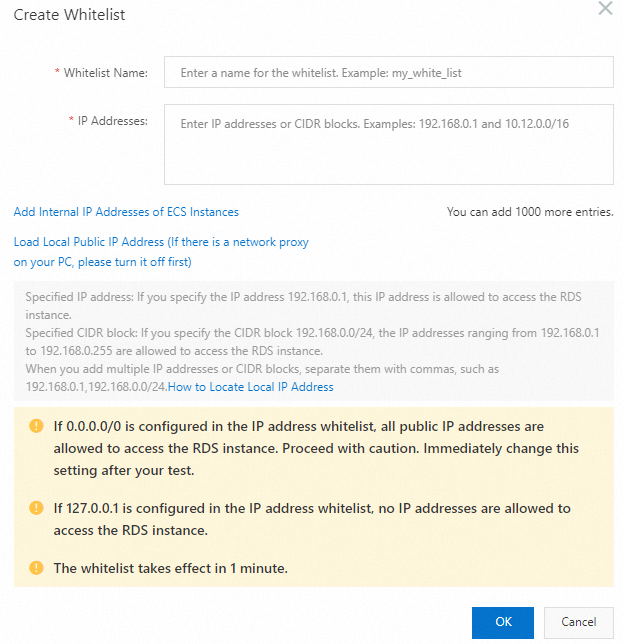
In the Create Whitelist dialog box, configure the parameters and click OK.
Parameter
Description
Whitelist Name
The name of the whitelist must meet the following requirements:
It can contain only lowercase letters, digits, and underscores (_).
It must start with a lowercase letter and end with a letter or a digit.
It must be 2 to 32 characters in length.
IP Addresses
Enter the copied Elastic IP Address (EIP) and Elastic Network Interface (ENI) IP address.
Create a MySQL data source and test its connectivity.
Go to the Data Sources page.
Log on to the DataWorks console. In the top navigation bar, select the desired region. In the left-side navigation pane, choose . On the page that appears, select the desired workspace from the drop-down list and click Go to Management Center.
In the left-side navigation pane of the SettingCenter page, click Data Sources.
On the Data Sources page, click Add Data Source in the upper-right corner.
In the Add Data Source dialog box, select MySQL.
In the Add MySQL Data Source dialog box, configure the parameters.
MySQL data sources support two connection methods: Alibaba Cloud instance mode and connection string mode. This topic uses Alibaba Cloud instance mode as an example.
Parameter
Description
Data source type
The connection method for the data source. This example uses Alibaba Cloud instance mode.
Data Source Name
The name can contain letters, digits, and underscores (_). It cannot start with a digit or an underscore (_).
Data Source Description
A brief description of the data source. The description cannot exceed 80 characters.
Environment
Select Development or Production.
NoteThis parameter is available only for workspaces in standard mode.
Region
Select the region where the ApsaraDB RDS instance is located.
Alibaba Cloud Account
Select the type of account to use.
Instance
Enter the ApsaraDB RDS instance ID.
Database Name
Enter the name of the database.
Username
Enter the database username.
Password
Enter the account password.
Authentication Method
Select whether to use SSL authentication.
Under the Data Integration tab, click Test Connectivity in the Actions column of the target resource group.
After the connectivity test is successful, click Complete Creation.