When sending or receiving email using third-party clients such as Outlook or Foxmail, set a third-party client security password to obtain a dedicated logon password. This password is independent of your web logon password. If the password is compromised in a client, you can delete it from the web interface at any time to secure your mailbox.
Prerequisites
Before you begin, ensure you meet the following requirements:
Ensure the administrator has enabled third-party client logon in the mailbox backend. Otherwise, you cannot connect.
Ensure the administrator has enabled the POP3/IMAP/SMTP service protocol for the current account.
Enable third-party client security password
When using this feature for the first time, manually enable the service in the security settings of the Alibaba Mail web interface.
Log on to Alibaba Mail webmail. (Choose the logon URL for your site.)
Singapore
China (Hong Kong)
Germany
United States
In the upper-right corner of the page, click Settings. In the quick settings panel that appears, click View More Settings.
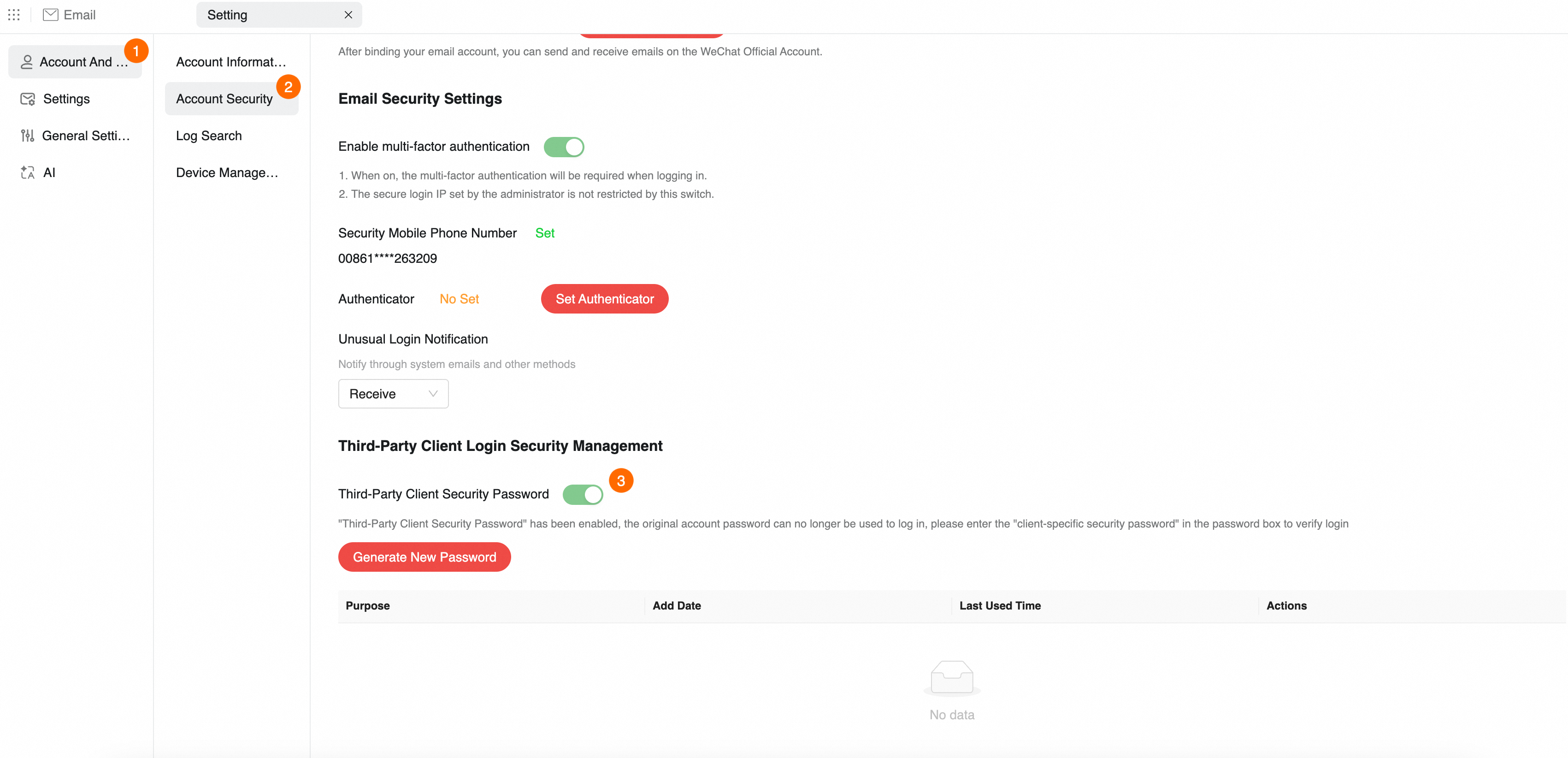
In the navigation pane on the left, click in order.
Locate the Third-Party Client Logon Security Management area. Click the toggle switch to the right of Third-Party Client Security Password.
If the switch is enabled and you cannot disable it, the enterprise administrator has enforced the use of a third-party client security password. Directly generate and use a security password.
Generate and Use a Security Password
After enabling the service, generate a random password. Once the new password is generated, your original mailbox logon password will no longer be valid in third-party clients. You must use this security password.
Generate a new password
On the Third-Party Client Logon Security Management page, click Generate New Password. An identity authentication window appears. Click Get Dynamic Captcha, enter the Captcha received on your phone, and click Next.
Copy and save the password (important)
After successful validation, the system displays the generated 16-digit security password.
Immediately click the Copy button, and paste it into a notepad or directly into the client.
In the Device input box, note the device's purpose (such as "My iPhone"), and click OK.
ImportantFor security reasons, this password is displayed once only when created. After closing the window, you cannot view the password again. If you do not copy it promptly or forget the password, generate a new one.
Log on to the client
Open your Outlook, Foxmail, or mobile email app. When configuring the account:
Account: Enter your full Alibaba Mail address.
Password: Paste the "third-party client security password" you just generated.
ImportantAfter enabling this feature, your original mailbox logon password will no longer be valid in third-party clients. You must use this security password.
After configuration, if the client can sync emails normally, the setup is successful.
Manage device passwords and disable service
Delete generated passwords
If you change devices (such as a lost phone), immediately remove the corresponding password to block the connection:
Return to the Third-Party Client Logon Security Management page.
In the list of generated passwords, find the corresponding device name, and click Delete.
After deletion, devices using the old password will immediately be unable to send or receive emails.
Disable third-party client security password service
If you decide to no longer use this feature and want to resume using your original mailbox password to log on to clients:
On the Third-Party Client Logon Security Management page, click the toggle switch to the right of Third-Party Client Security Password.
In the confirmation pop-up window, click OK. After successfully disabling the service, update the settings of all clients to use your web mailbox password again.
If the administrator has enabled an enforced enablement policy, employees cannot disable this service themselves.
FAQs
After enabling, can I still use my original mailbox password to log on to Outlook?
No. After enabling the third-party client security password, the authentication mechanism for third-party clients will forcibly switch. You must replace your original mailbox password with the generated security password. Otherwise, the client will display "Incorrect password" or "Authentication failed."
How many security passwords can I generate?
The system supports generating up to 10 security passwords. We recommend generating separate passwords for each device (such as a computer or a mobile phone) for fine-grained management and unregistering. For specific quantity limits, see common parameters for standard accounts.
How do I modify a third-party client security password?
The system randomly generates this password, and it does not support custom modification. To change the password, delete the original password and generate a new security password.