Security Token Service (STS) tokens help prevent security risks caused by AccessKey pair leaks for Resource Access Management (RAM) users. To obtain an STS token, create a RAM user and a RAM role, grant the required permissions to both, and then use the RAM user’s AccessKey pair to call the AssumeRole operation to assume the RAM role. You can then retrieve an STS token from the STS service.
Step 1: Create a RAM user
Create a RAM user, and note the following:
Set the Logon Name parameter to vod. This topic uses vod as the logon name in all subsequent examples.
Set the Access Mode parameter to Using permanent AccessKey to access.
Keep the obtained AccessKey pair secure.
Step 2: Grant the RAM user permissions to call the AssumeRole operation of STS
In the RAM console, go to the Users page. Find the RAM user named vod and click Add Permissions in the Actions column.
In the Grant Permission panel, grant permissions to the RAM user.
NoteAttach the AliyunSTSAssumeRoleAccess policy to the vod user. This policy allows the user to call the STS AssumeRole operation. To find the policy, select System Policy and enter
AliyunSTSAssumeRoleAccessin the search box.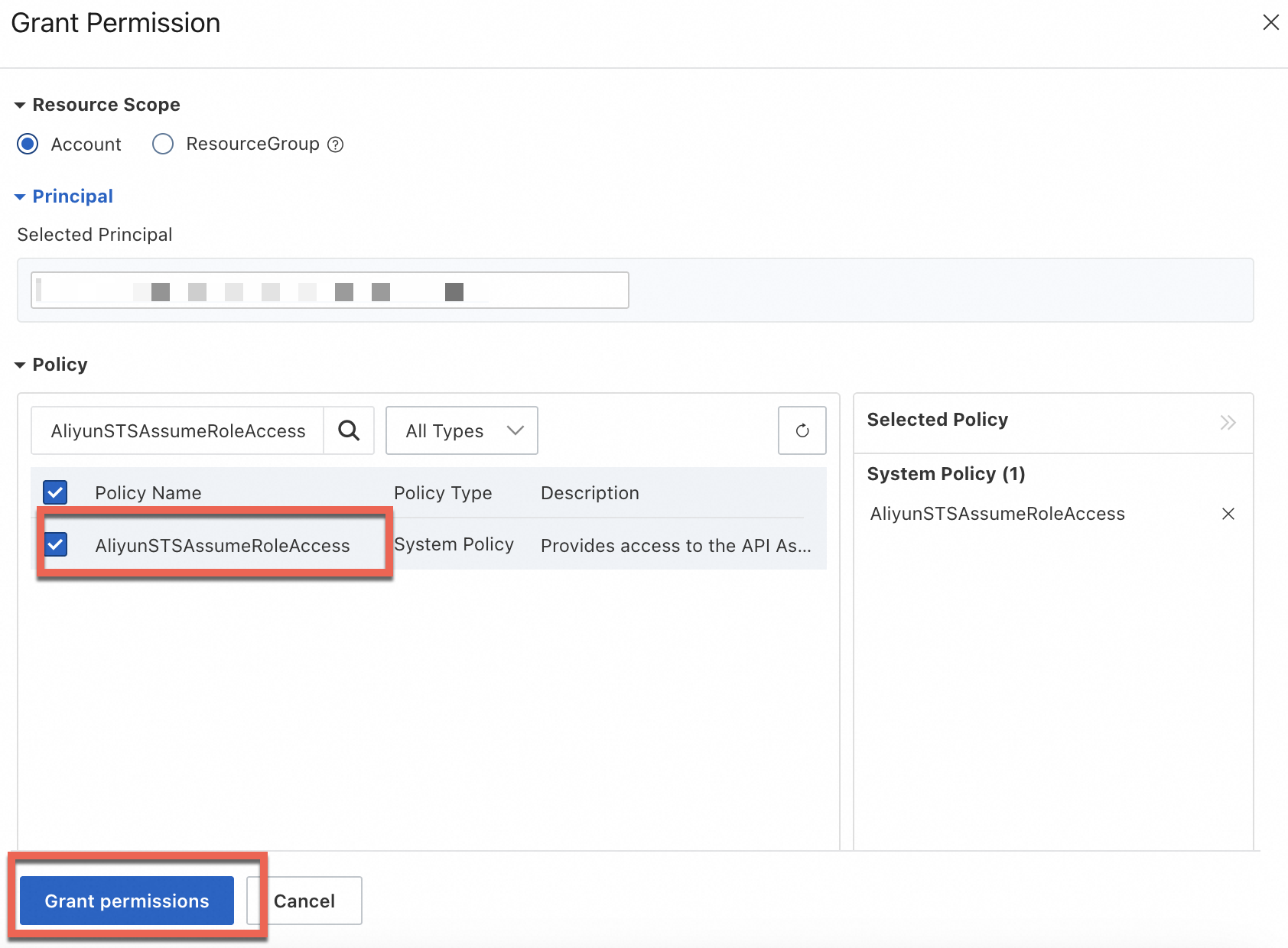
Select the Resource Scope:
Account level: The permission applies to the current Alibaba Cloud account.
Resource group level: The permission applies to a specific resource group. If you grant resource group–level permissions to a RAM user, the user must switch the resource scope to that resource group in the top navigation bar after logging on to the console. Only then can the user access and manage resources in that group.
NoteThe system automatically flags high-risk system policies such as AdministratorAccess and AliyunRAMFullAccess. These policies often grant full control over all cloud resources or full management of Resource Access Management (RAM). Grant them with caution.
For an example of resource group authorization, see Use a resource group to restrict a RAM user to managing only specific ECS instances.
Select the principal:
The principal is the RAM user that receives the permissions. If you start from the Users page, the system selects the current RAM user automatically. If you start from the Grant Permission page, select one or more RAM users manually.
Select the Permission Policy:
System policy: Search and select directly. Search tips: Use the search box to locate policies quickly. You can search by product name (such as
ECSorOSS), permission level (such asReadOnlyorFullAccess), or the full policy name.Custom policy: First create a custom policy. For more information, see Create a custom policy.
Click Confirm Grant Permission.
Review the authorization result and click Close.
Step 3: Create a RAM role
In Step 5 below, set the Role Name parameter to vodrole. This topic uses vodrole as the role name in all subsequent examples.
Log on to the Resource Access Management (RAM) console as a RAM administrator.
In the navigation pane on the left, choose .
On the Roles page, click Create Role.
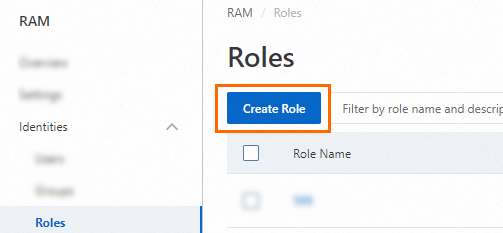
On the Create Role page, set Trusted Entity Type to Alibaba Cloud Account. Then, configure the Alibaba Cloud account and click OK.

Current Alibaba Cloud Account: To allow all RAM users and RAM roles to assume this role, select Current Alibaba Cloud Account.
Other Alibaba Cloud Account: To allow all RAM users and RAM roles from another Alibaba Cloud account to assume this RAM role, select Other Alibaba Cloud Account and enter the ID of that account. This option is used for cross-account resource access. For more information, see Access resources across Alibaba Cloud accounts. You can find your Alibaba Cloud account ID on the Security Settings page.
(Optional) If you want to allow only specific RAM users or RAM roles in the trusted Alibaba Cloud account to assume the RAM role, click Switch Editor and modify the trust policy.
The editor supports two modes: visual editor and script editor. The following example shows how to configure the RAM role to be assumed only by the RAM user
Alicein the current Alibaba Cloud account (AccountID=100******0719).Visual editor
In the Principal section, specify the RAM username.


Script editor
In the
RAMfield of thePrincipalelement, specify the RAM user.{ "Version": "1", "Statement": [ { "Effect": "Allow", "Principal": { "RAM": "acs:ram::100******0719:user/Alice" }, "Action": "sts:AssumeRole" } ] }
In the Create Role dialog box, enter a Role Name and click OK.
Step 4: Grant the RAM role permissions to manage ApsaraVideo VOD
In the RAM console, go to the Roles page. Find the RAM role named vodrole and click Grant Permission in the Actions column.
In the Grant Permission panel, grant permissions to the RAM role.
NoteTo reduce risk, apply the principle of least privilege.
If the vodrole role needs to access and manage ApsaraVideo VOD resources, attach the system policy AliyunVODFullAccess to the role. This policy grants full access to all ApsaraVideo VOD resources. To find the policy, select System Policy and enter
AliyunVODFullAccessin the search box. For more information about ApsaraVideo VOD system policies and their permissions, see System policies.

Select the Resource Scope:
Account level: The permission applies to the current Alibaba Cloud account.
Resource group level: The permission applies to a specific resource group. If you grant resource group–level permissions to a RAM user, the user must switch the resource scope to that resource group in the top navigation bar after logging on to the console. Only then can the user access and manage resources in that group.
NoteThe system automatically flags high-risk system policies such as AdministratorAccess and AliyunRAMFullAccess. These policies often grant full control over all cloud resources or full management of Resource Access Management (RAM). Grant them with caution.
For an example of resource group authorization, see Use a resource group to restrict a RAM user to managing only specific ECS instances.
Select the principal:
The principal is the RAM user that receives the permissions. If you start from the Users page, the system selects the current RAM user automatically. If you start from the Grant Permission page, select one or more RAM users manually.
Select the Permission Policy:
System policy: Search and select directly. Search tips: Use the search box to locate policies quickly. You can search by product name (such as
ECSorOSS), permission level (such asReadOnlyorFullAccess), or the full policy name.Custom policy: First create a custom policy. For more information, see Create a custom policy.
Click Confirm Grant Permission.
After authorization completes, a success record appears.
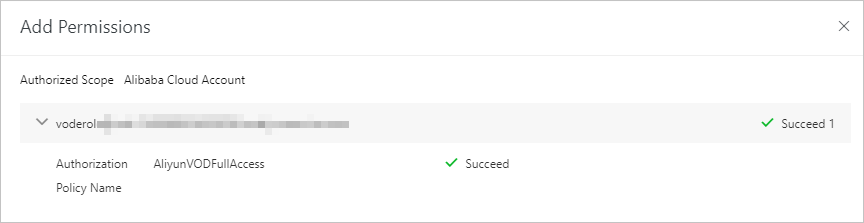
Review the authorization result and click Close.
Step 5: Assume the RAM role and obtain an STS token
Call the STS AssumeRole – Obtain temporary credentials to assume a role operation using the RAM user. This returns the RAM role’s STS token. You can use the STS token to call ApsaraVideo VOD API operations directly or distribute it to clients to perform tasks such as direct client uploads. This topic provides a Java SDK example. For examples in other languages, see STS SDK overview.
SDK V1.0
In Maven, add the following dependency information:
<dependency>
   <groupId>com.aliyun</groupId>
   <artifactId>aliyun-java-sdk-sts</artifactId>
   <version>3.1.2</version>
</dependency>
<dependency>
  <groupId>com.aliyun</groupId>
  <artifactId>aliyun-java-sdk-core</artifactId>
  <version>4.7.3</version>
</dependency>
<dependency>
  <groupId>com.aliyun</groupId>
  <artifactId>aliyun-java-sdk-vod</artifactId>
  <version>2.16.32</version>
</dependency>
package pop;
import com.aliyuncs.DefaultAcsClient;
import com.aliyuncs.exceptions.ClientException;
import com.aliyuncs.http.MethodType;
import com.aliyuncs.profile.DefaultProfile;
import com.aliyuncs.profile.IClientProfile;
import com.aliyuncs.sts.model.v20150401.AssumeRoleRequest;
import com.aliyuncs.sts.model.v20150401.AssumeRoleResponse;
public class TestStsService {
public static void main(String[] args) {
// Get the AccessKey pair (AccessKey ID and AccessKey secret) for the RAM user created in Step 1 from environment variables.
String accessKeyId = System.getenv("ALIBABA_CLOUD_ACCESS_KEY_ID");
String accessKeySecret = System.getenv("ALIBABA_CLOUD_ACCESS_KEY_SECRET");
// Configure request parameters for the AssumeRole operation: RoleArn, RoleSessionName, Policy, and DurationSeconds.
// Get the RoleArn value from the RAM console based on Step 3.
String roleArn = "<role-arn>";
// Set a custom value for RoleSessionName. RoleSessionName specifies the name of the role session.
String roleSessionName = "session-name";
// Customize the policy.
String policy = "{\n" +
" \"Version\": \"1\",\n" +
" \"Statement\": [\n" +
" {\n" +
" \"Action\": \"vod:*\",\n" +
" \"Resource\": \"*\",\n" +
" \"Effect\": \"Allow\"\n" +
" }\n" +
" ]\n" +
"}";
try {
AssumeRoleResponse response = assumeRole(accessKeyId, accessKeySecret, roleArn, roleSessionName, policy);
System.out.println("Expiration: " + response.getCredentials().getExpiration());
System.out.println("Access Key Id: " + response.getCredentials().getAccessKeyId());
System.out.println("Access Key Secret: " + response.getCredentials().getAccessKeySecret());
System.out.println("Security Token: " + response.getCredentials().getSecurityToken());
System.out.println("RequestId: " + response.getRequestId());
} catch (ClientException e) {
System.out.println("Failed to get a token.");
System.out.println("Error code: " + e.getErrCode());
System.out.println("Error message: " + e.getErrMsg());
}
}
static AssumeRoleResponse assumeRole(String accessKeyId, String accessKeySecret, String roleArn, String roleSessionName, String policy) throws ClientException {
try {
// Build a default profile. Leave the regionId parameter empty.
/*
Note: If you set SysEndpoint to sts.aliyuncs.com, the regionId parameter is optional. Otherwise, you must set regionId to the service region. Example: cn-shanghai.
For more information, see the endpoint for each STS region.
*/
IClientProfile profile = DefaultProfile.getProfile("", accessKeyId, accessKeySecret);
// Build a client using the profile.
DefaultAcsClient client = new DefaultAcsClient(profile);
// Create an AssumeRoleRequest and configure the request parameters.
final AssumeRoleRequest request = new AssumeRoleRequest();
request.setSysEndpoint("sts.aliyuncs.com");
request.setSysMethod(MethodType.POST);
request.setRoleArn(roleArn);
request.setRoleSessionName(roleSessionName);
request.setPolicy(policy);
// Send the request and get the response.
final AssumeRoleResponse response = client.getAcsResponse(request);
return response;
} catch (ClientException e) {
throw e;
}
}
}SDK V2.0
In Maven, add the following dependency information:
<dependency>
   <groupId>com.aliyun</groupId>
   <artifactId>sts20150401</artifactId>
   <version>1.1.7</version>
</dependency>
<dependency>
   <groupId>com.aliyun</groupId>
   <artifactId>vod20170321</artifactId>
   <version>3.6.4</version>
</dependency>
import com.aliyun.sts20150401.Client;
import com.aliyun.sts20150401.models.AssumeRoleRequest;
import com.aliyun.sts20150401.models.AssumeRoleResponse;
import com.aliyun.sts20150401.models.AssumeRoleResponseBody;
import com.aliyun.teaopenapi.models.Config;
import com.aliyun.teautil.models.RuntimeOptions;
public class TestStsService {
public static void main(String[] args) {
// Get the AccessKey pair (AccessKey ID and AccessKey secret) for the RAM user created in Step 1 from environment variables.
String accessKeyId = System.getenv("ALIBABA_CLOUD_ACCESS_KEY_ID");
String accessKeySecret = System.getenv("ALIBABA_CLOUD_ACCESS_KEY_SECRET");
// Configure request parameters for the AssumeRole operation: RoleArn, RoleSessionName, Policy, and DurationSeconds.
// Get the RoleArn value from the RAM console based on Step 3.
String roleArn = "<role-arn>";
// Set a custom value for RoleSessionName.
String roleSessionName = "session-name";
// Customize the policy.
String policy = "{\n" +
" \"Version\": \"1\",\n" +
" \"Statement\": [\n" +
" {\n" +
" \"Action\": \"vod:*\",\n" +
" \"Resource\": \"*\",\n" +
" \"Effect\": \"Allow\"\n" +
" }\n" +
" ]\n" +
"}";
try {
AssumeRoleResponse assumeRoleResponse = assumeRole(accessKeyId, accessKeySecret, roleArn, roleSessionName, policy);
System.out.println("Expiration: " + response.getCredentials().getExpiration());
System.out.println("Access Key Id: " + response.getCredentials().getAccessKeyId());
System.out.println("Access Key Secret: " + response.getCredentials().getAccessKeySecret());
System.out.println("Security Token: " + response.getCredentials().getSecurityToken());
System.out.println("RequestId: " + response.getRequestId());
} catch (Exception e) {
throw new RuntimeException(e);
}
}
public static AssumeRoleResponse assumeRole(String accessKeyId, String accessKeySecret, String roleArn, String roleSessionName, String policy) throws Exception {
Config config = new Config()
// Get the AccessKey ID from the environment variable.
.setAccessKeyId(accessKeyId)
// Get the AccessKey secret from the environment variable.
.setAccessKeySecret(accessKeySecret);
config.endpoint = "sts.cn-hangzhou.aliyuncs.com";
Client client = new Client(config);
AssumeRoleRequest assumeRoleRequest = new AssumeRoleRequest()
.setRoleArn(roleArn)
.setRoleSessionName(roleSessionName)
.setPolicy(policy);
RuntimeOptions runtime = new RuntimeOptions();
return client.assumeRoleWithOptions(assumeRoleRequest, runtime);
}
}