Once your containerized application is running at the edge, you can monitor its status and performance using the metrics and logs for troubleshooting; triggers let you view, add, or delete the domain names that can access the application; version management let you manage the application lifecycle.
View container metrics
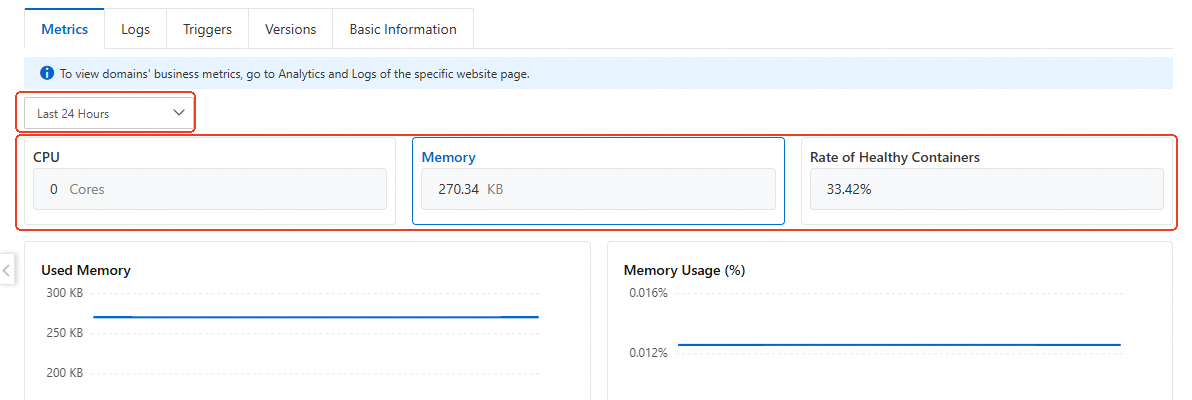
You can view container metrics such as CPU usage, memory usage, and rate of healthy containers for container runtime for a specific time period.
Log on to the ESA console, and in the left-side navigation pane, choose .
Select an existing application, and click Application ID or Details in the Actions column to jump to the Metrics page.
On the Metrics page, set the time range, and then click the CPU, Memory, or Rate of Healthy Containers area for data view.
Configure log delivery
You can push logs generated by containerized applications to a specified platform for storage and analysis. These logs provide the running status, performance metrics, and other information of containerized applications.
Log on to the ESA console, and in the left-side navigation pane, choose .
Select an existing application, and click Application ID or Details in the Actions column to jump to the Metrics page.
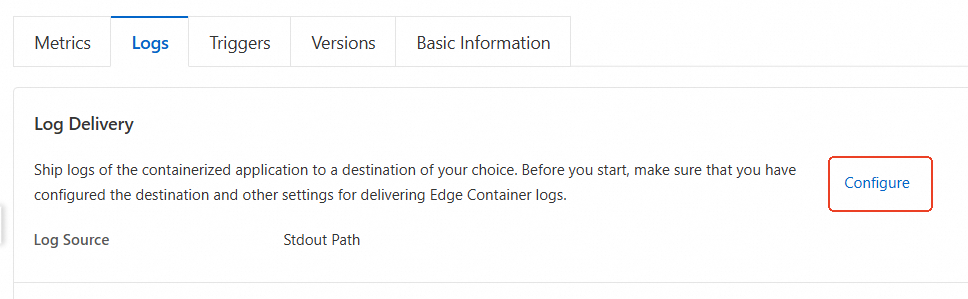
Select the Logs tab, click Configure, set the Log Source to Stdout Path or Disk File according to your requirement, and then click OK.
Stdout Path: Logs generated by the containerized application are written to the terminal or log file.
Disk File: Logs generated by the containerized application are written to the configured disk file.
Click Configure, and create a log delivery task in the Real-time Log page. For more information, see Create a delivery task.
Manage triggers
In the Triggers tab, you can associate the containerized application with a domain name. The system will add a DNS record so that you can access the containerized application through the domain name. If you no longer need access through the domain name, you can delete the domain name.
Log on to the ESA console, and in the left-side navigation pane, choose .
Select an existing application, and click Application ID or Details in the Actions column to jump to the Metrics page.
Select the Triggers tab to add or delete domain names.
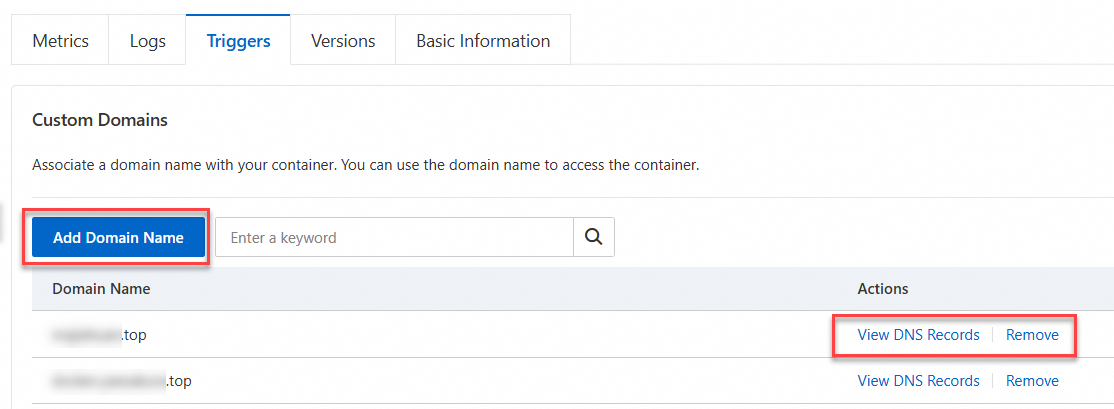
Add a domain name: Click Add Domain Name, enter the domain name that needs to be associated with the container application, and then click OK.
After the domain name is added, you can click View DNS Record to check DNS records. If your website is connected to ESA through CNAME, you need to configure the CNAME record at your DNS service provider.
Delete a domain name: Click Remove in the column Actions, and follow the prompts to delete the domain name.
After the domain name is deleted, the DNS record associated with it will also be deleted synchronously.
Version management
You can manage the lifecycle of containerized applications through features such as debugging, publishing, and rolling back to ensure the stability and reliability of containerized application runtime. You can create a version, configure its image information, container metrics, probe metrics and other settings, and then debug it in the test environment. Once everything is in order, you can publish the version to the production environment. You can also use the rollback feature to restore the production environment to the last version.
Log on to the ESA console, and in the left-side navigation pane, choose .
Select an existing application, and click Application ID or Details in the Actions column to jump to the Metrics page.
Select the Version Management tab.
Create a version
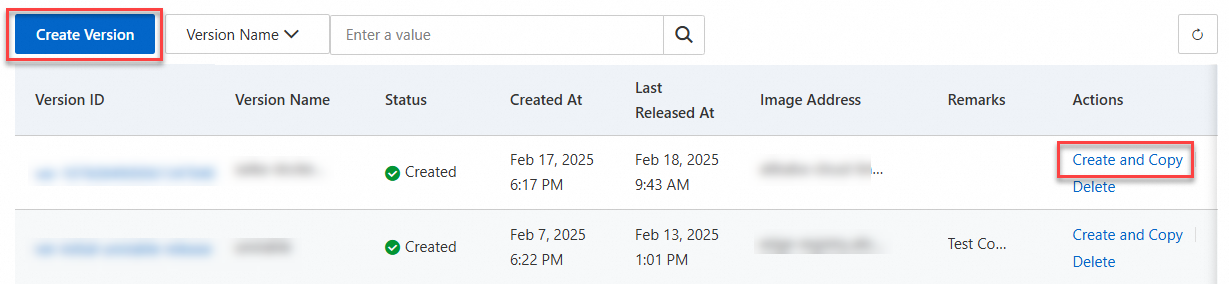
Click Create Version, and fill in version information, image settings, container settings, and other parameters. If some of your version parameters are the same as those of an created version, you can choose Create and Copy.
Debug a version
Click Publish in the Staging Environment, select the target version, and then click Publish.
After the version is published, click Instance Logon, and then you can debug the version in the terminal.
You can also click Instance Log to view logs generated during application startup or running.
Publish to production environment
Click Publish in Production Environment select the debugged version and set the publishing ratio in the pop-up dialog box, and then click Publish.
Roll back
Click Rollback in Production Environment and follow the prompts to restore the version to the last version.
Delete a containerized application
You can delete a containerized application using either of the following methods.
Method 1:
Log on to the ESA console, and in the left-side navigation pane, choose .
Select the application to be deleted, and click Delete in the column Actions.
Follow the prompts in the pop-up window to delete the application.
Method 2:
Log on to the ESA console, and in the left-side navigation pane, choose .
Select the created application, and click Application ID or Details in the Actions column to jump to the Metrics page.
Select the Basic Information tab, and click Delete on the application.
Read the prompts in the pop-up window, enter the application name, and then click OK.