Purging all cached content removes every cached resource for the site. If a high-traffic site has many files cached on Edge Security Acceleration (ESA), purging all cached content can cause a large increase in requests to your origin server, which may degrade your site's performance. This operation is irreversible. Use it with caution.
Use cases
You are performing large-scale updates to website content.
You are replacing or redeploying an entire website.
You need an emergency purge due to unexpected cache pollution.
Procedure
In the ESA console, choose Site Management. In the Website column, click the target site.
In the navigation pane on the left, choose .
On the Purge Cache tab, configure the refresh rule.
Set Type to Purge All Cache.
Purge Method: You can choose between two methods: Mark as Expired and Delete.
Refresh method
Description
Mark as Expired
Nodes are processed according to the following flow:
The ESA POP sends an origin request with the
If-Modified-Sincerequest header.The origin server compares the file modification time.
If the file is not modified, the origin server returns a 304 status code. The ESA POP can then use the existing cache file to respond to the client request.
If the file is modified, the origin server returns a 200 status code and the latest file. The ESA POP returns the latest file to the client and caches the resource.
Delete
If a user requests content that matches a resource to be refreshed, the ESA POP directly fetches the new resource from the origin, returns it to the user, and caches the new resource.
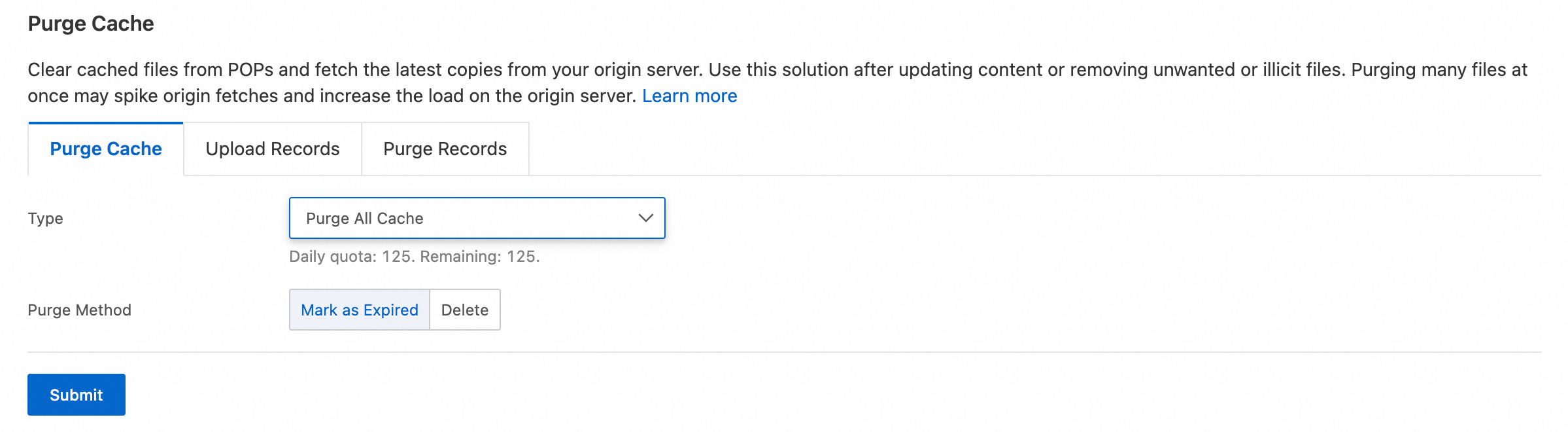
Click Submit.
View the refresh progress.
After submitting the purge task, you can view detailed records and progress of resource purging on the Purge Records tab. The purge task is complete when the progress reaches 100%. The progress varies with the number of objects that you want to purge. The purge task may require some time to complete.
Support by plan
Limit | Entrance | Pro | Premium | Enterprise |
Daily quota limit | 5 times | 80 times | 125 times | 200 times |