Tags are identifiers assigned to cloud resources. They help you classify, search for, and aggregate cloud resources that share common characteristics across different dimensions. Cost allocation tags are a specific type of tag designed for cost allocation and cost analysis. They provide a simple cost allocation tool suitable for scenarios that require allocation along a single dimension.
Feature Overview
Cost allocation tags allow you to manage and filter existing tags so they take effect in cost analysis scenarios. Specific use cases include the following:
Scenario | Description |
Bill details | Enabled tags appear in filters and page lists. |
Split bills | Enabled tags appear in filters and page lists. |
Cost analysis | Enabled tags appear in filters, groupings, and page lists. |
cost center | Enabled tags appear in filters and page lists. |
Other | Includes OSS billing data and data returned by billing APIs. Filtering logic matches the scenarios above. |
Procedure
Prerequisites
You have already added tags to instance resources in each cloud product console.
New tags created in cloud product consoles take one day (T+1) to sync to the cost allocation tags list in Expenses and Costs.
The cost allocation tags feature is free to use. If you do not enable it, all tags appear on Expenses and Costs pages without filtering.
Enable tags
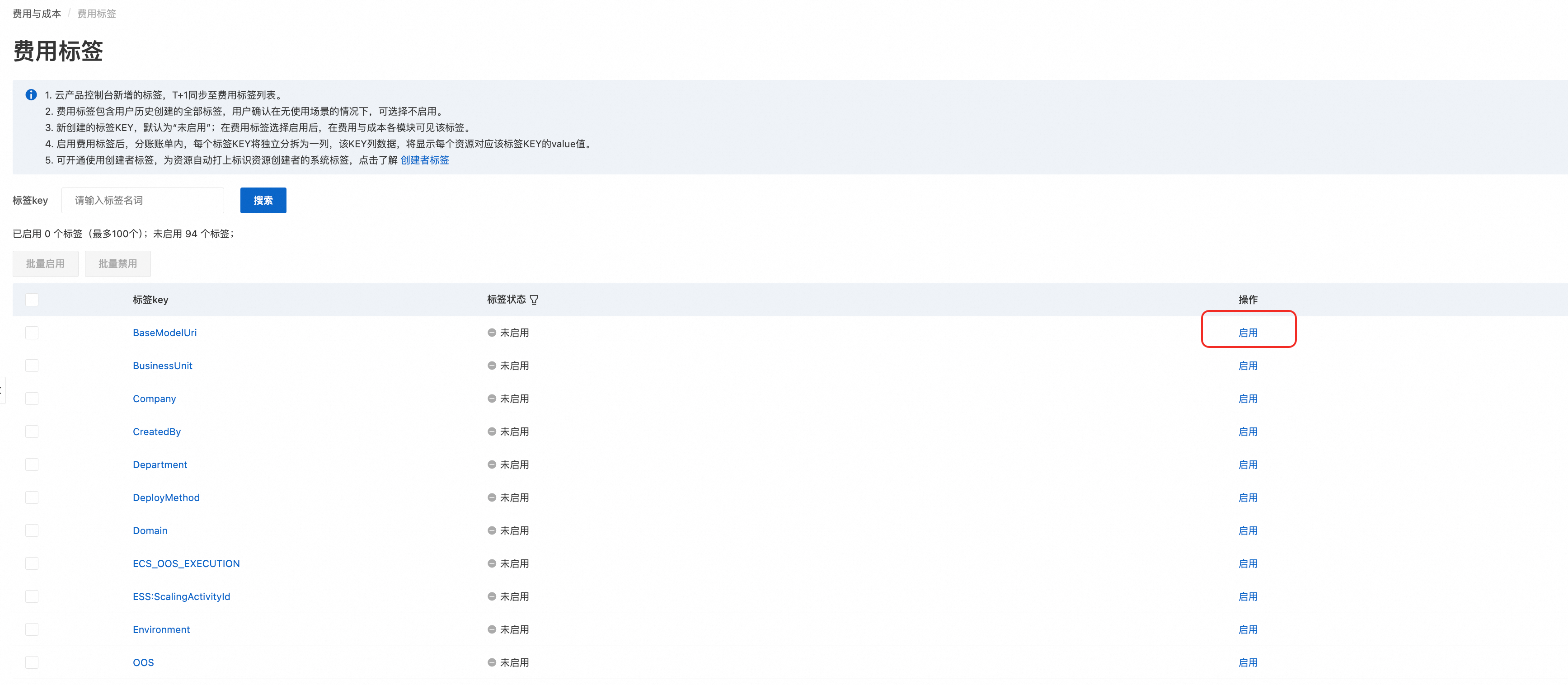
Tags synced to the cost allocation tags list are disabled by default. You must manually enable them before they become available in Expenses and Costs management.
Log on to the Expenses and Costs console.
In the navigation pane on the left, choose .
In the cost allocation tags list, select the target tag and click Enable. You can also select multiple tags and perform a Batch Enable. After you enable a tag, it appears on all Expenses and Costs pages.

If you do not enable any tags on the Cost Allocation Tags page, no tags appear on Expenses and Costs management pages. This list includes all tags you have ever created. If you confirm you have no use case for a tag, you can choose not to enable it.
You can enable up to 100 tag keys.
In enterprise financial management scenarios, the master account (MA) can view cost allocation tags from all member accounts.
Disable tags
If you delete a tag key or no longer need a tag key for cost allocation in Expenses and Costs management, disable the tag key.
Log on to the Expenses and Costs console.
In the navigation pane on the left, choose .
In the cost allocation tags list, select the target tag and click Disable. You can also select multiple tags and perform a Batch Disable.
To use the legacy Expenses and Costs console, in the navigation pane on the left, choose to go to the Cost Allocation Tags page. There, you can enable or disable your target tags.