This topic describes how to create a connector in DataHub to synchronize data to Hologres. It also covers important notes and potential issues.
Preparations
Prepare a Hologres instance and table schema
Create a Hologres instance in the Hologres console. When DataHub synchronizes data to Hologres, it maps DataHub field data types to the corresponding Hologres table data types. The following table lists the data type mappings.
DataHub | Hologres |
TINYINT | SMALLINT |
SMALLINT | SMALLINT |
INTEGER | INTEGER |
BIGINT | BIGINT |
FLOAT | REAL |
DOUBLE | DOUBLE PRECISION |
DECIMAL | DECIMAL |
STRING | TEXT |
BOOLEAN | BOOLEAN |
TIMESTAMP | TIMESTAMPTZ |
Hologres V2.0 and later support four new DataHub data types: TINYINT, SMALLINT, INTEGER, and FLOAT.
Create a sync task
In DataHub, click a topic to open its details page.
Click the
 icon in the upper-right corner of the topic details page.
On the New Connector page, click Hologres. In the New Connector dialog box, configure the parameters and click Create.
Hologres supports synchronization to partitioned tables. After you create a partitioned table in Hologres, a sync task automatically synchronizes data based on the partition field.
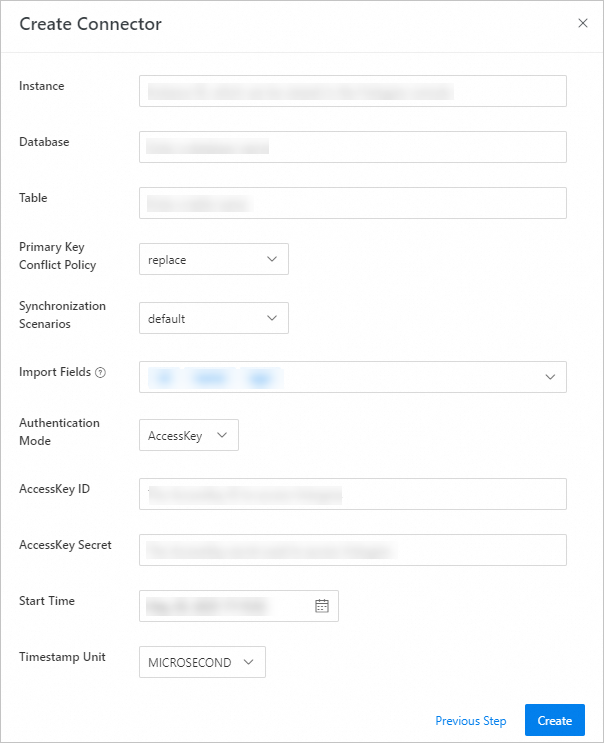
Parameter description:
Parameter
Description
Notes
Instance
The ID of the Hologres instance.
Go to the Hologres console. In the navigation pane on the left, click Instance List to view the Instance ID.
DataBase
The name of the Hologres database.
None
Table
The name of the Hologres table that receives data.
None
Primary key sync policy
The policy for synchronizing data from DataHub when the Hologres table has a primary key.
replace: If a primary key conflict occurs during a write operation, the new data overwrites the old data.
ignore: If a primary key conflict occurs during a write operation, the new data is ignored and the existing data is retained.
Sync scenario
The mode for synchronizing data from DataHub to Hologres.
default: Writes DataHub data to Hologres record by record.
dts_old: Disables the new rule for additional columns.
dts: Enables the new rule for additional columns.
Import Fields
The fields to import into Hologres.
You can import some or all fields as needed.
Auth Mode
The default value is AK.
None
AccessId
The AccessKey ID used to access the Hologres instance.
You can click AccessKey Management to obtain your AccessKey ID.
AccessKey
The AccessKey secret used to access the Hologres instance.
You can click AccessKey Management to obtain your AccessKey secret.
Start Time
The earliest time from which to synchronize data.
None
TimestampUnit
The time unit for synchronization.
If the data contains fields of the TIMESTAMP type, the values are converted based on the specified TimestampUnit and then written to the date-type field in the downstream system.
NoteThe
dtsanddts_oldsync modes are for scenarios where data is written from Data Transfer Service (DTS) to DataHub and then synchronized to Hologres.For more information about the rules for additional columns, see the Hologres document Import data from DataHub.
Synchronize data from DataHub to Hologres.
After the connector is created, you can view the real-time data synchronization status on the Sync Tasks tab of the topic details page.
Query data in Hologres.
Connect your Hologres instance to a developer tool to query the synchronized data in real time. For more information, see Connect to a Hologres instance. The following is a sample search statement.
SELECT COUNT(*) FROM lineitem;
Appendix 1: FAQ
Error when creating a sync task
ErrorCode=NoPermission; ErrorMessage=Rejected by IP whitelistSolution: Hologres uses an IP whitelist in HoloWeb for access management. If this error occurs, check your IP whitelist settings in HoloWeb. For details about how to add the DataHub IP addresses to the whitelist, see IP whitelist.