A quota is the maximum number of cloud resources or operations you can use in your Alibaba Cloud account. In Quota Center, you can view the limits and usage of your Elastic Compute Service (ECS) quotas, request quota increases, and create quota alerts. This topic explains how to manage ECS quotas.
How quotas are allocated
The system dynamically adjusts your quotas based on your actual usage. You do not need to request a quota increase solely to maintain many instances over time. Only request an increase when you anticipate a significant surge in usage.
ECS-related quotas
When managing ECS quotas in Quota Center, focus on the following resource quota types:
General Quotas: This type of quota limits the cloud resources in your account, such as the maximum number of security groups.
Ecs Quotas by Instance Type: The maximum number of vCPUs for an ECS instance type, cards for a GPU-accelerated instance, or vGPU-accelerated instances in a single Alibaba Cloud account. This quota is specific to a region and billing method.
Elastic Compute Service general quotas: Quota limits for resources such as images and security groups.
Elastic Block Storage (EBS) general quotas: Quota limits for different types of cloud disks in a single Alibaba Cloud account for a specific region and zone.
API Rate Limits: This type of quota limits the frequency of OpenAPI calls. For example, the rate limit for the
RunInstancesAPI operation could be100/60(s).Elastic Compute Service: API rate limits for operations related to resources like images, security groups, and block storage for API version
2014-05-26.ImportantYou cannot currently request an increase for ECS API rate limits.
Elastic Block Storage: API rate limits for advanced block storage features for API version
2021-07-30.
Manage general quotas for ECS
General quotas limit the cloud resources in your account, such as the maximum number of security groups.
View or increase ECS instance type quotas
ECS instance type quotas limit the maximum number of vCPUs, GPU cards, or vGPU-accelerated instances in a single Alibaba Cloud account. These quotas are specific to a region and billing method.
Go to the General Quotas of Ecs Quotas by Instance Type page.
Select the region that you want to view.

In the quota list, view or request an increase for a quota.
To view a quota: The value in the Total Quotas column shows the quota's upper limit, and the value in the In Use column is the current usage.
NoteYou can find a quota item by the instance type you want to view. For the mapping between quota items and instance types, see vCPU quota items and GPU and vGPU quota items.
To request a quota increase:
In the Actions column, click Apply.
ImportantIf Unadjustable is displayed in the Actions column, you cannot request an increase for that quota.
In the dialog box, set Applied Quotas and Reason. Keep the default value for Notify Result.
NoteTo improve the approval chance, specify a reasonable quota value and provide a detailed reason.
You will receive the result by SMS and email.
Click OK.
In the left-side navigation pane, click Application Records to view the approval status of your quota increase request.
A status of Approved indicates a successful increase.
View or increase ECS quotas
ECS quotas include limits for resources such as images and security groups.
Go to the General Quotas of Elastic Compute Service page.
Select the region that you want to view.
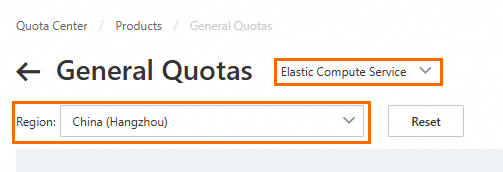
In the quota list, view or request an increase for a quota.
To view a quota: The value in the Total Quotas column shows the quota's upper limit, and the value in the In Use column is the current usage.
NoteIf you know the quota ID of a quota item, you can use it to find the item. If not, you can find the item by its name and description.
To request a quota increase:
In the Actions column, click Apply.
ImportantIf Unadjustable is displayed in the Actions column, you cannot request an increase for that quota.
In the dialog box, set Applied Quotas and Reason. Keep the default value for Notify Result.
NoteTo improve the approval chance, specify a reasonable quota value and provide a detailed reason.
You will receive the result by SMS and email.
Click OK.
In the left-side navigation pane, click Application Records to view the approval status of your quota increase request.
A status of Approved indicates a successful increase.
View or increase EBS quotas
EBS quotas limit the different types of cloud disks in a single Alibaba Cloud account for a specific region and zone.
Go to the General Quotas of Elastic Block Storage page.
Select the region and zone that you want to view.
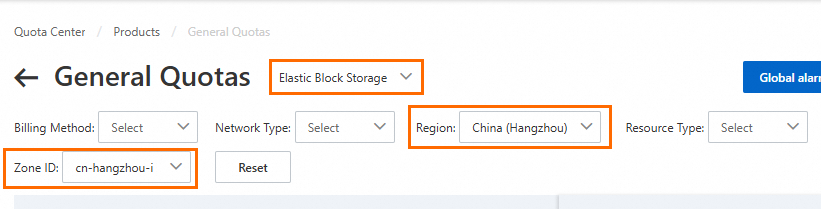
In the quota list, view or request an increase for a quota.
To view a quota: The value in the Total Quotas column shows the quota's upper limit, and the value in the In Use column is the current usage.
NoteIf you know the quota ID of a quota item, you can use it to find the item. If not, you can find the item by its name and description.
To request a quota increase:
In the Actions column, click Apply.
ImportantIf Unadjustable is displayed in the Actions column, you cannot request an increase for that quota.
In the dialog box, set Applied Quotas and Reason. Keep the default value for Notify Result.
NoteTo improve the approval chance, specify a reasonable quota value and provide a detailed reason.
You will receive the result by SMS and email.
Click OK.
In the left-side navigation pane, click Application Records to view the approval status of your quota increase request.
A status of Approved indicates a successful increase.
Manage ECS API rate limits
An API rate limit defines the maximum frequency of OpenAPI calls. For example, the rate limit for the RunInstances API operation is 100/60(s).
View ECS API rate limits
ECS API rate limits apply to API version 2014-05-26 for resources such as images, security groups, and block storage. You cannot currently request an increase for ECS API rate limits.
Go to the API Rate Limits of Elastic Compute Service page.
Select the region that you want to view.
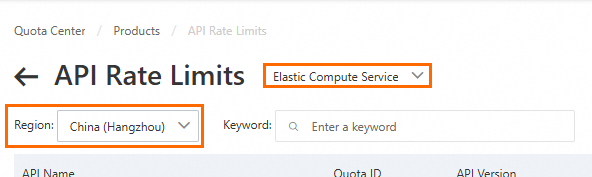
In the quota list, view the rate limit. The value in the Total Quotas column is the upper rate limit for the corresponding API.
NoteYou can find a quota item by its API Name and view its rate limit.
View or increase EBS API rate limits
This section covers API rate limits for advanced block storage features for API version 2021-07-30.
Go to the API Rate Limits of Elastic Block Storage page.
Select the region that you want to view.
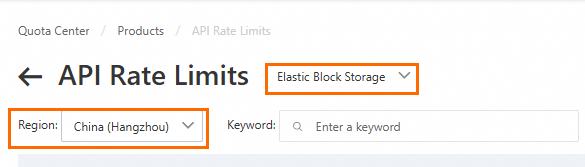
In the quota list, view or request an increase for a rate limit.
To view a rate limit: The value in the Total Quotas column shows the upper rate limit for the corresponding API.
NoteYou can find a quota item by its API Name and view its rate limit.
To request a rate limit increase:
In the Actions column, click Apply.
ImportantIf Unadjustable is displayed in the Actions column, you cannot request an increase for that rate limit.
In the dialog box, set Applied Quotas and Reason. Keep the default value for Notify Result.
NoteTo improve the approval chance, specify a reasonable quota value and provide a detailed reason.
You will receive the result by SMS and email.
Click OK.
In the left-side navigation pane, click Application Records to view the approval status of your rate limit increase request.
A status of Approved indicates a successful increase.
References
Call the DescribeAccountAttributes operation to query your resource creation quotas in a specific region. These quotas include the number of security groups, Elastic Network Interfaces (ENIs), vCores for pay-as-you-go and spot instances, total capacity for pay-as-you-go cloud disks, dedicated hosts, network types, and whether your account has completed real-name verification.
Quota Alerts: Create an alert for a quota item to receive a notification when your usage reaches a preset threshold. This allows you to request a quota increase in advance.
Query applications and view application details: After submitting a quota increase request, you can track the approval status of your applications.
For more operations related to quotas, see Quota Center documentation.