You can use the Global Search feature of Elastic Compute Service (ECS) to quickly search for and manage resources and documents in the current account. Global Search supports multi-resource queries, quick operation shortcuts, direct menu access, and fast document retrieval, providing you with a one-stop resource management experience.
Features
The following table describes the features supported by ECS Global Search.
Feature | Description |
Searches for resources, such as instances, images, security groups, elastic network interfaces (ENIs), cloud disks, and snapshots. You can enter keywords such as resource IDs or names to quickly view resource details. | |
Quickly invokes common operations, such as restarting and connecting to instances. You only need to enter the name of an operation to quickly invoke the operation. | |
Quickly finds and obtains detailed information about operation guides and API documents by keywords, such as batch start and batch stop, reducing search time. | |
Directly accesses pages without navigating to them from multi-level menus. | |
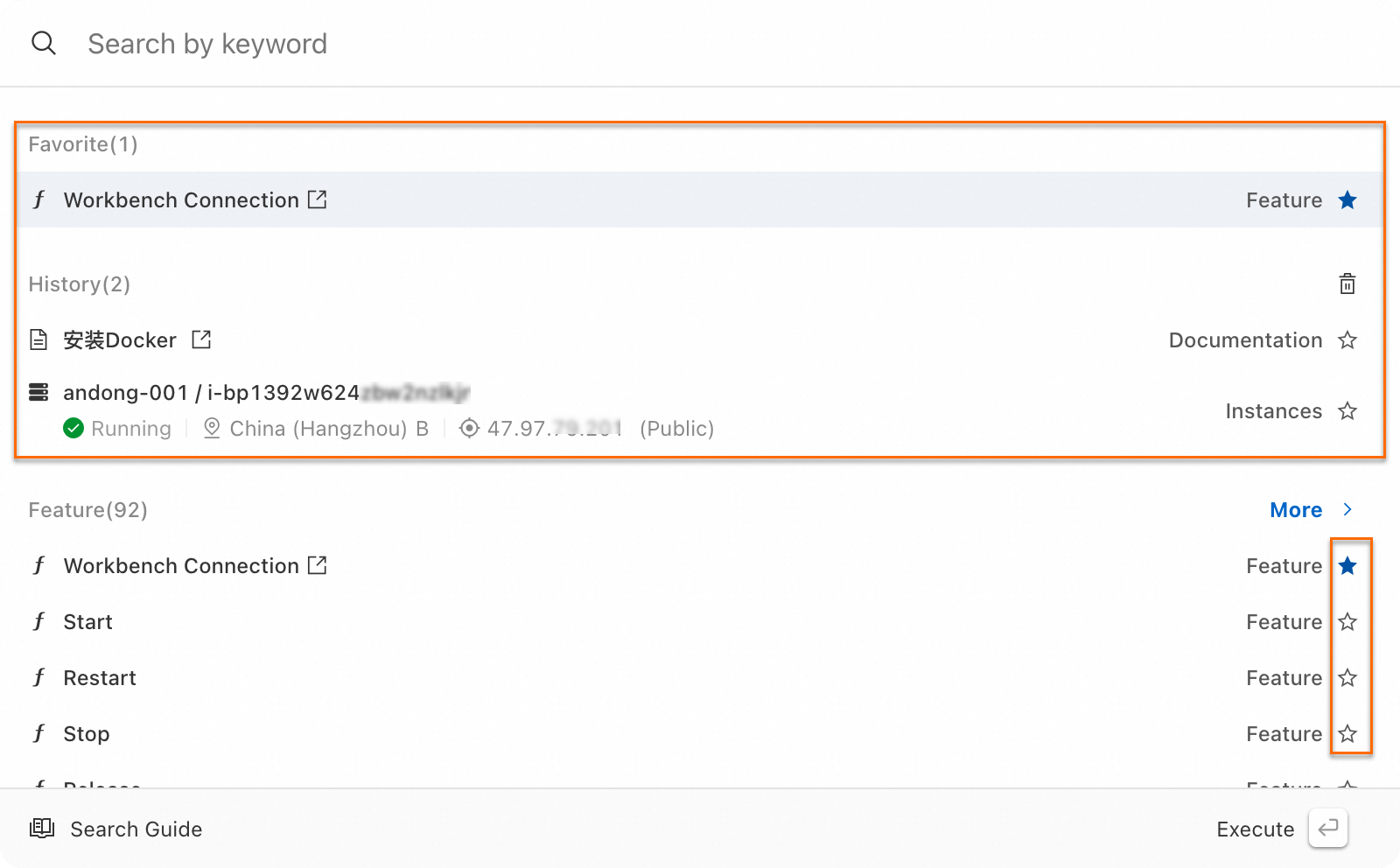
Saves features, menus, documents, or API operations as favorites or records historical operations for easy future reference. |
The following figure shows the Global Search dialog box.
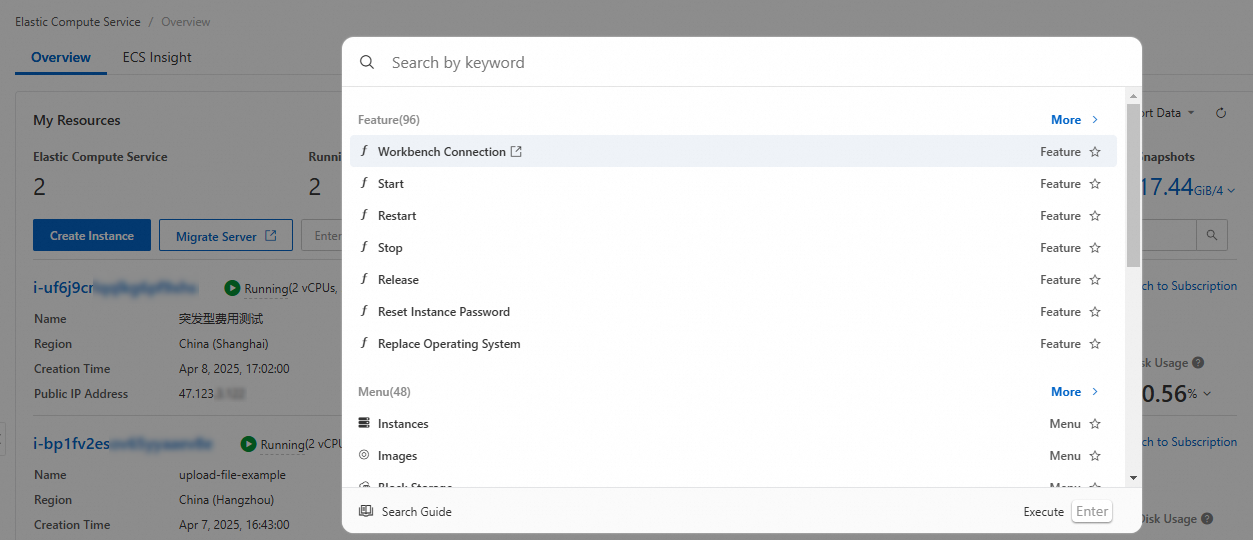
Open the Global Search dialog box
Use one of the following methods:
Method 1: On the sidebar of the ECS console, click the
 icon.
icon. Note
NoteIf the sidebar of the ECS console is hiden, click the
 icon in the lower-right corner of the ECS console to show it.
Method 2: Click the search box on the Overview tab of the Overview page.

Method 3: Press
⌘+/for macOS andCtrl+/for Windows at any location in the ECS console.For information about more keyboard shortcuts of the Global Search feature, see Keyboard shortcuts.
Keyboard shortcuts
We recommend that you use keyboard shortcuts to efficiently complete searches. You can view how to use keyboard shortcuts in the Search Guide in the lower-left corner of the Global Search dialog box.
The following figure shows the keyboard shortcuts in macOS. The keyboard shortcuts in Windows differ from those in macOS.
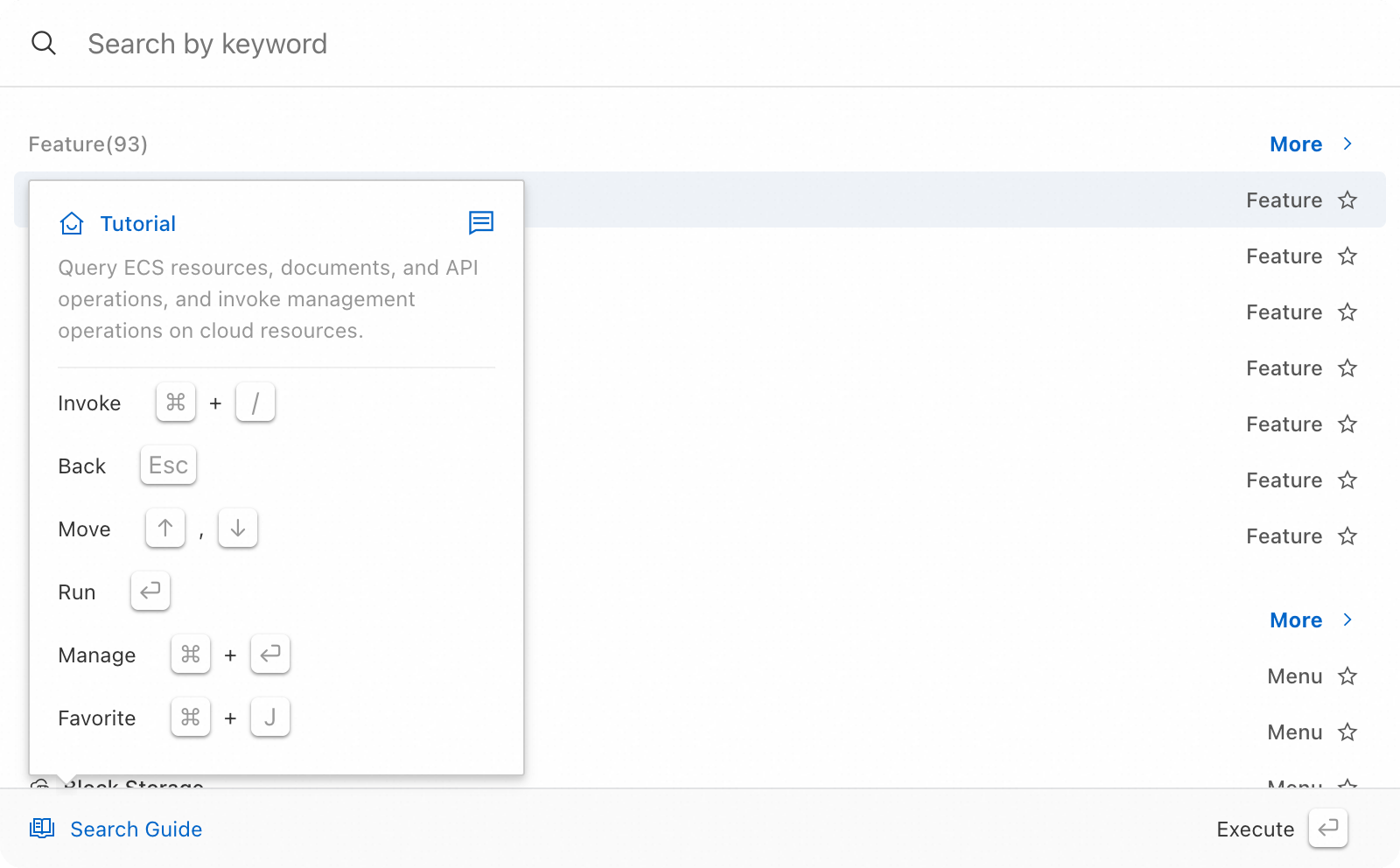
The following table describes the keyboard shortcuts.
Feature | Shortcut (macOS) | Shortcut (Windows) |
Invoke: Quickly opens or closes the Global Search dialog box. |
|
|
Back: Undos one step. |
|
|
Move: Moves up or down the cursor. |
|
|
Run: Performs the current operation. |
|
|
Manage: Opens the operation panel of the current resource. |
|
|
Favorite: Saves the current feature, menu, document, or API operation as a favorite. |
|
|
Usage guide
Search for resources
You can quickly find resources such as instances and disks by keywords, such as resource IDs and names, and quickly go to the details page of a resource.
Search for resources in the search box by entering keywords, such as resource IDs, resource names, and IP addresses. You can query multiple resources at a time. To batch query resources, separate the keywords with commas (,).
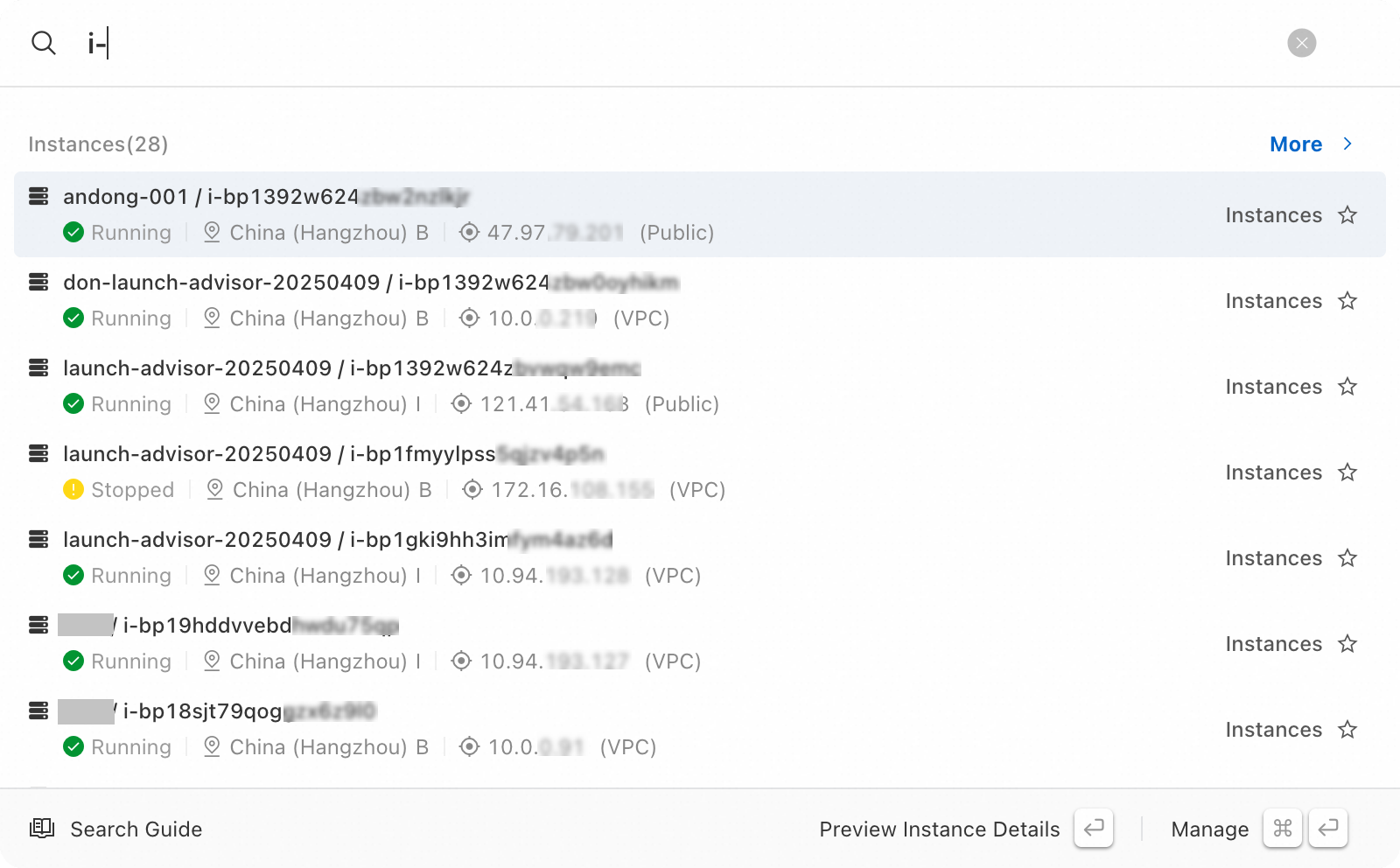
Click a resource in the resource search results or More to view more resource details.
The following figure shows detailed information about an instance.
NoteThe following figure shows shortcuts in macOS. For Windows, the shortcuts displayed in the actual search results prevail.
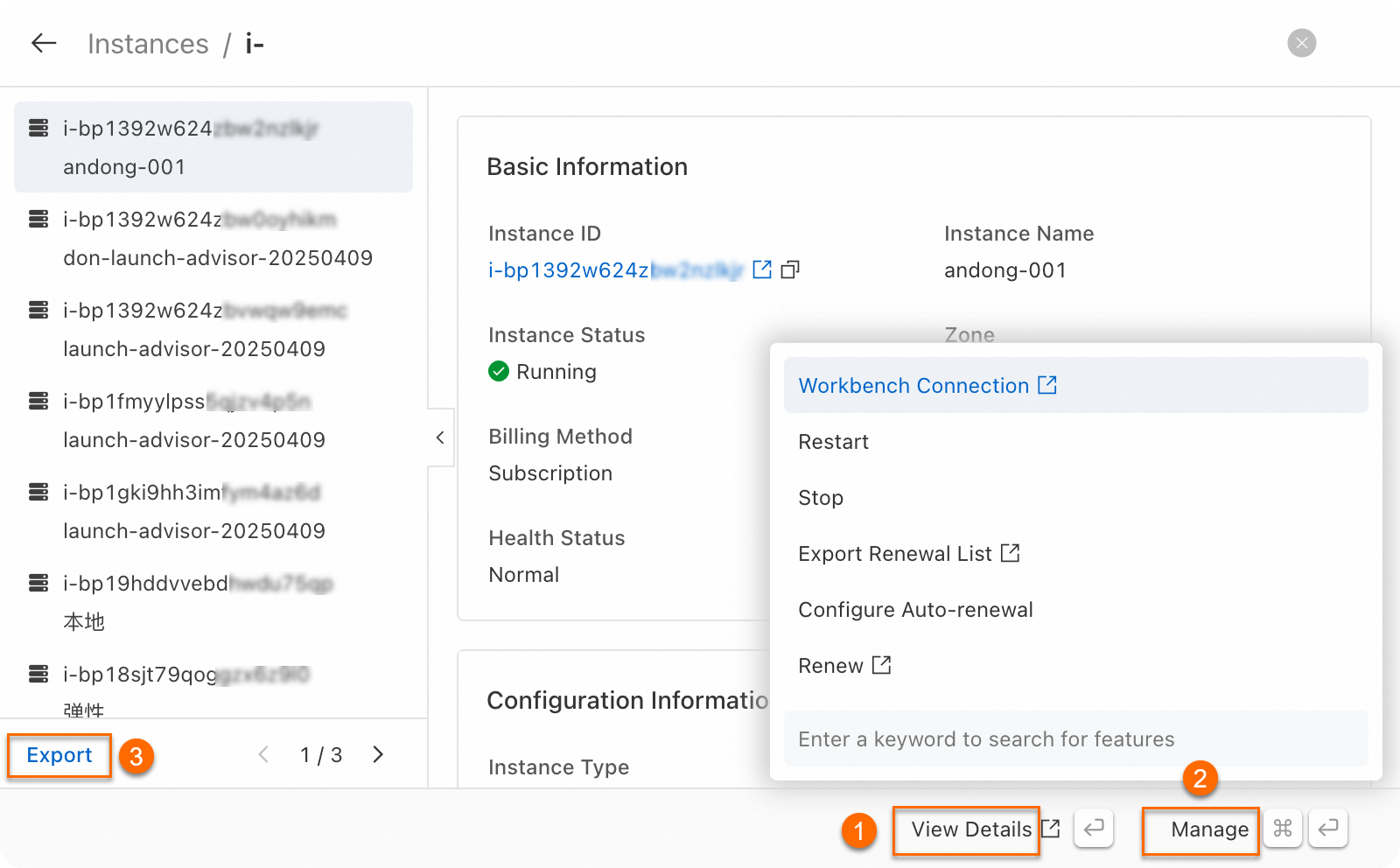
On the resource details page, you can perform the following operations:
①: View resource details. Click View Details in the lower-right corner of the dialog box or use the shortcut
⏎to go to the corresponding resource details page to view more information.②: Perform related operations. Click Manage in the lower-right corner of the dialog box or use the shortcut
⌘+⏎to quickly perform related operations. You can also use the search box at the bottom to find more executable operations.③: Batch export resources. Click Export to export the resources displayed in the current dialog box.
Invoke operations
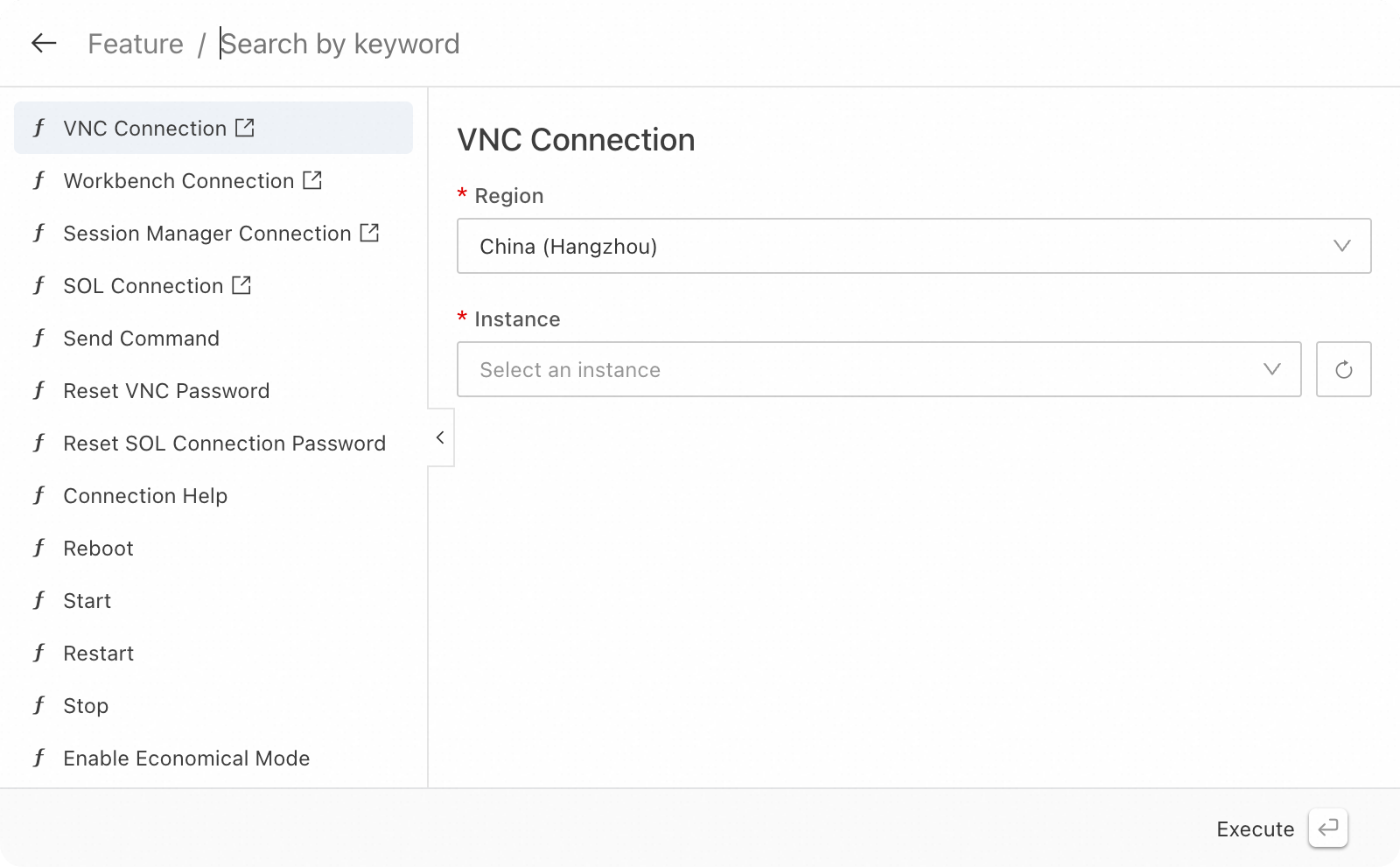
To perform certain operations on an instance, you only need to enter your requirements. Global Search helps you quickly invoke the operations.
You can enter keywords such as Connection, Change Operating System in the search box to quickly invoke related operations.
Query documents
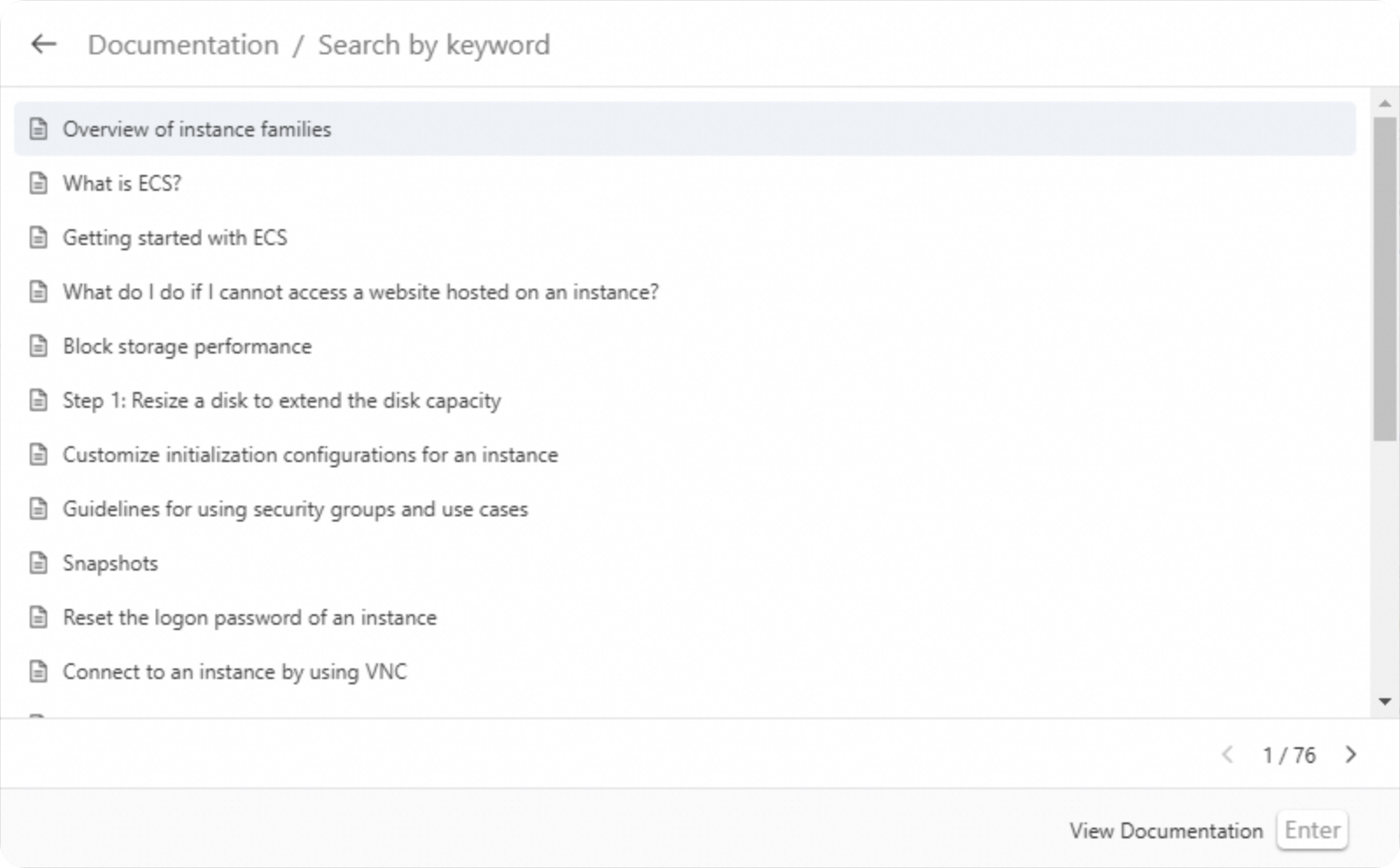
Use Global Search to quickly query ECS operation guides or API documents.
For example, if you want to run Docker containers on ECS instances but are unsure how to install Docker or start containers, you can search for Docker-related documents to obtain detailed operation guidance. Therefore, you can enter the Docker keyword in the search box, find the target document in the search results, and then directly open the document in the help center.
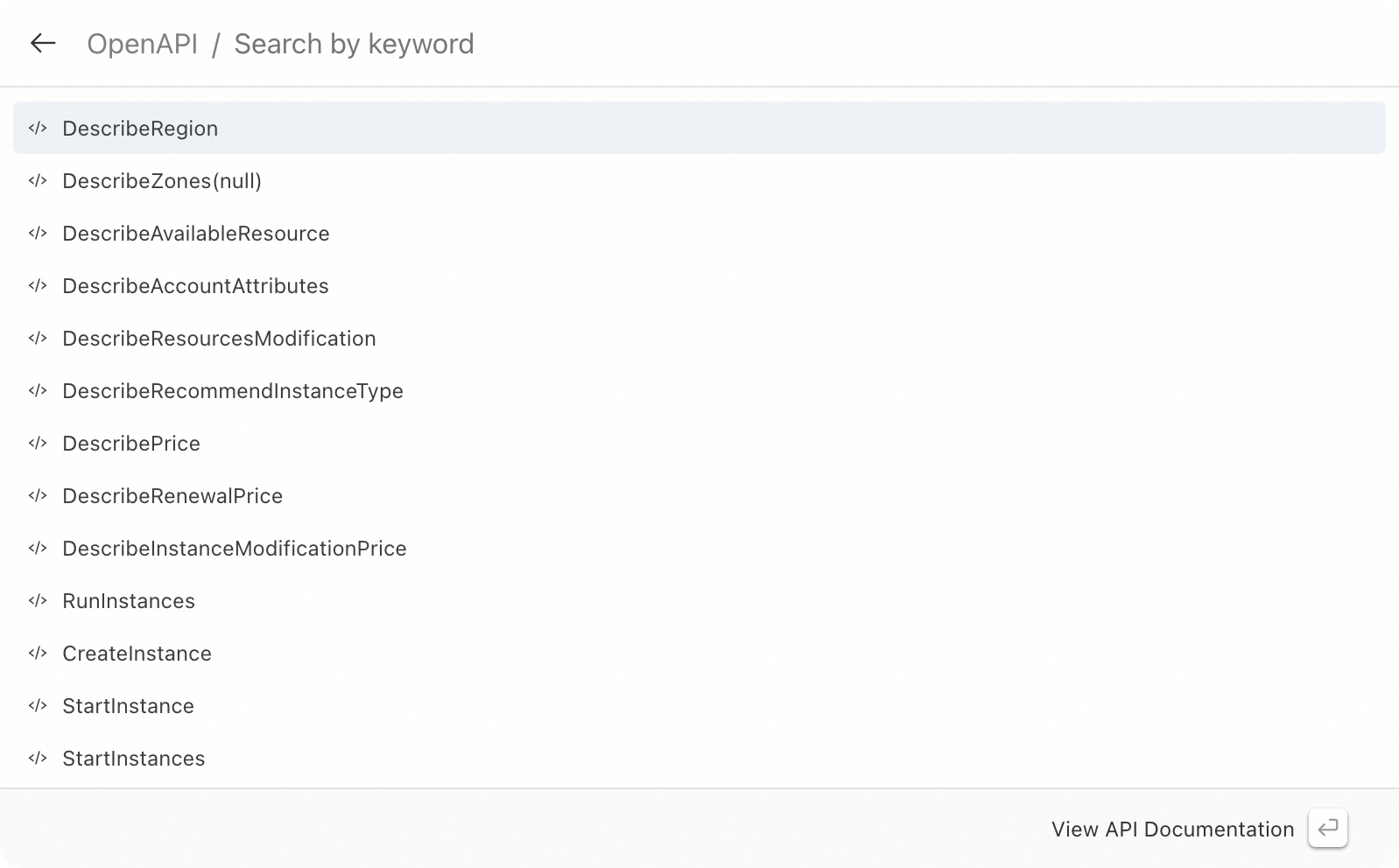
For example, if you want to batch create ECS instances with custom configurations, such as specifying instance hostnames and tags, you can search for the API operation used to batch create ECS instances and learn about how to call this operation. Therefore, you can enter RunInstances in the search box, find the API operation in the search results, and then directly go to the RunInstances page. You can call the operation or view the operation documentation.
Directly access pages
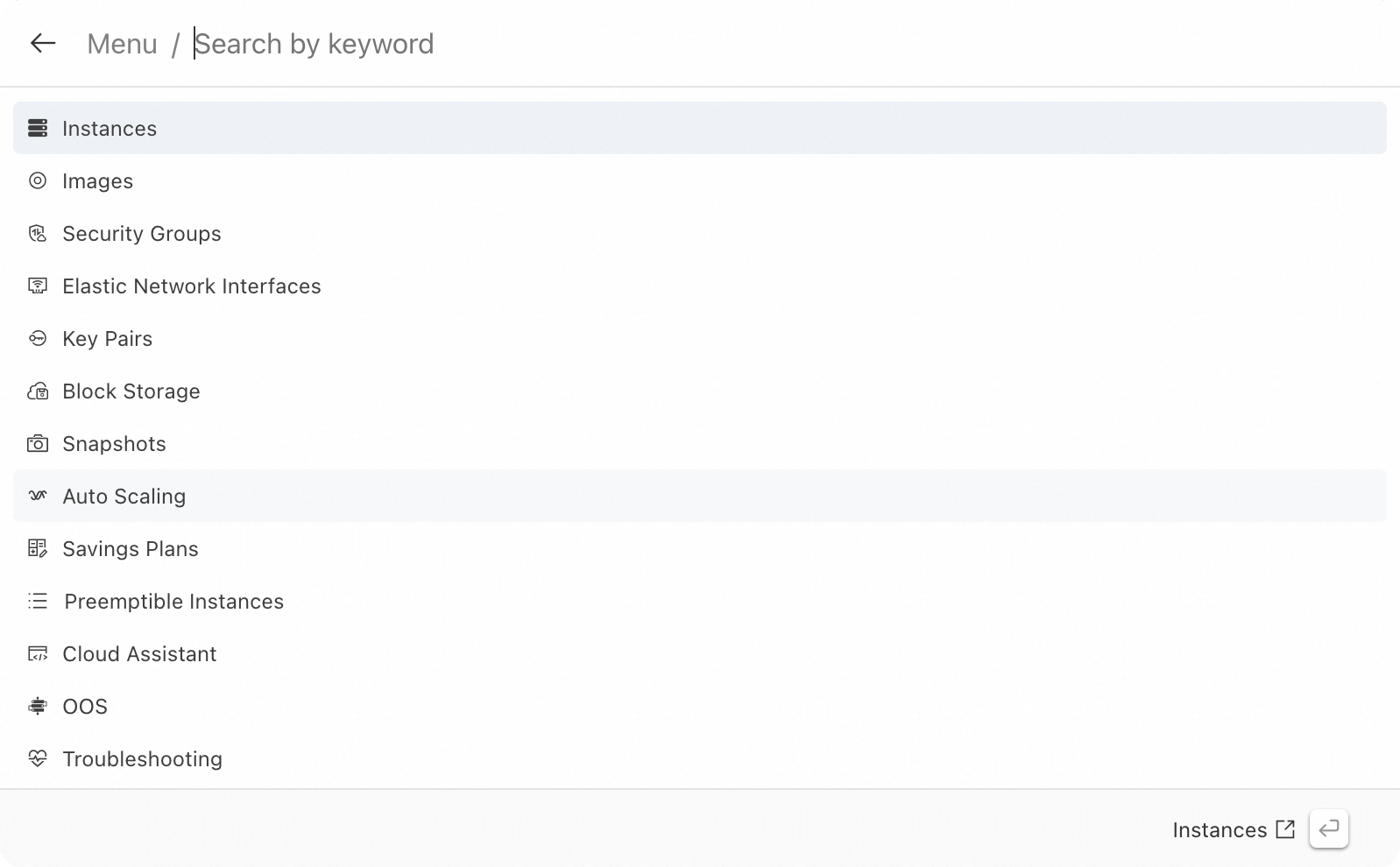
Global Search allows you to quickly access a specific business page without the need to navigate to it by multi-level menus.
For example, you can enter a menu keyword such as Instance, Image, or Security Group in the search box, find the target menu in the search results, and then directly go to the target page.
Save search results as favorites and history entries
Click the  icon in a search result entry in the Global Search dialog box to save frequently used features, menus, documents, or API operations as favorites. Saved resource information is displayed in the Favorite section. Historical search data is displayed in the History section for your future reference.
References
If tags are added to your ECS resources, you can enter tag information to retrieve resources. For more information, see Tags.
If your ECS resources are added to a resource group, you can enter the resource group name to retrieve the resources. For more information, see Resource groups.